


When moving your Shopify store to a new platform, switching FAQ apps, or simply doing a full store, one of the most overlooked but critical tasks is preserving your FAQ content. In any migration, it usually stays as an afterthought. Your FAQ page represents hours of effort, carefully written questions, answers refined through customer feedback, and a structure built to reduce support tickets. Losing all of that during a migration is a real risk, and doing it manually is a waste of valuable time.
This guide walks you through the process of migrating FAQs in Shopify using StoreFAQ, an AI-powered Shopify FAQ app built specifically for merchants who want a faster, smarter way to manage their FAQ content. Whether you are moving from another app, switching stores, or setting up FAQs from scratch, this blog will give you a clear picture of migrating FAQs, why it matters, and how StoreFAQ makes it easier.
TL;DR (Too Long, Did Not Read?)
| What this guide covers | How to export and import FAQs in Shopify using StoreFAQ |
| Primary use case | Migrating FAQ content between Shopify stores or from another FAQ app |
| App used | StoreFAQ — AI-powered Shopify FAQ app |
| Export format | CSV file containing all FAQ questions, answers, and categories |
| Import method | Bulk CSV upload directly inside StoreFAQ |
| Why it matters | Saves hours of manual re-entry and prevents content loss during store migration |
| Best for | Store owners migrating stores, rebranding, or switching FAQ tools |
| Bonus feature | AI-powered answer generation to fill in gaps after migration |
Why Migrating FAQs Properly Matters for Your Shopify Store
This section covers the real cost of ignoring FAQ migration and explains why your FAQ content is more valuable than most store owners realize.
When merchants plan a Shopify migration, they usually focus on products, orders, and customer data. FAQ content rarely makes the priority list. That is a mistake. Your FAQ page is a direct line of communication between your store and your customers. It answers questions about shipping, returns, product care, sizing, and hundreds of other concerns before a customer even thinks about reaching out to support.
A well-maintained FAQ page does more than reduce support volume. It builds trust. When a customer lands on a detailed, well-organized FAQ section, they feel more confident about making a purchase.
According to Shopify research, self-service content like FAQs significantly reduces support load and improves customer satisfaction. Losing that content during a migration means rebuilding trust from scratch.
Beyond the customer experience, FAQ pages also carry SEO value. Over time, your FAQ answers can rank in Google search results, especially for question-based queries. If you lose your FAQ content during a migration and have to start over, you lose that ranking potential too. The proper way to handle this is a structured export and import process, which is exactly what StoreFAQ is designed for.
What Is StoreFAQ, And Why Use It for FAQ Migration?
Before we dive into migrating FAQs, let’s get introduced to StoreFAQ first and know what sets it apart from basic FAQ apps. We will also highlight the features that make it particularly useful for migrations.
StoreFAQ is an AI-powered FAQ app built natively for Shopify. It gives store owners a centralized place to create, organize, and display FAQ content without needing to code or install complex third-party scripts. The app focuses on simplicity for merchants and clarity for customers with a clean FAQ widget that can be embedded anywhere on a Shopify storefront.
What makes StoreFAQ stand out from generic Shopify FAQ apps is its combination of AI assistance and bulk management features. Merchants can use AI to generate high-quality answers to common questions, customize the look and feel of their FAQ widget, and manage everything from a single dashboard. For store migrations specifically, StoreFAQ supports bulk CSV export and import, which means you can move your entire FAQ library in minutes rather than hours.
Here is a quick breakdown of the StoreFAQ features most relevant to migrations:
- Bulk CSV Export: Download all your FAQ questions, answers, and categories into a single structured file.
- Bulk CSV Import: Upload a formatted CSV to populate your FAQ library instantly on a new store.
- AI-Generated Answers: After migration, use AI to refine, expand, or fill in missing answers.
- Category Management: Organize FAQs into topic-based categories that carry over during the migration.
- Customizable Widget: Your FAQ display style can be reconfigured quickly after import.
Whether you are a solo store owner or managing multiple Shopify stores, StoreFAQ removes the friction from FAQ migration entirely.
Common Scenarios Where You Need to Migrate FAQs
This section highlights the most common real-world situations where exporting and importing FAQs become necessary, helping readers identify if this applies to them.
Not every store owner is in the middle of a full platform migration. In fact, there are several everyday scenarios where FAQ migration becomes necessary. Understanding your specific situation helps you approach the process with the right plan.
Switching from Another Shopify FAQ app
If you are moving from a different Shopify FAQ app to StoreFAQ, your existing FAQ content is trapped inside the old app’s database. Without an export feature, you would have to manually copy every question and answer, one by one. StoreFAQ’s import feature is designed to accept a standard CSV format, which many apps support as an export option. This makes cross-app migration much more straightforward.
Migrating to a New Shopify Store
Store owners sometimes create a completely new Shopify store for a rebrand, a market expansion, or simply a fresh start. When this happens, all existing FAQ content stays attached to the old store. Exporting your FAQs from StoreFAQ on the old store and importing them to the new one lets you carry everything forward without data loss.
Creating a Staging or Development Store
Developers and store managers who work with a staging environment often need to replicate production data, including FAQ content, for testing purposes. The export and import workflow makes it easy to sync FAQ content between environments.
Backing Up FAQ Content Before A Major Update
Even if you are not migrating anywhere, exporting your FAQs as a CSV is simply good practice before making major changes to your store. It gives you a clean backup you can restore from if something goes wrong.
Inheriting Or Taking Over an Existing Store
Agencies and freelancers who take over Shopify stores on behalf of clients often need to reorganize or migrate existing content. Having FAQ data in a portable CSV format makes the handover process cleaner and more professional.
How to Import And Export FAQs on Your Shopify Store Using StoreFAQ?
Now that you know why you might have to migrate FAQs, let’s see how to migrate FAQs in Shopify using StoreFAQ. Before you proceed, you have to install StoreFAQ Shopify app first.
So, find and install the app from the ‘Apps’ option in your Shopify admin dashboard. Then, follow these steps:
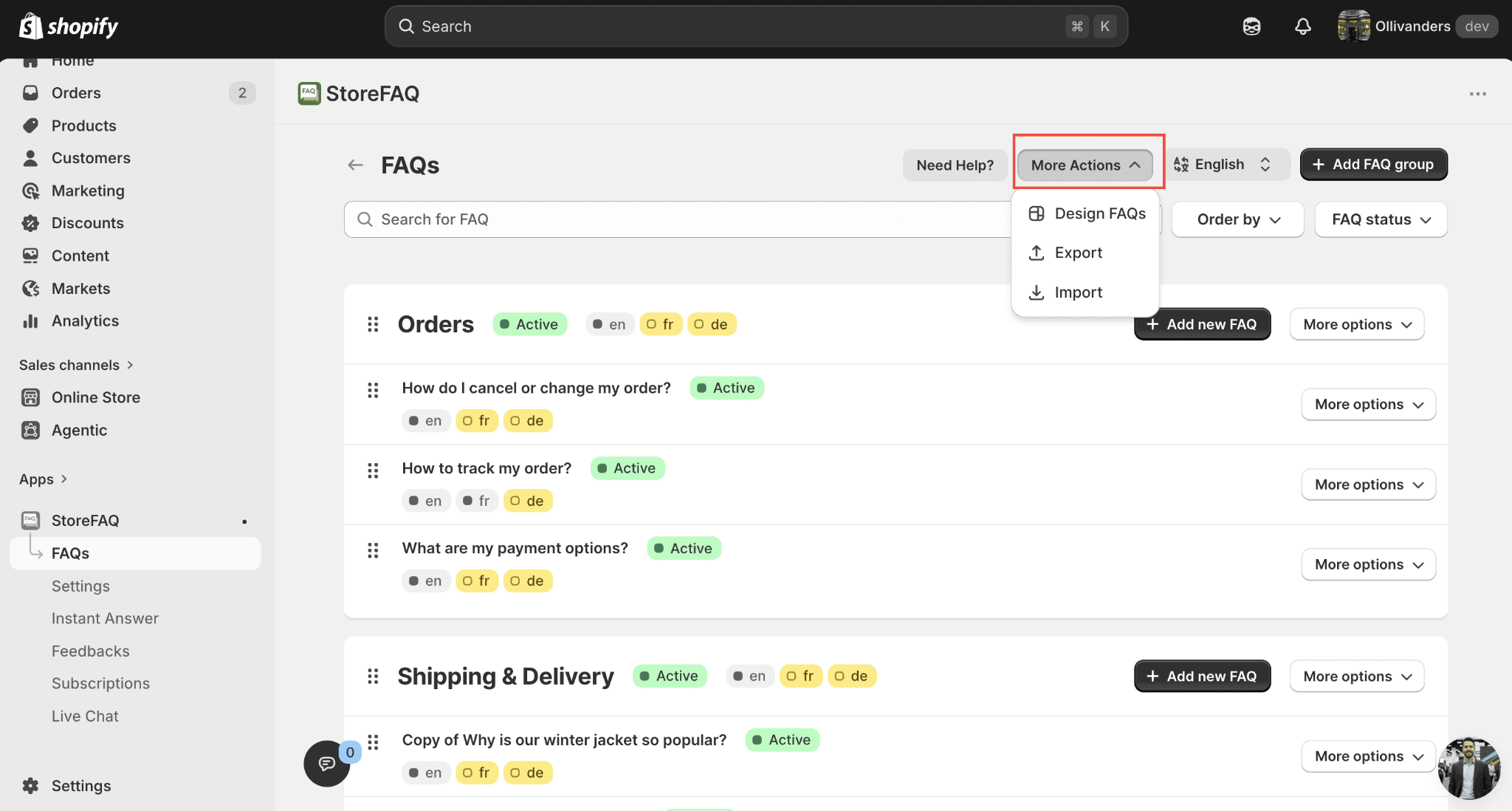
Step 1: Navigate to the ‘FAQs’ Tab
After installing StoreFAQ, go to the app’s dashboard. Now, go to the ‘FAQs’ tab. Here, you will see a dropdown labeled as ‘More Actions’.
Step 2: Import FAQs For Shopify
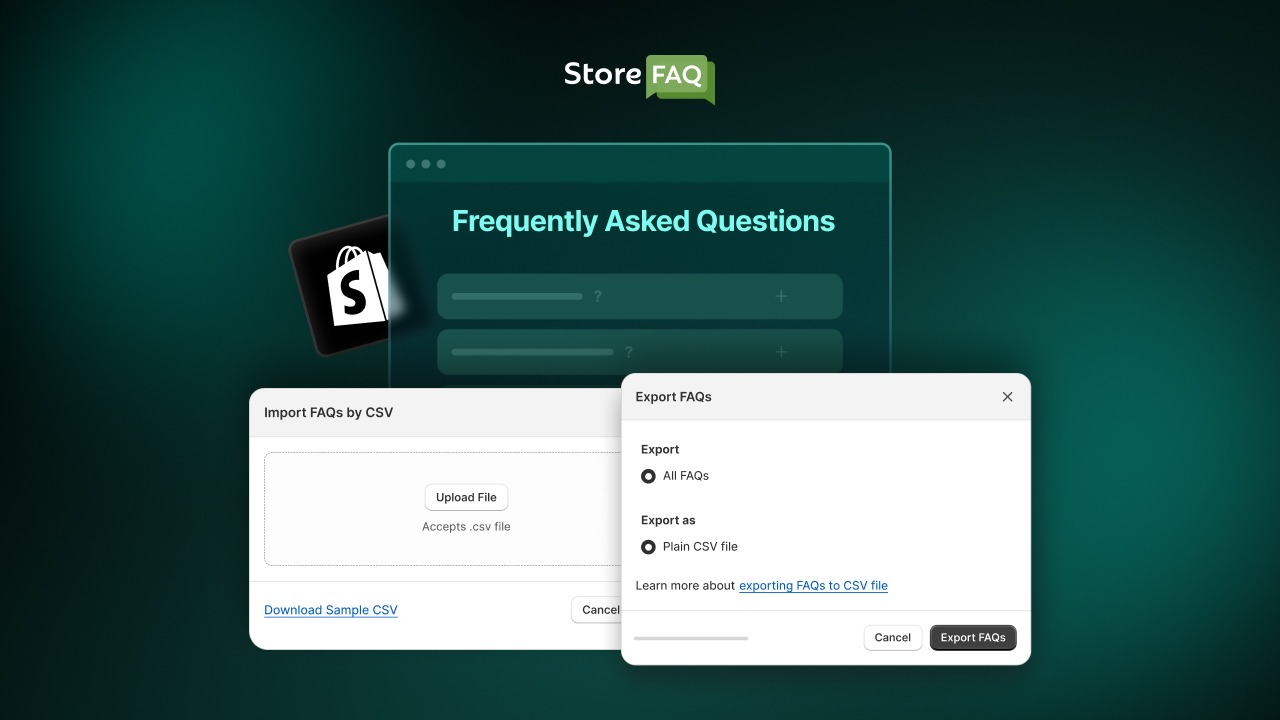
Now, click on the ‘Import’ button and then add the CSV file containing the FAQs you want to import. Click on the ‘Upload and Continue’ button to proceed. You will then see the preview. Click on the ‘Import FAQs’ button to complete the import process. You can also download a sample CSV file if required.
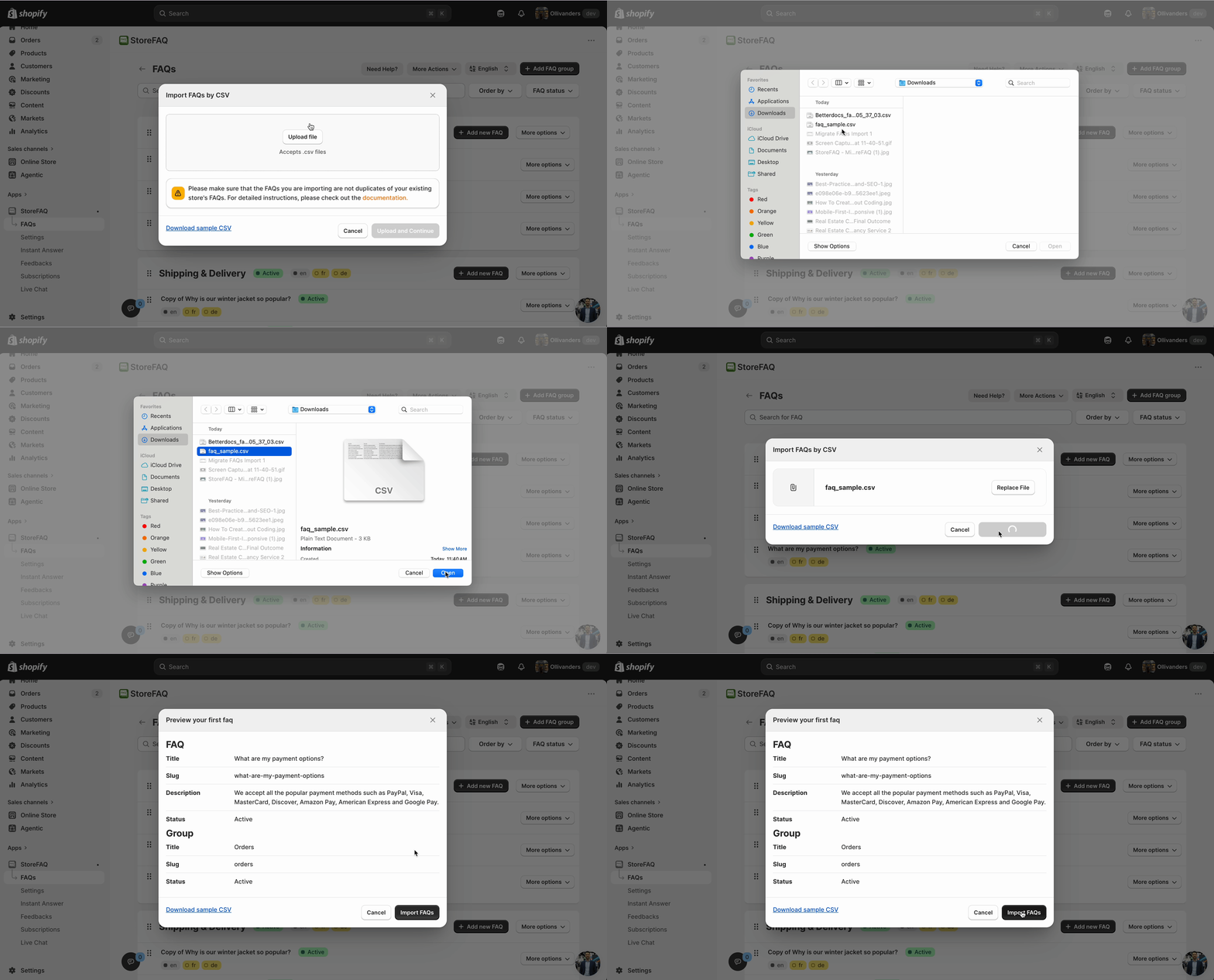
Once you click on the ‘Import FAQs’ button, the FAQs will start getting added to your Shopify store. Similarly, you can export FAQs if you are migrating FAQs to another store as well.
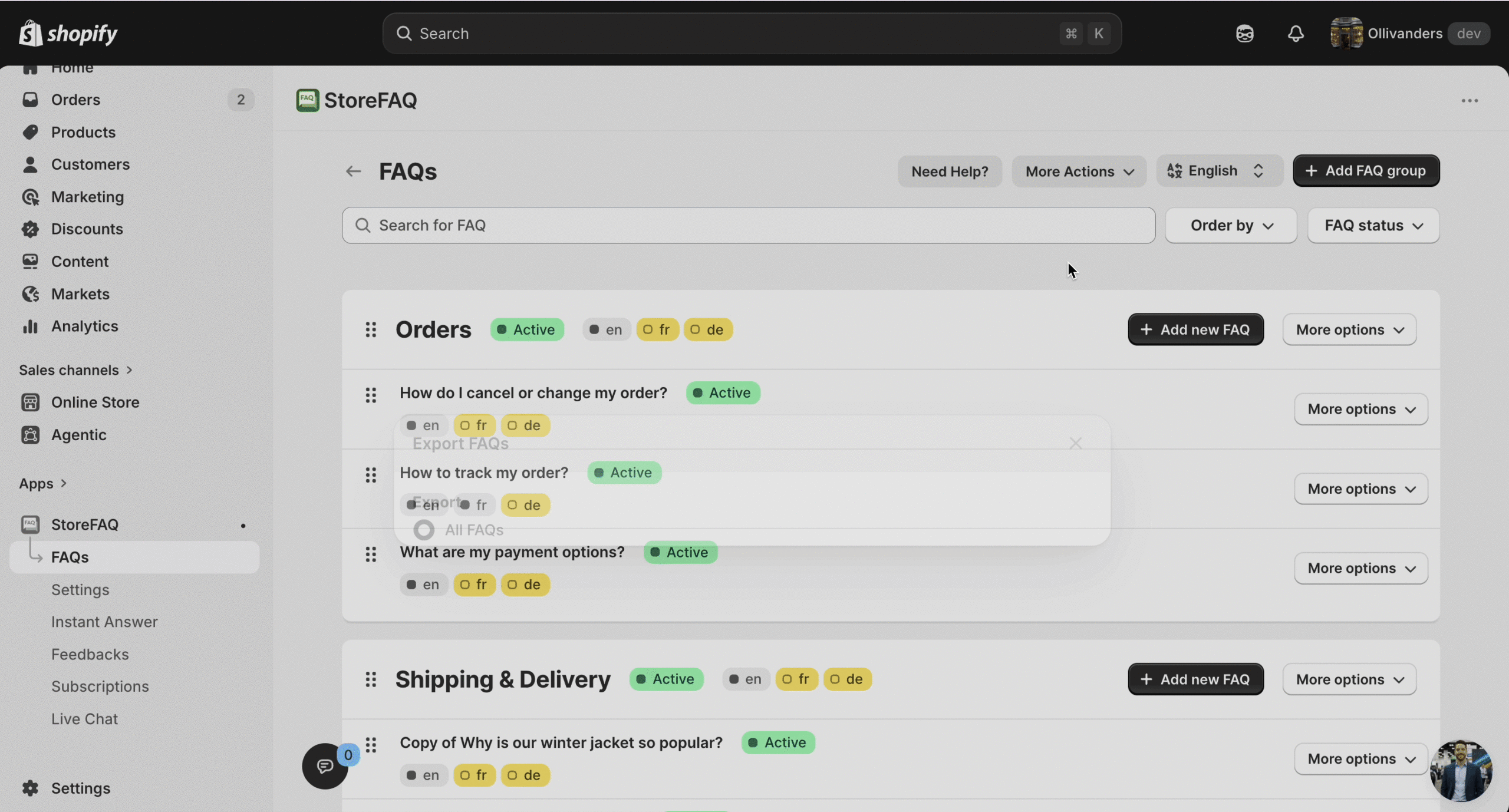
From the ‘More Actions’ dropdown, simply click on ‘Export’. A pop-up window will appear asking you about the things you want to export. Check those, and proceed to export by clicking on ‘Export FAQs’.
This is how easily you can migrate FAQs in Shopify using StoreFAQ using its import and export feature. If you are getting stuck, feel free to reach out to our dedicated support team for any type of queries.
Tips for a Smooth FAQ Migration in Shopify
Even with a straightforward app like StoreFAQ, a little preparation goes a long way. These tips will help you avoid the most common migration mistakes and ensure your FAQ content lands exactly where you want it.
Audit the Shopify FAQ Content Before Exporting
Before you export anything, take 10 minutes to review your existing FAQ library. Are there outdated questions that no longer apply to your current products or policies? Are there duplicate entries that crept in over time? A migration is the perfect opportunity to clean house. You will import a leaner, more accurate FAQ library and your customers will have a better experience as a result.
Organize FAQs into Categories Before You Start
If your FAQs are currently a single unorganized list, consider grouping them into categories before migration. Categories like “Shipping,” “Returns,” “Product Care,” and “Account & Orders” make your FAQ page much easier to navigate. StoreFAQ supports categories natively, and category data carries over in the CSV export, so the structure you set up now will be preserved on the other side.
Keep a Backup Copy of the Exported CSV
Once you download your export file, save a copy in a secure location — cloud storage, email, or a local drive. This is your safety net. If anything goes wrong during the import, you can always re-upload from the backup without losing your data.
Test with a Small Batch of FAQs First
If you are importing a large FAQ library, say, 100 or more questions, consider testing with a small batch of 10 to 15 entries first. This lets you verify that the formatting looks correct and that categories are mapping properly before you commit to the full import.
Use AI to Improve Answers After Migration
Migration is a great time to refresh stale or generic FAQ answers. After you complete the import, use StoreFAQ’s AI-powered answer generation to review and improve answers that feel outdated or thin. Customers notice the quality of your FAQ answers, and so do search engines. A post-migration review with AI assistance can meaningfully improve both the customer experience and your SEO performance.
Check Your FAQ Widget Placement After Import
After the import is complete, verify that your FAQ widget is displaying correctly on your storefront. Confirm that all categories are visible, all answers render properly, and the widget matches your store’s branding. This final QA step takes just a few minutes but ensures your customers have a seamless experience from day one.
SEO Benefits of Keeping Your FAQs Intact During Migration
This section explains the SEO implications of FAQ content migration, particularly for stores that have built up organic visibility through their FAQ pages.
FAQ pages are an underrated SEO asset. If your store has been live for a year or more, there is a real chance that some of your FAQ content is already ranking in Google, either as full page results or as featured snippets for question-based searches.
When you delete FAQ content during a migration and rebuild it from scratch, you lose that accumulated SEO authority. Google treats newly published content as fresh, which means it starts the ranking process over from zero. For competitive niches, this can mean weeks or months of lost organic traffic.
Migrating your FAQ content properly, using the same question phrasing, the same category structure, and the same URL paths where possible, preserves that SEO continuity. StoreFAQ’s export and import process keeps the content itself intact. You may need to work with your Shopify theme and URL settings to ensure the FAQ page URL stays the same after migration, but the content foundation will be solid. Also, this ensures that search engines and visitors can still reach the correct page.
Additionally, StoreFAQ supports adding FAQ Schema Markup (structured data) to your FAQ content. This helps Google understand and display your answers as rich results directly in search. If you had schema enabled before migration, re-enabling it after the import is a quick step that helps you recover your SERP visibility faster.
According to Google’s developer documentation, FAQ rich results can significantly improve click-through rates by displaying expandable question-and-answer content directly in search results. Keeping your FAQ content intact during migration is the first step toward maintaining — or improving — that visibility.
Make FAQ Migration the Easiest Part of Your Store Move
Migrating a Shopify store involves a lot of moving parts, but your FAQ content does not have to be one of the complicated ones. With StoreFAQ’s built-in export and import functionality, you can preserve every question, every answer, and every category with a simple CSV workflow that takes minutes rather than hours.
The key takeaways from this guide are straightforward. Audit your FAQ content before exporting. Understand the CSV structure, so you know what to expect. Follow the import steps carefully and test with a small batch first. After migration, use StoreFAQ’s AI features to refresh and improve your answers. Always verify your FAQ widget is displaying correctly on the live storefront before calling the migration complete.
Your FAQ page is not just a support tool; it is a trust signal, an SEO asset, and a conversion driver. Treat it with the same care you give to your product catalog and customer data. A clean FAQ migration sets your store up for a smooth transition and a strong start on the other side.
If you are not already using StoreFAQ to manage your Shopify FAQ content, this migration moment is the perfect time to make the switch. Install StoreFAQ from the Shopify App Store to simplify FAQ management and experience a smarter, AI-powered way to handle everything your customers need to know.
Was this blog helpful for you? If you found it beneficial and want more blogs like this, then you can subscribe to our blogs.