


Running a Shopify store means answering the same customer questions over and over. “What is your return policy?” “How long does shipping take?” “Do you ship internationally?” These questions are predictable, and yet they eat up a huge chunk of your support team’s time every single day.
The good news is that a well-built Shopify FAQ page can handle most of these questions automatically.
StoreFAQ is one of the most popular Shopify FAQ apps built exactly for this purpose. It lets you create a professional, organized FAQ page without writing a single line of code. In this guide, you will learn everything you need to know about setting it up from scratch.
TL;DR
| Why do you need an FAQ page for Shopify | 69% of shoppers try self-service before contacting support. A good FAQ page cuts support tickets significantly and boosts conversions by removing purchase doubts. |
| What is StoreFAQ – Product FAQ Builder | A no-code Shopify FAQ app with AI-writing, drag-and-drop builder, live chat, FAQ schema, multilingual support, and flexible page embedding. |
| How to make a FAQ page on Shopify better? | Write in the customer’s voice, keep answers short and direct, and update the page at least once a month. |
| SEO benefits of adding FAQ page on Shopify | FAQ pages target real search queries, support internal linking, and, with schema markup, can earn rich results on Google. |
Why Do You Need an FAQ Page for Shopify?
Before diving into the how-to, it is worth understanding why an FAQ page matters so much. Most store owners treat an FAQ page as an afterthought. In reality, it is one of the hardest-working pages on your entire site. Here is what it actually does for your business.
It Cuts Down Your Customer Support Workload
Many studies show that shoppers prefer using self-service resources before contacting support. That is a significant number. When retailers implement searchable knowledge bases and order lookup tools, support ticket volume drops significantly. Many eCommerce brands reported a drop in ticket volume just one month after launching an FAQ widget on their site. Fewer repetitive support emails means your team can focus on the complex issues that actually need a human response.
It Builds Trust And Increases Conversions
An FAQ page in Shopify does something subtle but powerful: it removes doubt at the exact moment a customer is considering a purchase. When a potential buyer has a question and finds a clear, immediate answer on your site, they are far more likely to complete the transaction. Hesitation kills conversions. A well-placed FAQ page stops hesitation before it starts.
It Drives Organic Traffic From Search Engines
Every question and answer on your FAQ page is indexable content. If a customer searches Google for “does [your store name] offer free returns,” and you have that question answered on your FAQ page, your store has a chance to appear in the search results. So, there is also a meaningful SEO angle here.
Organic traffic drives more than 33% of all website traffic in key industries like retail and travel, according to a 2024 benchmark cited by Shopify. A well-written FAQ page targets specific search queries that your potential customers are already typing into Google. Each question and answer is a new opportunity to rank and bring in a visitor who is actively looking for what you sell.
In short, an FAQ page is not optional. It is a core part of a well-run Shopify store.
Additionally, internal linking from your FAQ page to other relevant pages on your store (such as your return policy page or product collection pages) helps search engines understand the structure of your site.
According to Shopify, content that is designed to deliver an excellent user experience is highly favored by Google’s algorithm. A clear, well-organized FAQ page is a direct signal of a quality user experience.
By now, you already know about the reasons why your Shopify store needs an FAQ page. What comes next is how to create an FAQ page on Shopify, and is there any easier way to create one for your store? Before we dive in to learn how to create a Shopify FAQ page, let’s know about StoreFAQ first.
What Is StoreFAQ And Why Use It for Shopify?
Shopify does not provide a default FAQ page. You need a dedicated app to build one. StoreFAQ is one such FAQ builder app for Shopify stores. It is available on the Shopify App Store and is designed to make the entire process of creating, managing, and displaying FAQs as simple as possible. Here is what makes StoreFAQ stand out:
Launch a Powerful FAQ Page Without Slowing Down Your Team
Most Shopify store owners know they need an FAQ page, but creating and maintaining one often becomes another task on an already full schedule. StoreFAQ simplifies that process from the beginning. Instead of manually writing every answer, you can use AI-powered FAQ generation to quickly create helpful responses and build your knowledge base much faster.
The drag-and-drop builder also makes organizing FAQs simple, even for non-technical users. You can create FAQ groups, rearrange questions, and structure your help content exactly the way your customers expect to see it without touching a single line of code.
For growing stores, this means you can launch a professional support system in minutes instead of spending days setting everything up.
Improve Customer Experience Across Your Entire Store
A good FAQ solution should do more than sit on a single page. Customers often need answers while browsing products, checking shipping information, or completing purchases. StoreFAQ helps reduce friction during those moments with its Instant Answer feature, which allows shoppers to quickly discover relevant answers from anywhere on the store through smart search suggestions.
And when customers still need assistance, the built-in live chat feature gives them a direct way to reach your support team without leaving the page. This combination of self-service support and human assistance creates a smoother shopping experience while reducing repetitive support tickets for your team.
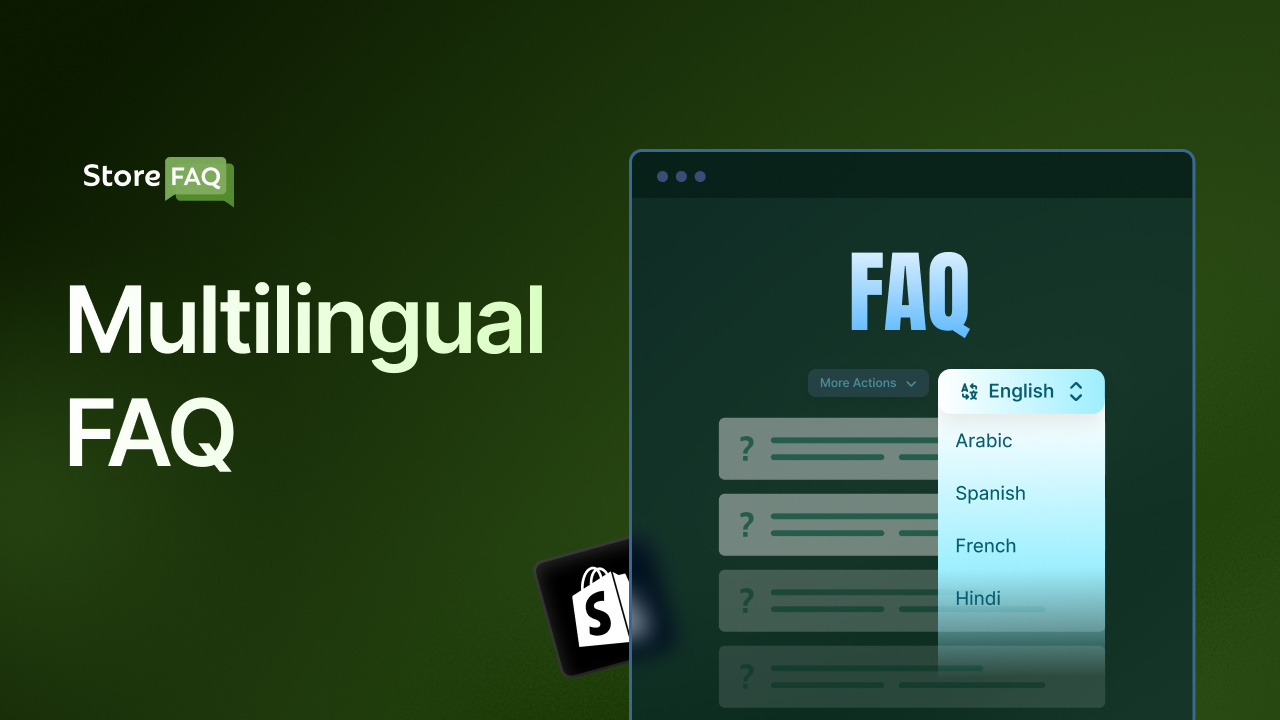
For stores serving international audiences, multilingual FAQ support also helps ensure customers can access information in their preferred language, improving trust and accessibility across different regions.
Support Long-Term Growth With SEO & Scalable Management
As your store grows, managing support content across multiple products, campaigns, and even multiple stores becomes more important. StoreFAQ helps with that scalability by allowing easy FAQ import and export between Shopify stores, making migration and expansion much easier.
The app also supports FAQ schema markup, which can improve how your FAQ content appears in search engine results. Better visibility in search results can help drive additional organic traffic while giving potential customers quick answers before they even visit your store.
Another advantage is the flexible pricing structure. You can start with the free tier for the first 500 FAQ page views and test how FAQ-driven support works for your business. As your traffic and support needs grow, you can gradually move into paid usage. This makes it easy for small stores to get started while still offering enough flexibility for scaling businesses.
Guide to Create An FAQ Page for Shopify Using StoreFAQ
Now that you know about StoreFAQ, you must be thinking about how to use this app to create an FAQ page on Shopify. Follow the guide with detailed steps below to learn how to create an FAQ page for Shopify using StoreFAQ- Product FAQ Builder.
Step 1: Install StoreFAQ from the Shopify App Store
The first step is getting the app onto your store. Here is how to do it. Go to your Shopify admin dashboard and click on Apps in the left sidebar. Then click Search apps and type “StoreFAQ” in the search bar.
Find the app called StoreFAQ – Product FAQ Builder and click on it. On the app listing page, click the Install button. Shopify will ask you to confirm the permissions the app needs to access your store. Review them and click Install app to confirm.
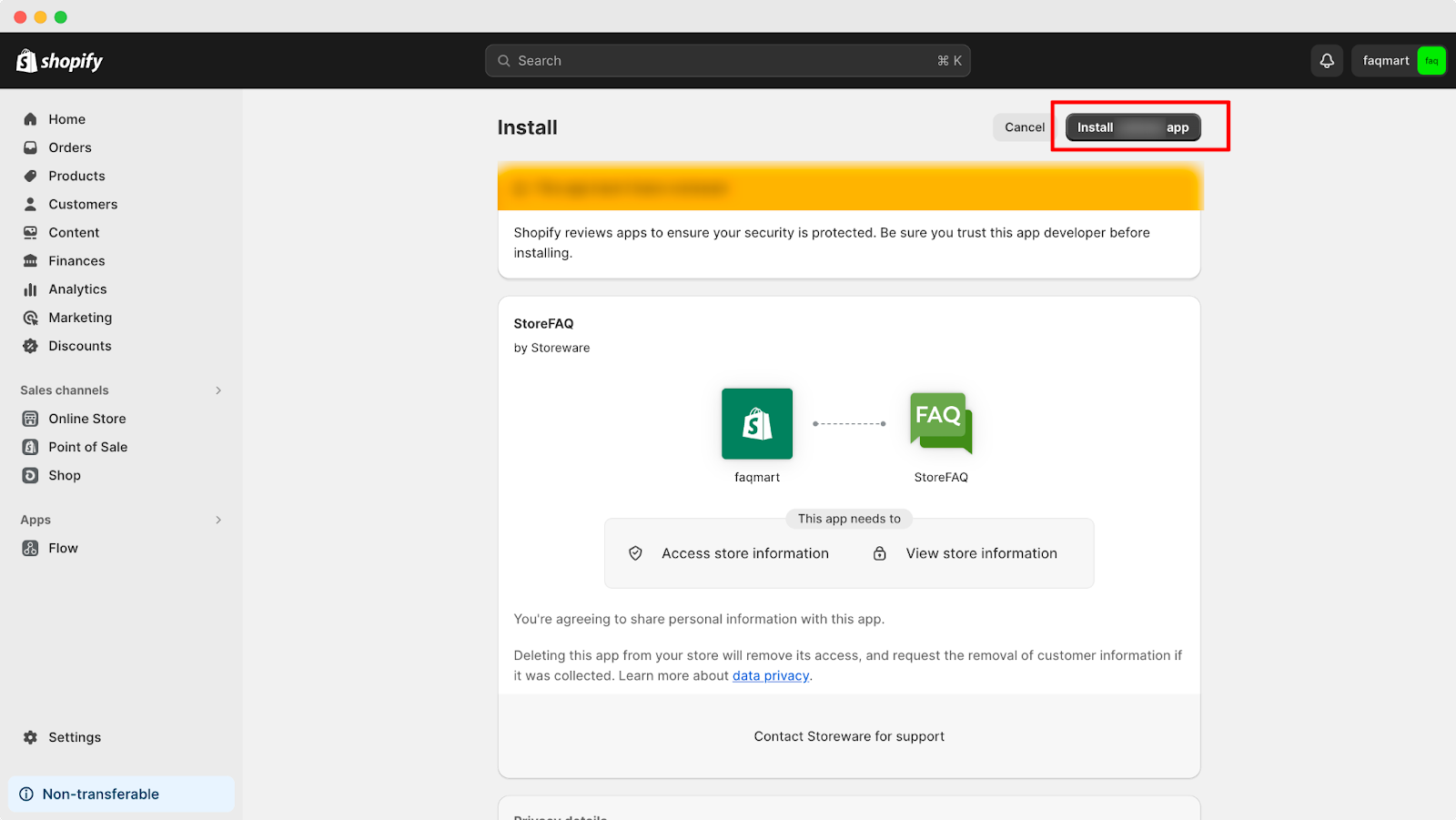
Once installed, you will be taken to the StoreFAQ dashboard automatically. From here, you have full control over your FAQ content and design.
Step 2: Configure General Settings
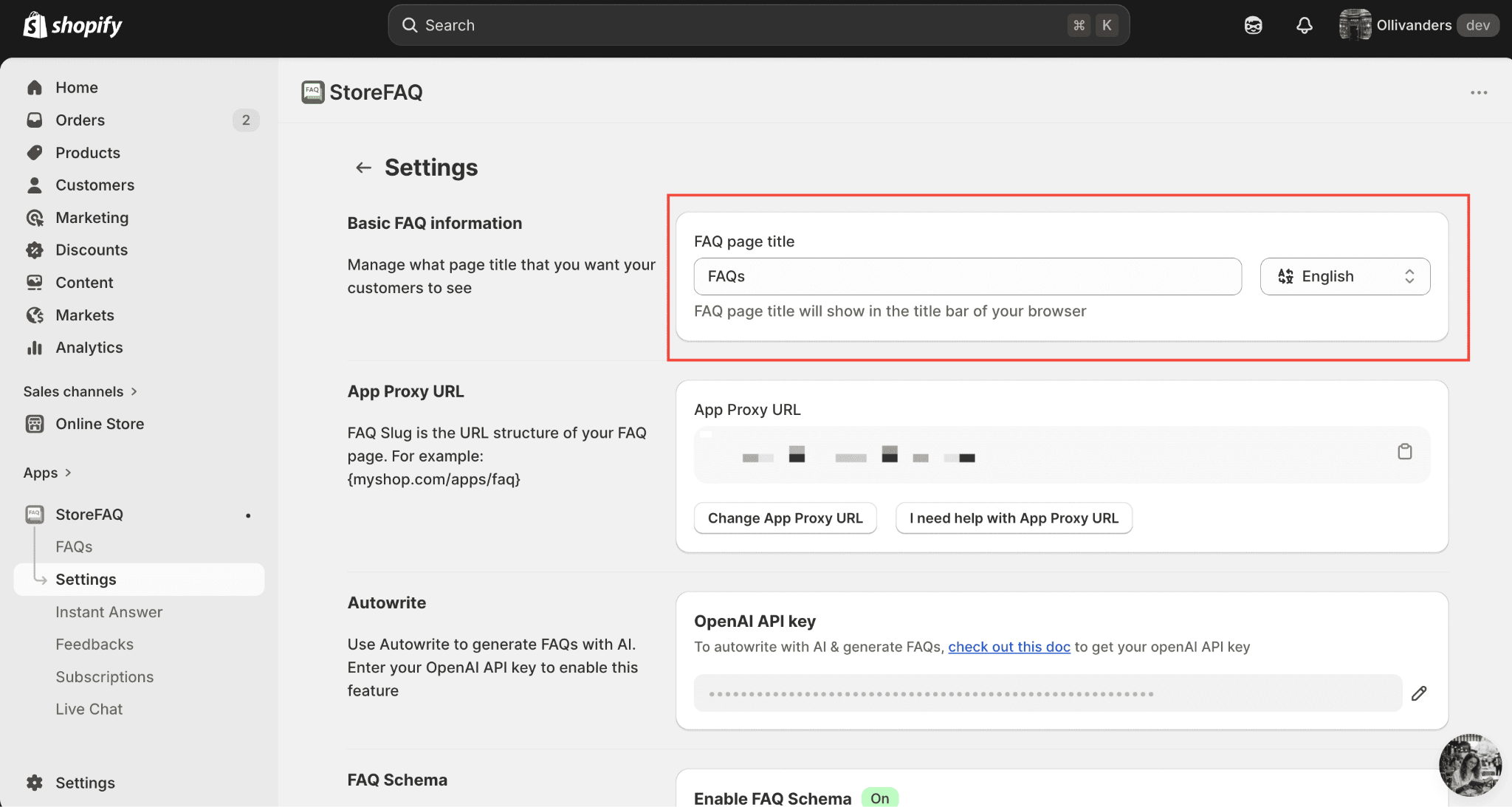
Before you start adding questions, take a moment to configure the basic settings. So, after installing StoreFAQ, go to the app’s dashboard. Now, navigate to the ‘Settings’ tab from the left side panel.
Here you can set up options like the default language for your FAQ, the page title, and any preferences. Getting these right from the start saves you time later.
Step 3: Create Your First FAQ Group
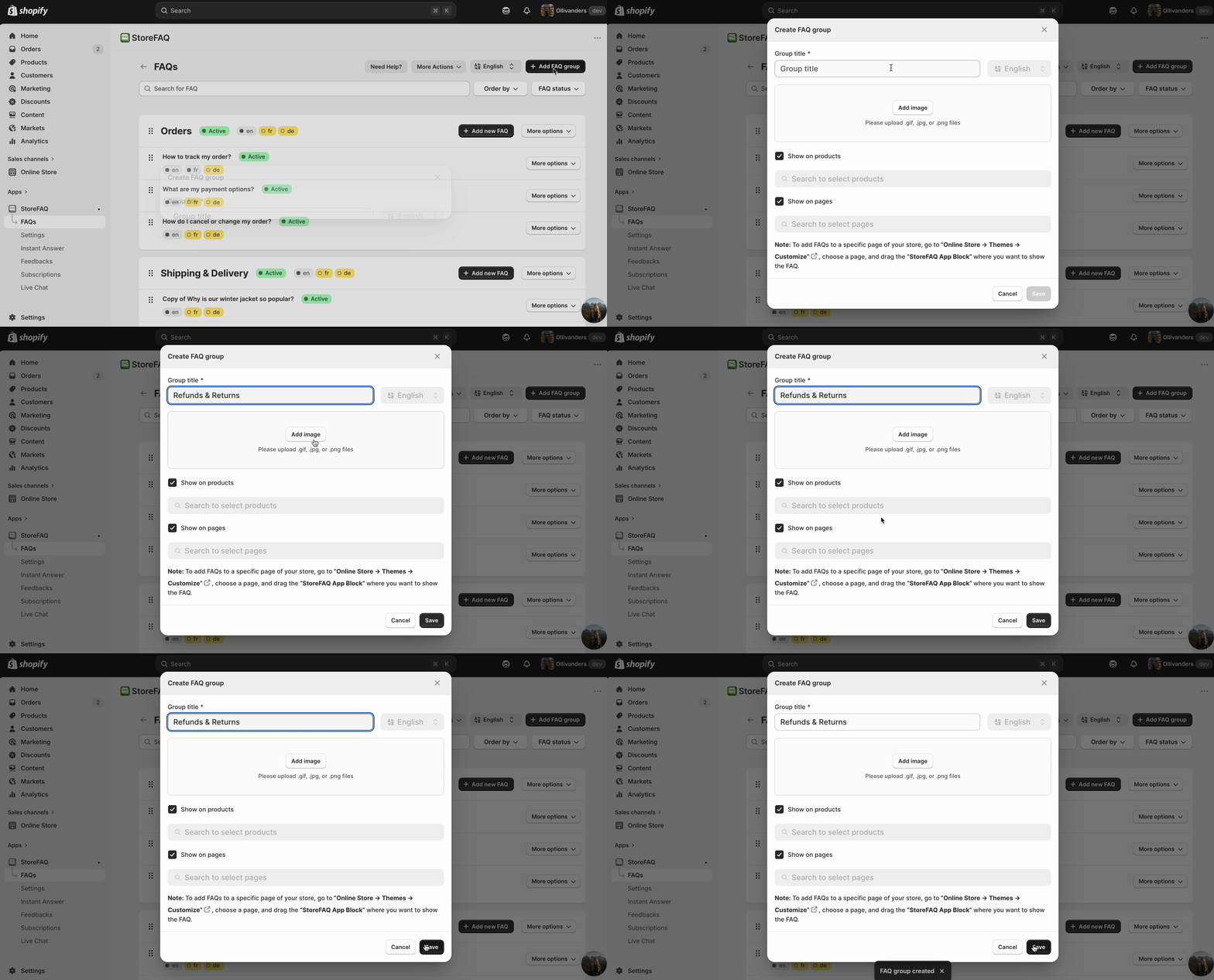
StoreFAQ organizes FAQs into groups. Think of groups as categories. For example, you might have a group called “Shipping,” another called “Returns and Refunds,” and another called “Product Information.” This structure makes it easier for customers to browse and find what they need.
To create a group, go to the ‘FAQs’ tab and click on ‘Add FAQ Group and give it a clear, descriptive name. You can create as many groups as your store needs. A focused category structure keeps your FAQ page clean and navigable rather than overwhelming.
Step 4: Add FAQ Questions And Answers
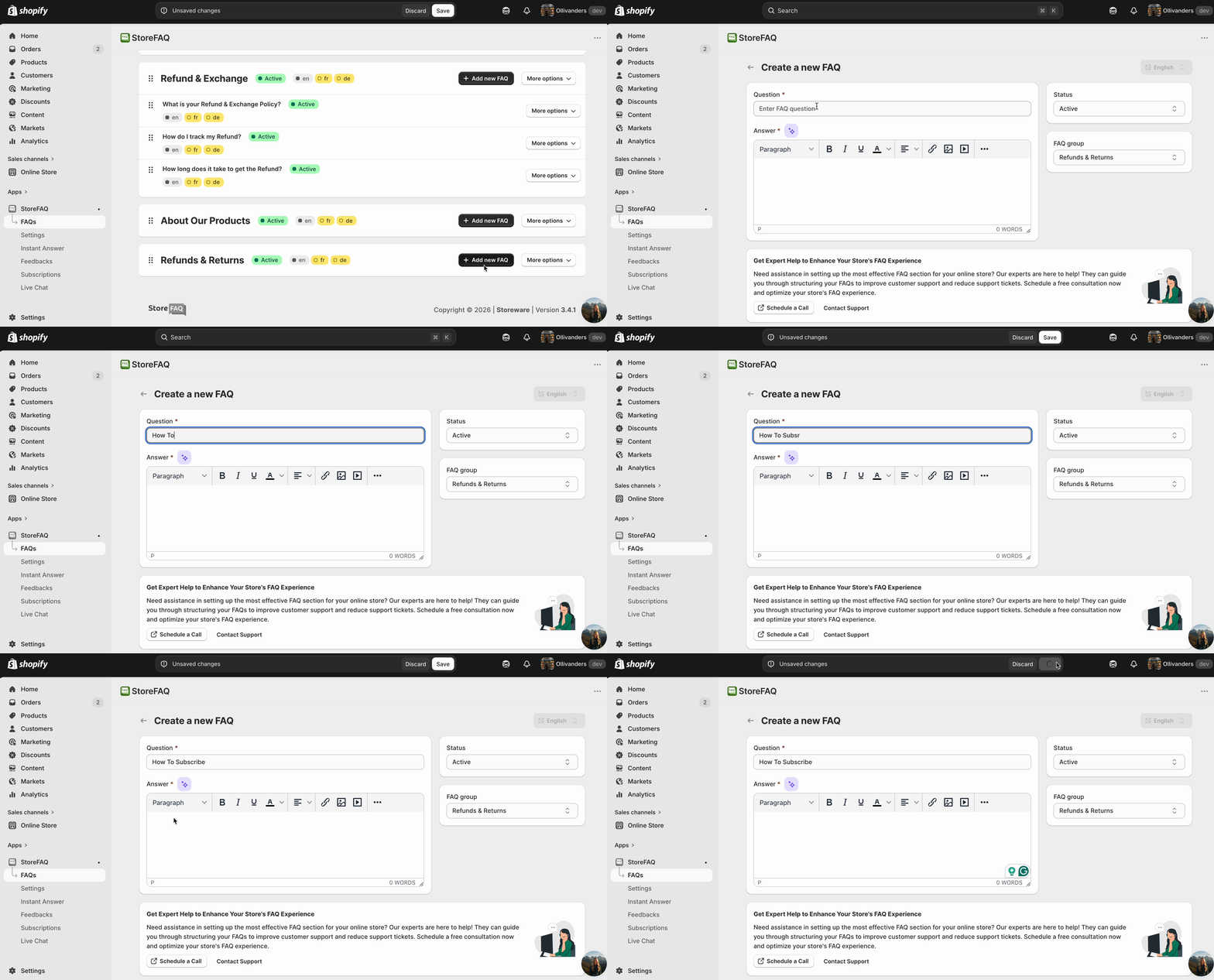
With your groups created, it is time to add the actual questions. Inside each group, click Add New FAQ. You will see fields for the question and the answer. Write your questions exactly the way your customers phrase them. Use natural, conversational language. Avoid overly formal or technical wording.
If you want to speed this process up, StoreFAQ includes an AI Autowrite feature. Using this will generate a draft answer for you. You can then edit it to match your brand voice. This is especially useful if you are building your FAQ page for the first time and need to populate it quickly.
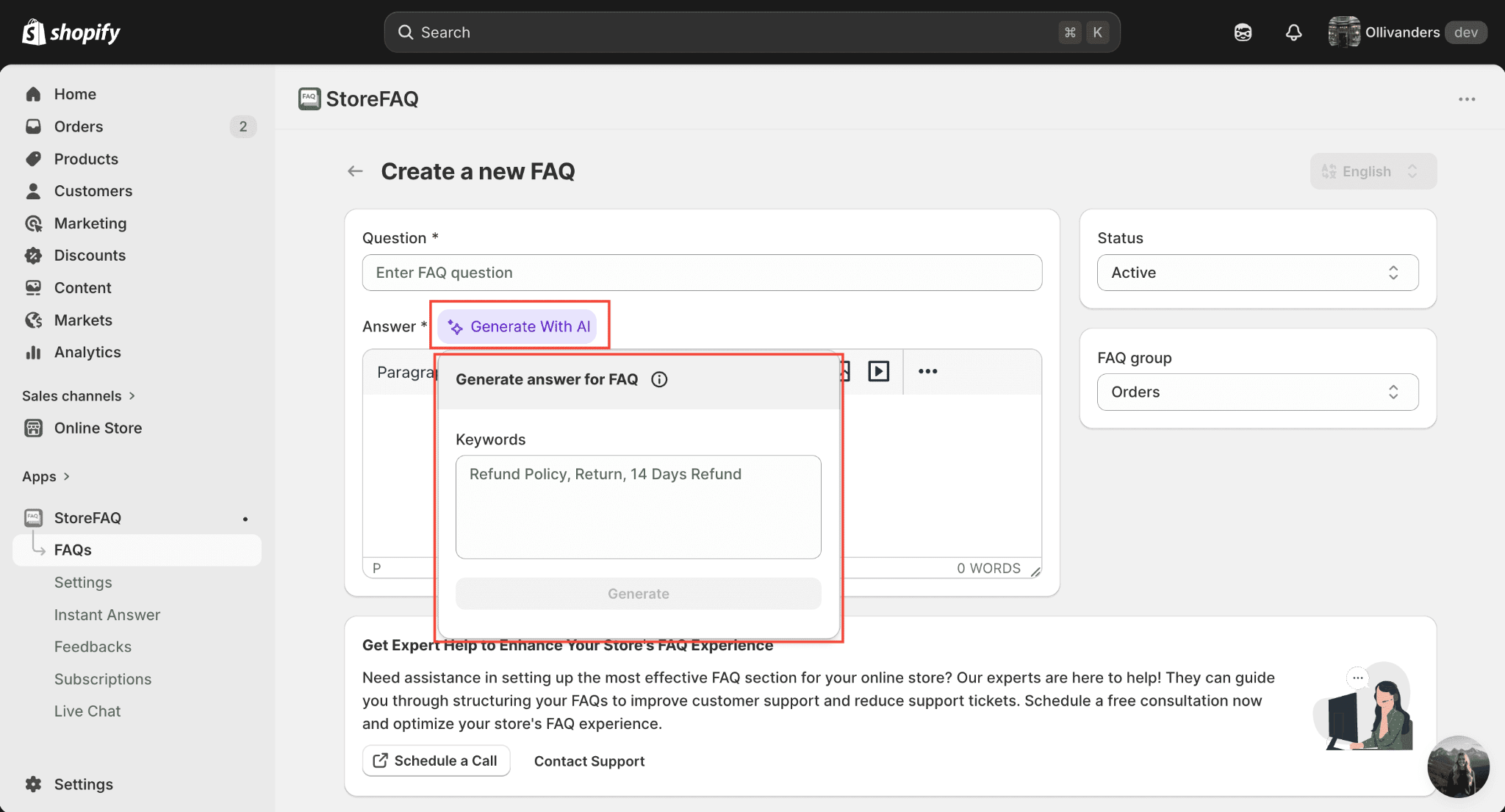
To learn more about how to use the AI Autowrite Feature, follow this documentation. Here are some common FAQ topics to cover for a Shopify store include:
- Shipping timelines and carriers used
- Return and exchange policy
- How to track an order
- Payment methods accepted
- Product sizing or specifications
- International shipping availability
- How to contact customer support
Once you have added all your questions, you can reorder them within a group using drag-and-drop. Put the most commonly asked questions at the top so customers find answers faster.
Step 5: Design Your FAQ Page
A well-designed FAQ page should feel like a natural part of your store, not something that was bolted on. StoreFAQ gives you full design flexibility through its visual builder.
From the StoreFAQ dashboard, navigate to the design section. Here you can customize three main sections: the Header, the Sub Header, and the individual FAQ Groups and FAQs.
For each section, you can adjust the font size, font color, background color, and margins (top, right, bottom, and left).
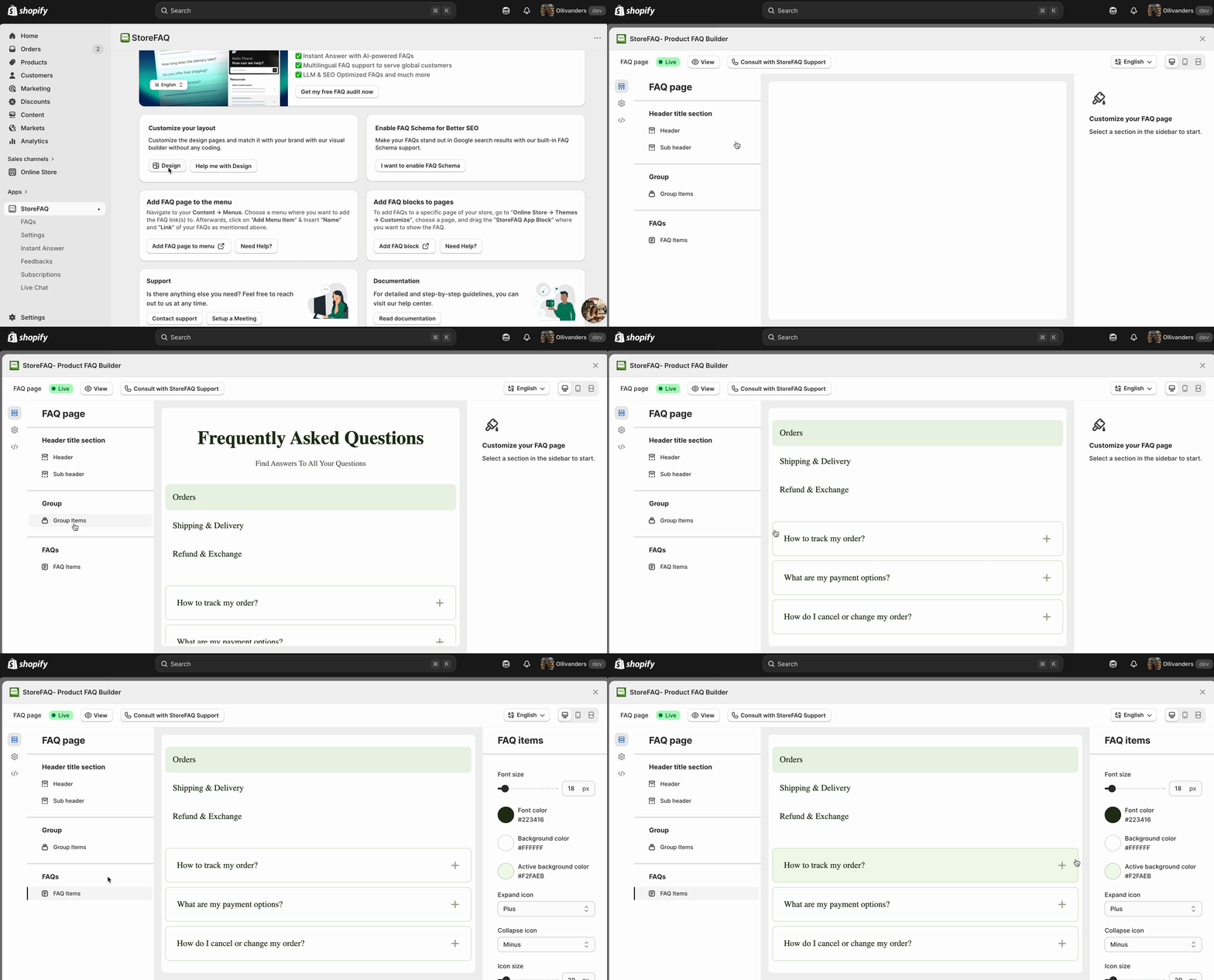
StoreFAQ also supports Custom CSS for more advanced design customization. If you or your developer wants to go further than the visual builder allows, you can add custom styles directly. This makes StoreFAQ a practical choice for both beginners and more technically inclined store owners.
Step 6: Show FAQs on Any Page
StoreFAQ lets you embed your FAQ groups on any page of your store. This is particularly useful for product pages, where customers often have product-specific questions before deciding to buy.
For example, you might embed a “Product Care” FAQ group on all product pages, while keeping “Shipping and Returns” on your main FAQ page and checkout-related pages. This targeted approach puts the right information in front of customers at exactly the right moment in their buying journey.
If you want to add a specific FAQ block to a specific page, you have to navigate to the ‘FAQs’ option from the left side panel. Then click on the ‘More options’ button beside your desired FAQ group. Then, you can either choose to show it on all products or pages (by default) or choose a specific page or product.
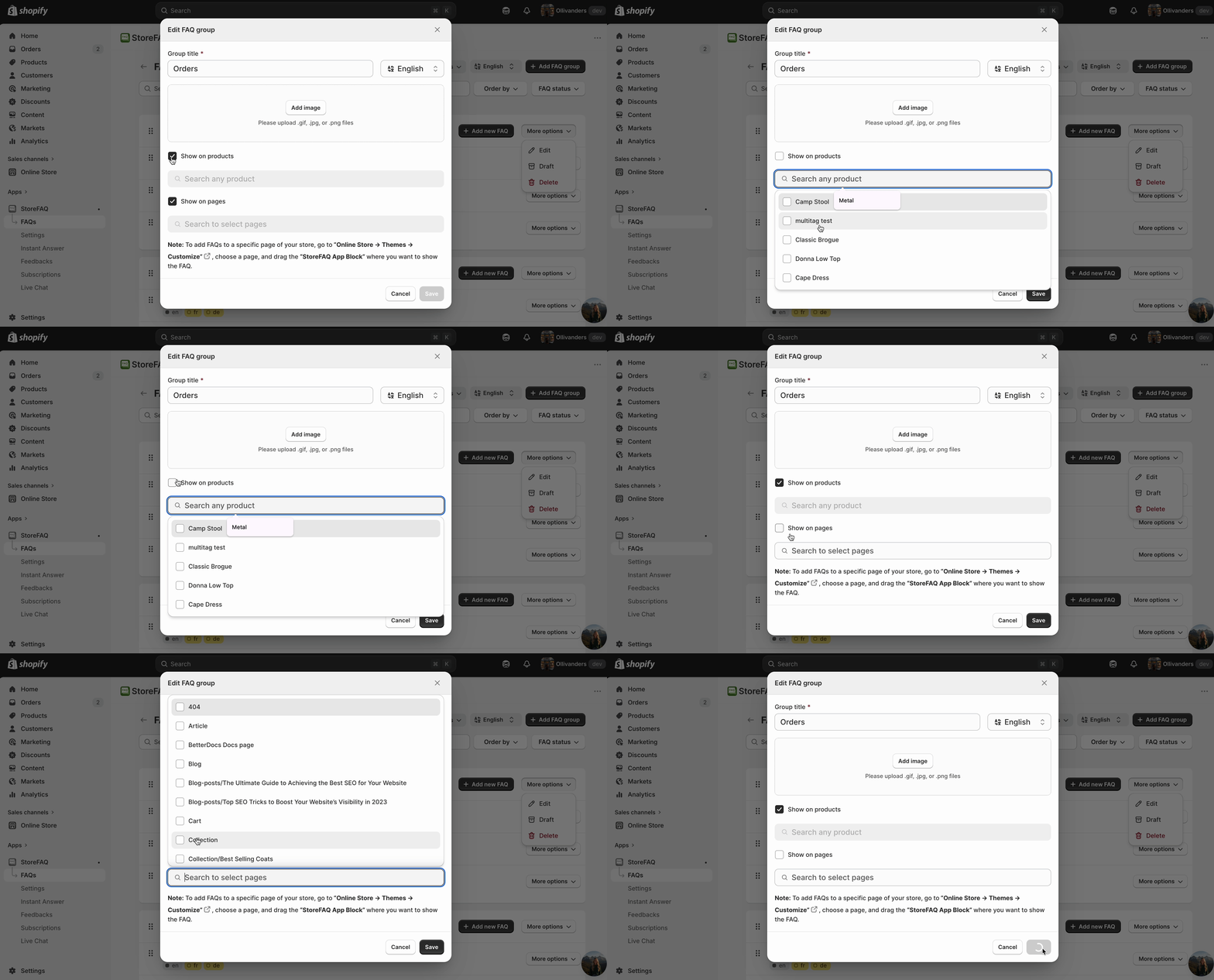
Follow this guide to learn details on how to display FAQs on specific pages. After making all the changes and customizations, this is how your FAQs are going to look like on your store.
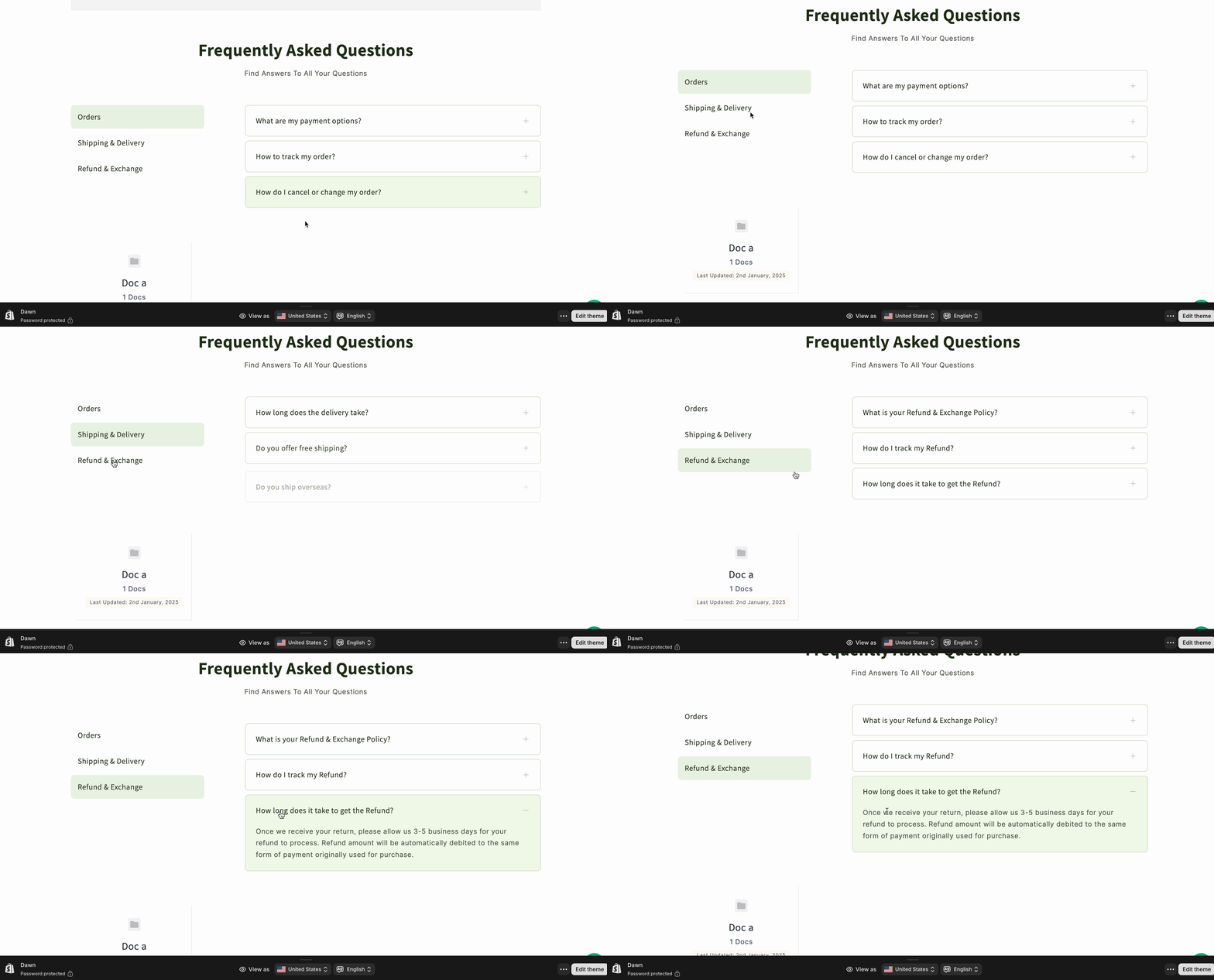
Additional Steps You Can Follow to Create An FAQ Page for Shopify
After you are done creating your Shopify FAQ Page using StoreFAQ, there are some additional steps that you can follow. These steps are optional, but following these steps will make your FAQ page reach out to greater audience.
Step 7: Enable FAQ Schema for SEO
The FAQ schema is a piece of structured data markup that tells search engines your content contains questions and answers. When Google reads this markup, it may display your FAQ content as rich results directly on the search results page.
To enable FAQ schema with StoreFAQ, go to Settings and find the FAQ Schema options. Turn it on. StoreFAQ will automatically add the appropriate structured data to your FAQ page. You do not need to write any code to make this happen.

It is worth noting that Google has stated it will show FAQ rich results primarily for well-known, authoritative websites. However, having a schema in place is still considered best practice because it helps search engines better understand your content, even if the rich result is not always shown.
Step 8: Link Your FAQ Page in Your Store Navigation
Creating a great FAQ page is only useful if customers can find it. Once your StoreFAQ setup is complete, your FAQ page will be accessible at a URL in your store. Add a link to this page in your main navigation menu and in your footer.
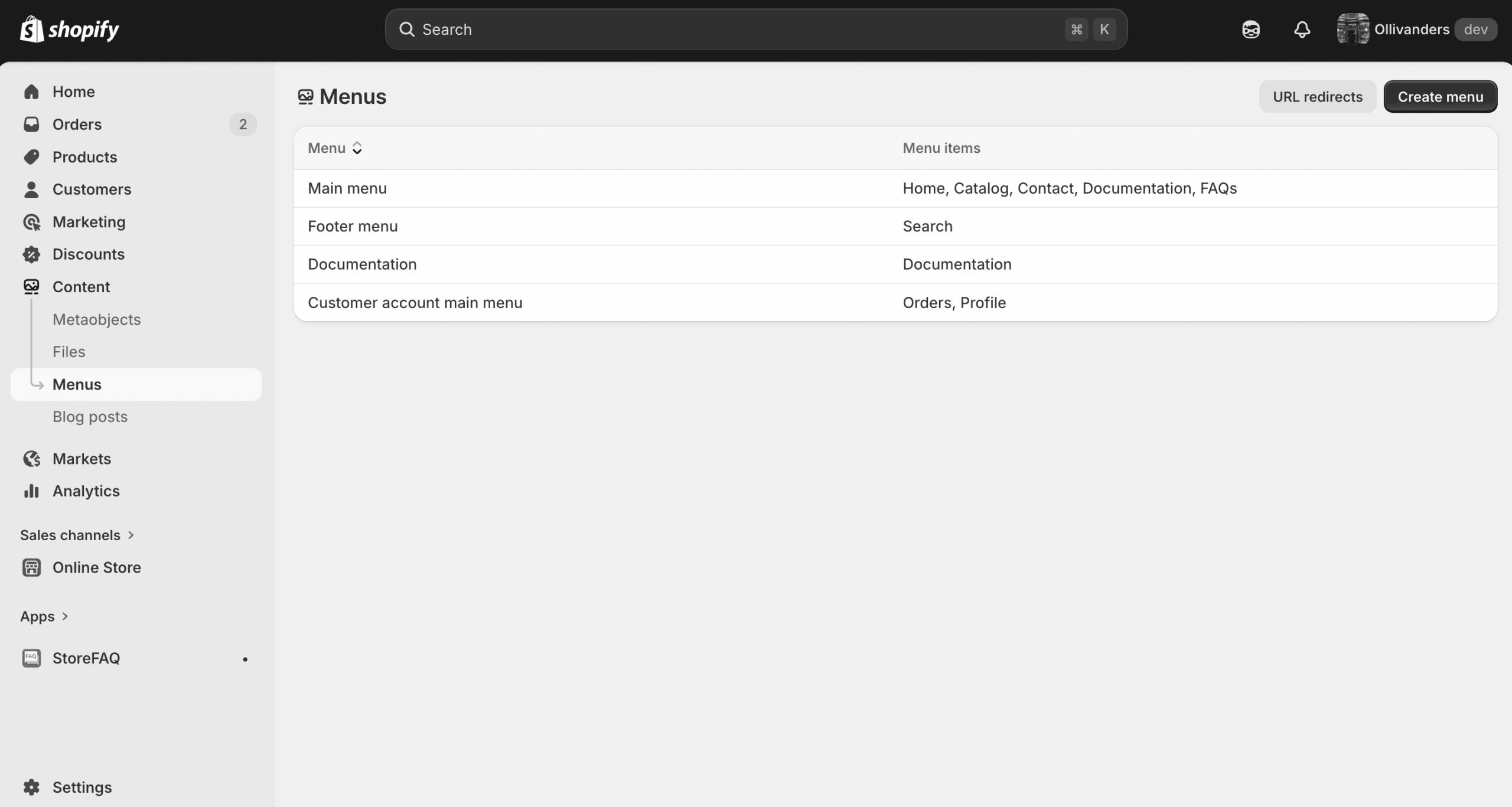
You can add the FAQ page to the menu. For that, go to the StoreFAQ tab, and you will see options to add FAQs to the Menu.
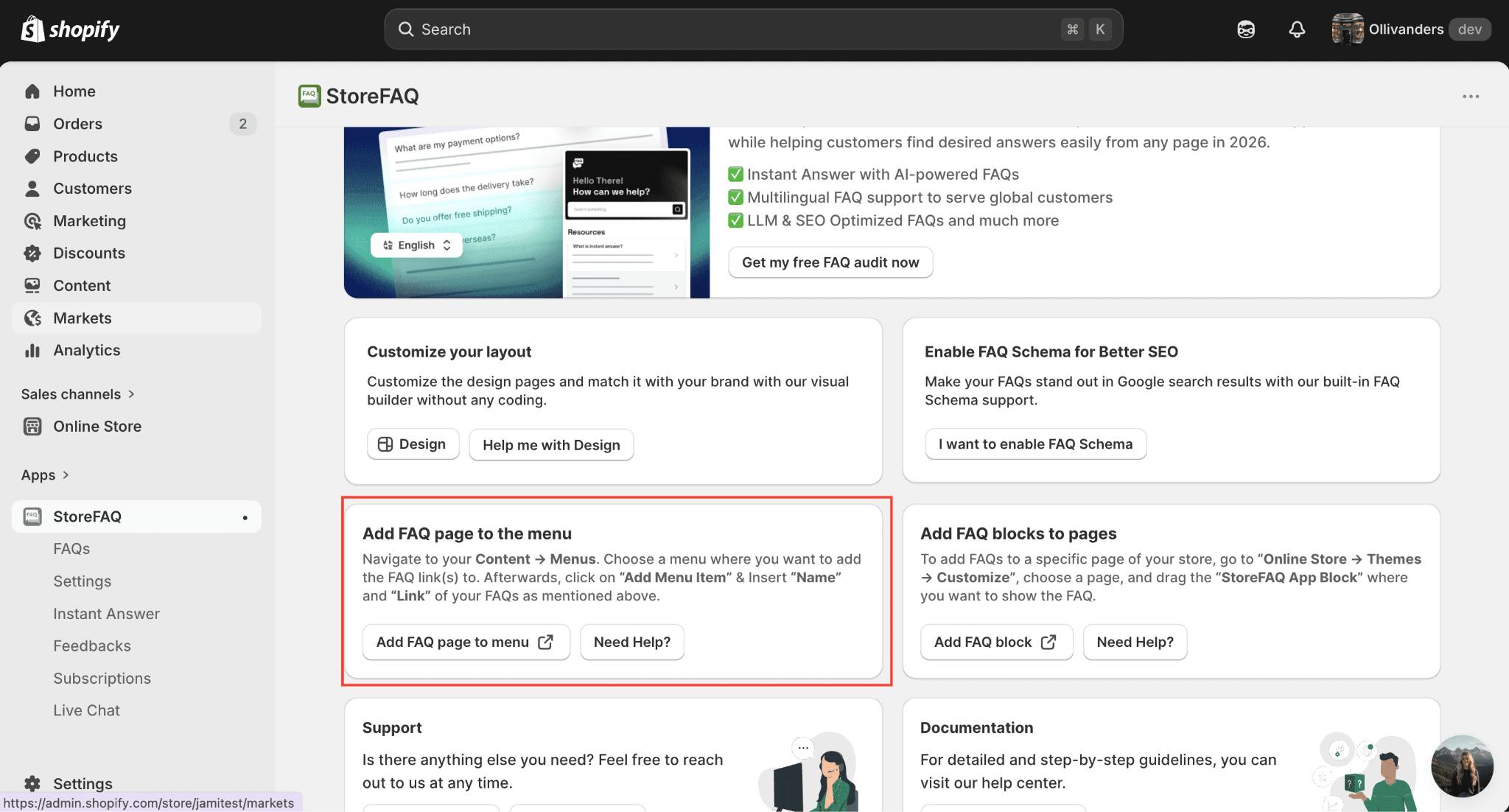
By clicking on the ‘Add FAQ page to menu’ button, you will be redirected to this Navigation dashboard automatically.
Click on ‘Create Menu’, label it something clear like “FAQ” or “Help Center.” Save the changes. Do the same for your footer menu if you have one.
After configuring, this is how it is going to appear on your Shopify store website’s navigation menu.
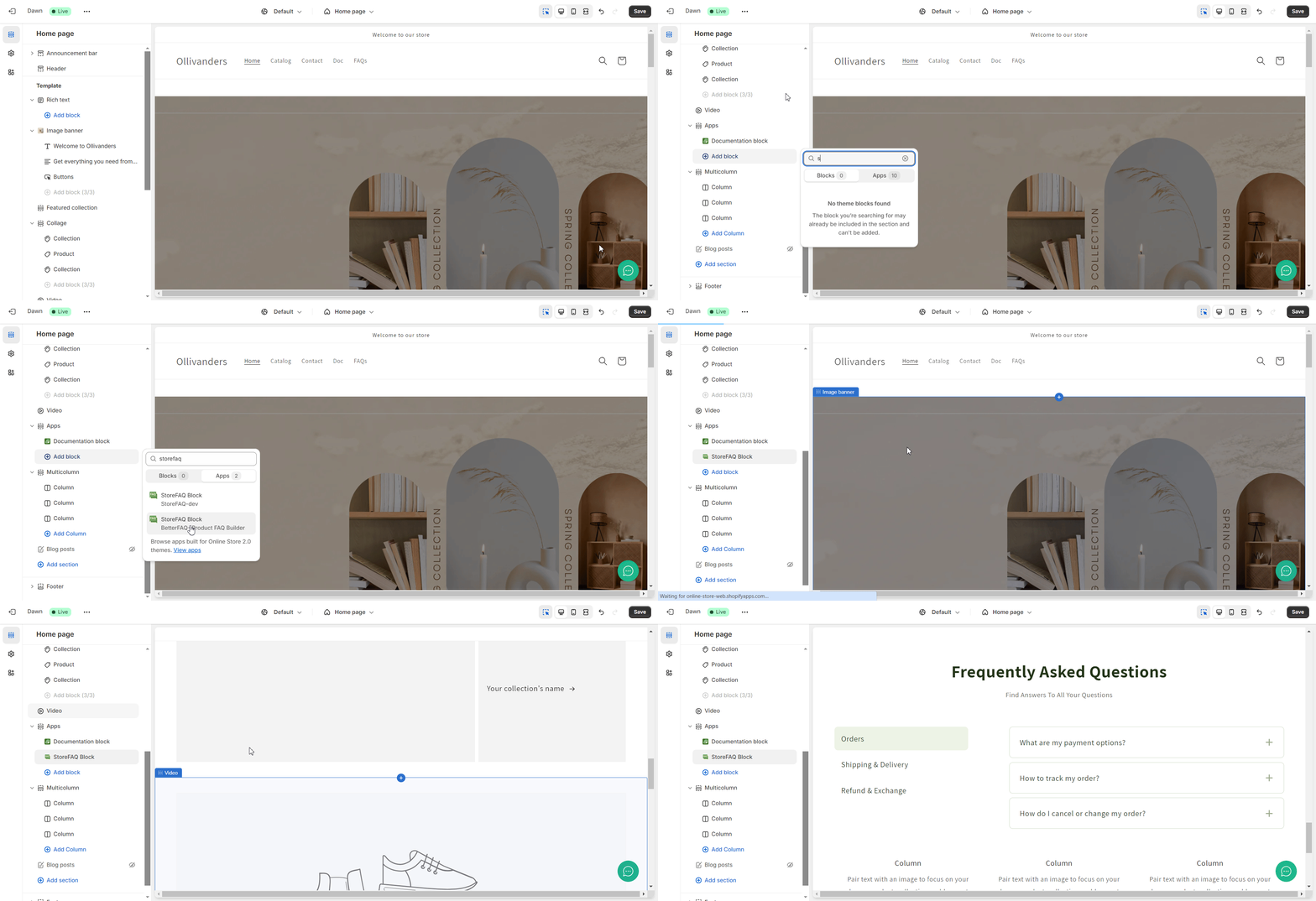
Step 9: Set Up Multilingual FAQs
If your store serves customers in multiple countries or languages, StoreFAQ supports multilingual FAQ content. You can create translated versions of your FAQ groups and questions for each language your store supports.
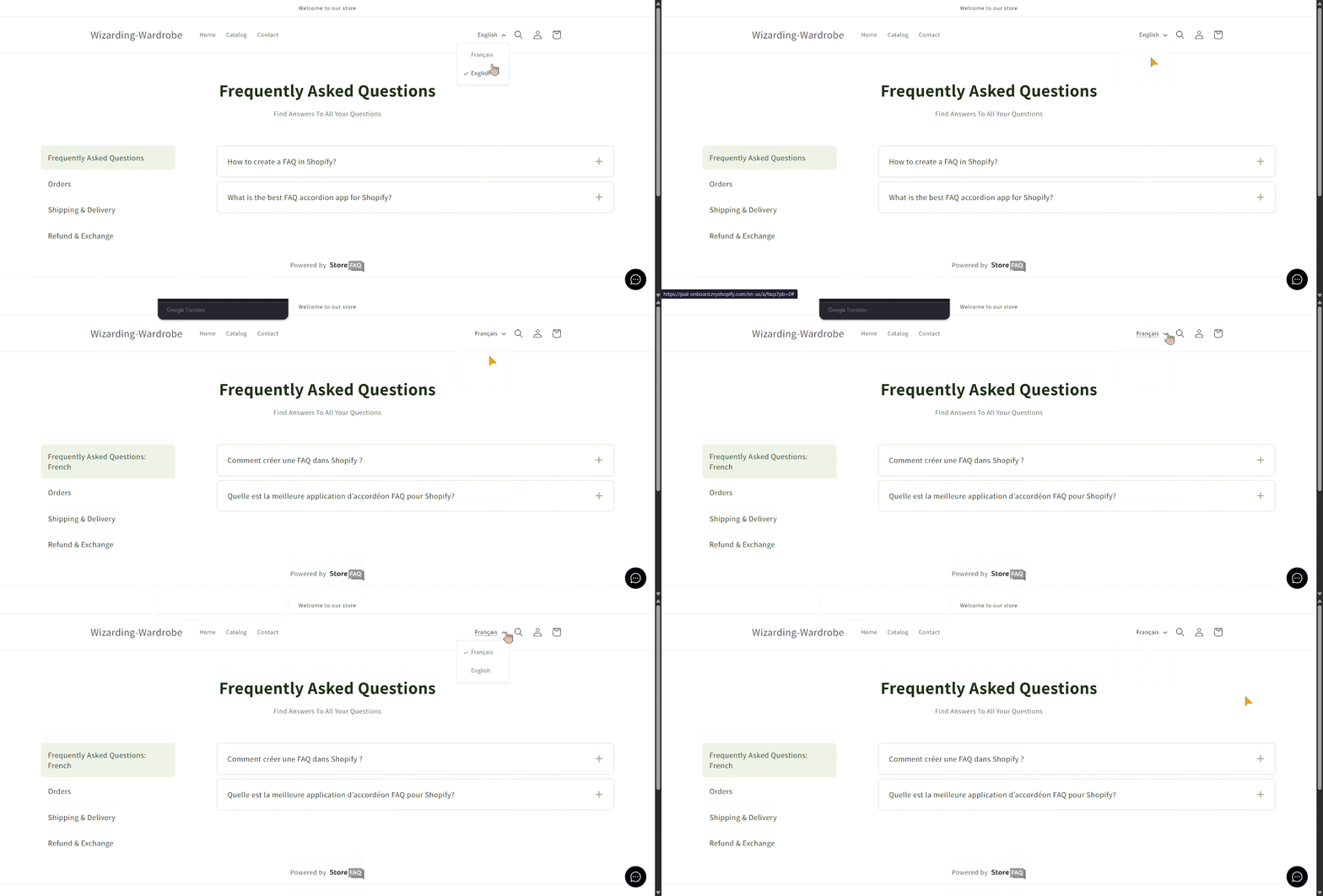
This is a meaningful feature for global stores. Presenting your FAQ content in a customer’s native language removes one more barrier between them and a confident purchase decision. Learn from the documentation on setting up Multilingual FAQ with StoreFAQ.
This is how you can create an FAQ Page for Shopify effectively. Below are some tips to write FAQ content impactfully.
How to Write FAQ Content Impactfully: Tips And Best Practices
The structure of your FAQ page matters, but so does the quality of the content. Keep these principles in mind as you write your questions and answers.
- Write in the customer’s voice: Look at the actual language your customers use in support emails or chat messages. Use those exact words and phrases as your questions. If customers write “Can I send something back?” then your question should not be “What is your product return policy?” Use “Can I return a product?”
- Keep answers short and direct: Customers want answers fast. Start with a one-sentence direct response and then add any necessary detail below it. Avoid padding your answers with unnecessary preambles.
- Update your FAQ regularly: An outdated FAQ creates more confusion than no FAQ at all. If your return policy changes, update the FAQ the same day. Review your entire FAQ page at least once a month to make sure everything is still accurate.
- Use categories strategically: Do not mix shipping questions with product questions in the same group. Clear categories reduce the time it takes for a customer to find what they need.
Create an Impactful Shopify FAQ Page with StoreFAQ
An FAQ page is one of the most underrated elements in a Shopify store owner’s toolkit. It reduces your support workload, builds customer confidence, and creates new opportunities to rank in search results. StoreFAQ makes the entire process straightforward, even if you have never built an FAQ page before.
The steps in this guide give you everything you need to go from zero to a fully functional, well-designed FAQ page in under an hour. Start with your most common customer questions, group them logically, design them to match your store, and make sure they are easy to find. From there, refine your FAQ content over time as you learn more about what your customers are actually asking. A little effort up front will save you and your team a significant amount of time in the long run.
Was this blog helpful for you? If you found it beneficial and want more blogs like this, then you can subscribe to our blogs.