


Running a Shopify store means living in tabs. You are checking an order, then a customer asks something about your return policy, so you open your FAQ app to see whether that answer is already published. Ten minutes later you are three screens away from what you were originally doing and you have forgotten why you opened the app in the first place.
That context switching is a small tax but you pay it dozens of times a week. The Shopify Sidekick integration in StoreFAQ removes it.
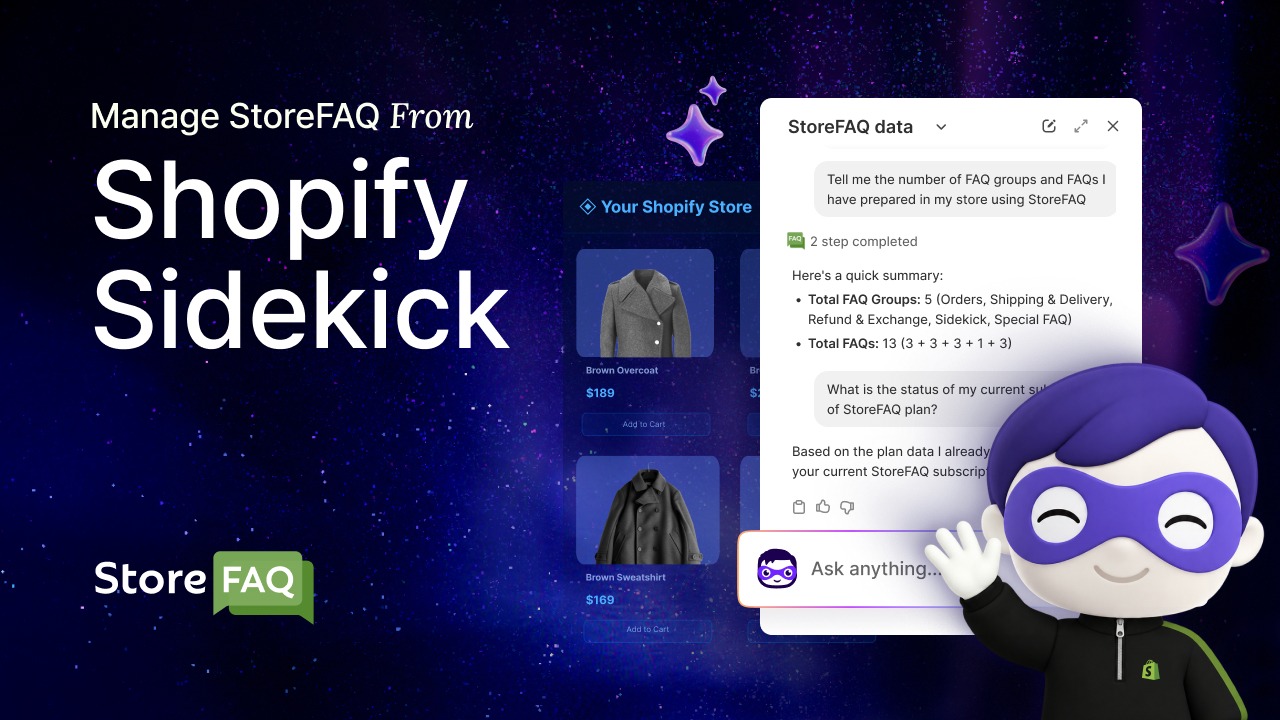
StoreFAQ now plugs directly into Shopify Sidekick, the AI assistant built into your Shopify admin. Ask a question in plain language and Sidekick answers using your live StoreFAQ data, whether that is your FAQ groups, your page view usage, your feature settings or your current subscription. This article explains why that matters, what you can ask and how to start using it today.
TL;DR
StoreFAQ now connects to Shopify Sidekick, so you can ask about your FAQ groups, live chat status, page views or subscription in plain language and get the answer inside the same Shopify admin panel you already use, no extra tab required.
What Is Shopify Sidekick?
Shopify Sidekick is Shopify’s built-in AI assistant, available from the icon in your Shopify admin top bar. It answers questions about your orders, products, customers and settings in plain language and it takes supported actions only after you approve them.
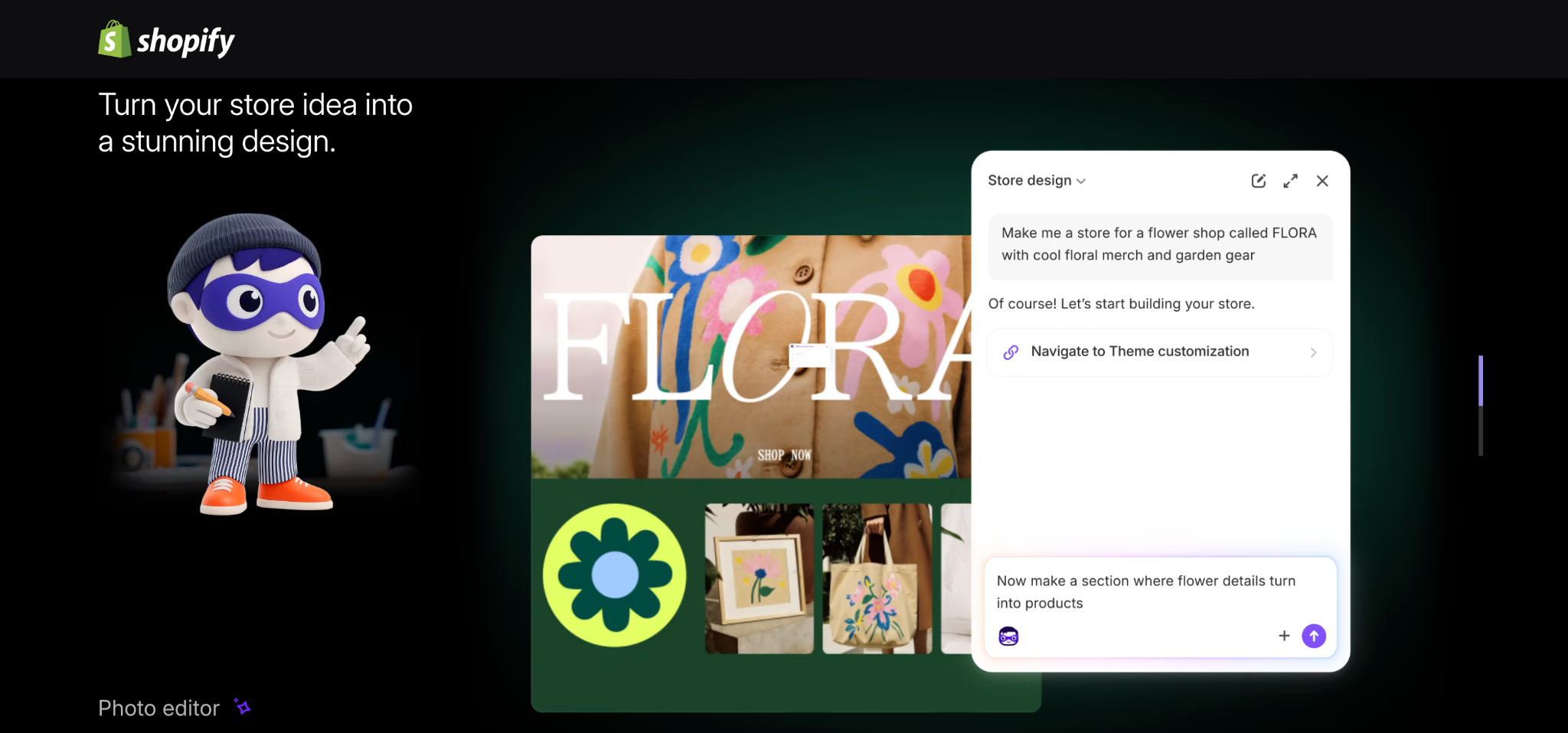
In 2026 Shopify opened Sidekick app extensions to its ecosystem, letting installed apps such as StoreFAQ plug their own data and actions into that same conversation, which is exactly what the integration below does.
Why the Shopify Sidekick Integration Matters
Knowing what Sidekick can do is only half the picture. Here is why plugging StoreFAQ into it changes your day-to-day work. Sidekick has always known your store. It understands your products, orders, customers and settings because it lives inside the admin that holds them. What it did not know was anything happening inside the apps you installed.
That changed when Shopify opened Sidekick app extensions to its ecosystem in 2026. An installed app can now expose a defined slice of its data and a set of approved actions to the assistant, so merchants can ask about app content in the same conversation where they ask about orders or inventory.
For a support app like StoreFAQ, the practical benefit is immediate:
- You stop hunting through menus for information you only need to glance at
- You get answers in the flow of the work you were already doing
- You catch gaps in your support content while the thought is still fresh
- You keep an accurate picture of usage and billing without opening a settings page
- You give newer team members a way to query the store without learning every screen
The value is not that the assistant is clever. It is that the answer arrives before the question turns into a task you postpone.
Inside the StoreFAQ Shopify Sidekick Integration
StoreFAQ is an AI-powered FAQ and customer support app for Shopify, built by Storeware. It helps merchants publish organized FAQ pages, answer shoppers instantly with Instant Answer and Live Chat and automate replies with an AI chatbot trained on store content.
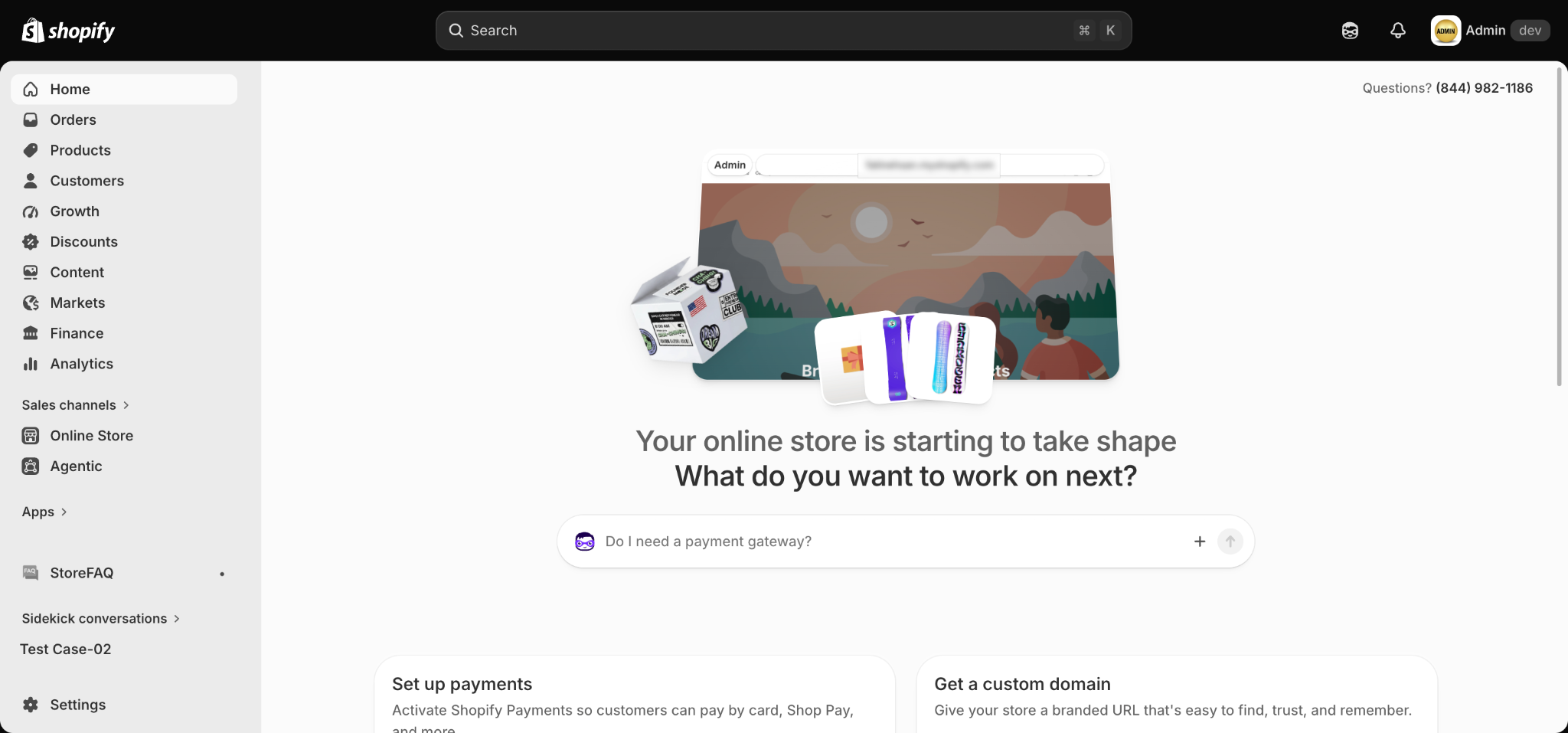
With the Sidekick integration, all of that becomes queryable from the assistant panel. You type a question, Sidekick calls StoreFAQ in the background, and the reply lands in the conversation with suggested next steps attached.
What Makes the Integration Valuable
Compared with opening the app and clicking through screens, the Sidekick integration lets you:
- Audit your FAQ library in one prompt instead of scrolling through every group
- Spot problems early, such as an empty FAQ group or a feature you meant to enable and never did
- Check usage and billing without leaving the page you were working on
- Move faster between screens, because Sidekick can take you straight to the right place in StoreFAQ
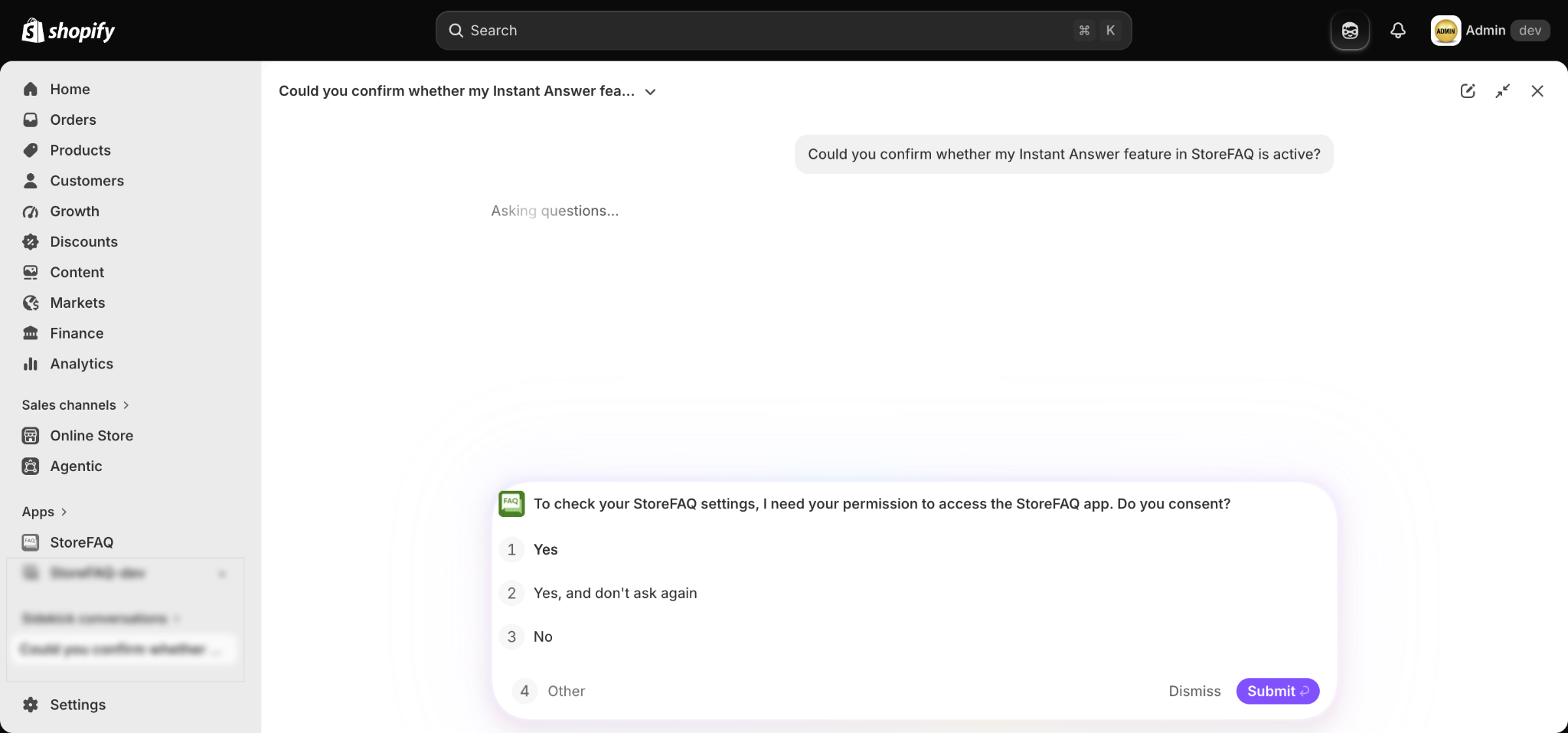
- Keep control, since Sidekick asks permission before it uses the app and only for the current conversation
How to Use StoreFAQ Inside Shopify Sidekick
Setting up the integration takes about a minute, and the steps below are all you need to get StoreFAQ talking to Sidekick. If you want a full click-by-click walkthrough with every prompt and screen, the StoreFAQ documentation linked at the end of this section covers that too.
Before You Start: Install StoreFAQ
If you have not added the app yet, install it first. Open the StoreFAQ listing on the Shopify App Store, click Install and grant the requested permissions. Once installed, StoreFAQ appears in your Shopify admin under Apps. The installation and getting started documentation covers the process end to end.
Step 1: Open Sidekick & Activate StoreFAQ
Open Sidekick from the icon in the top bar of your Shopify admin, or type straight into the ask bar on your Home page. The first time a question needs StoreFAQ, Sidekick asks for your approval to use the app. Approve it and the access stays live for that conversation.
Step 2: Ask, Review & Act
Now just ask. Sidekick shows a short progress indicator while it retrieves your data, then answers inside the panel and offers relevant follow-up actions such as opening a group, adding a new FAQ or attaching a group to a product.
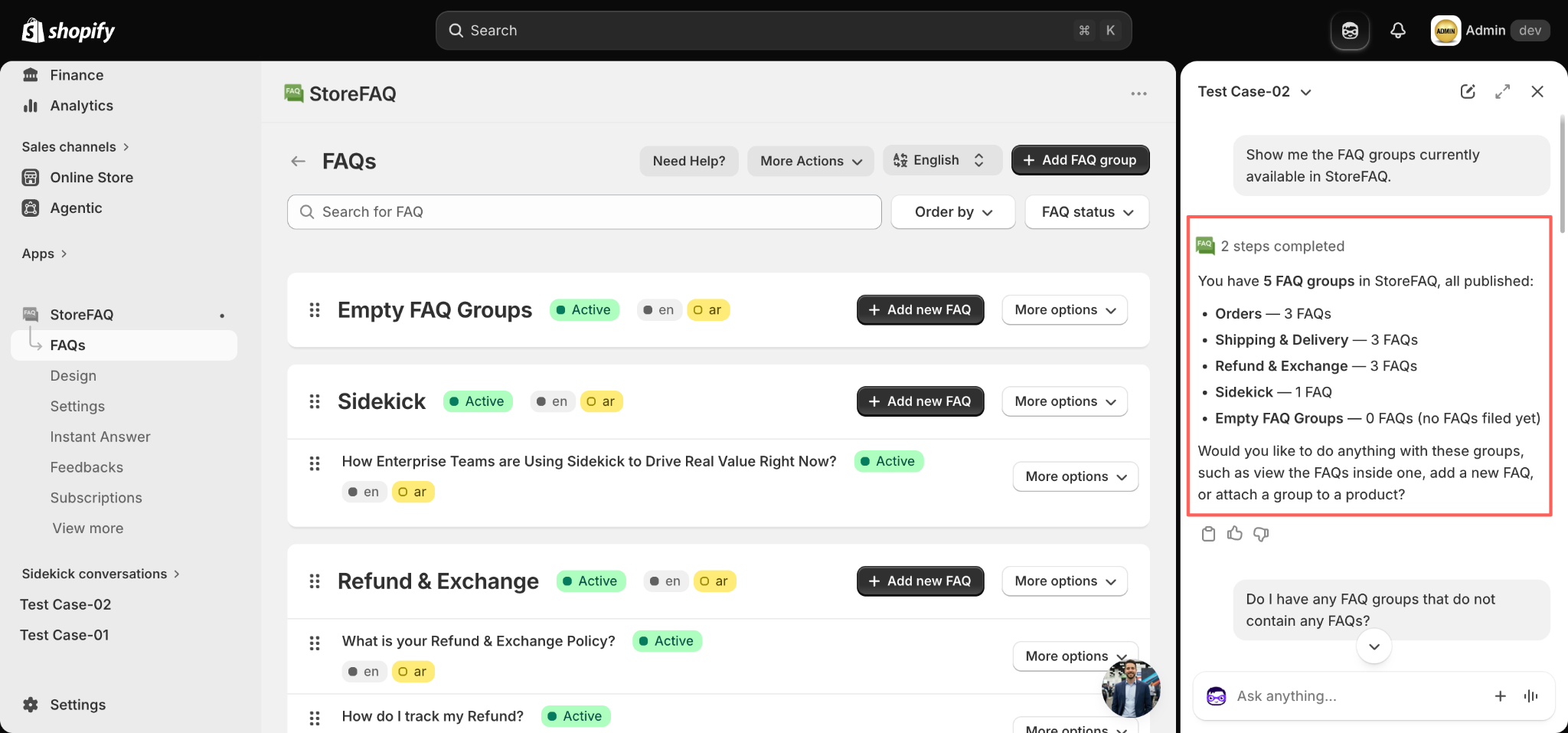
Because the StoreFAQ interface stays visible behind the panel, you can verify an answer and act on it immediately.
This short setup covers the essentials. For the complete guide, including a full prompt library and troubleshooting, see the documentation.
See It in Action: Questions Sidekick Can Answer
The integration earns its place on the questions that are quick to ask but slow to look up. Here are three that come up constantly.
Example 1: Auditing Your FAQ Library
“Show me the FAQ groups currently available in StoreFAQ.”
Sidekick returns every group, confirms whether each one is published and breaks down how many FAQs sit inside. A follow-up like “Do I have any FAQ groups that do not contain any FAQs?” surfaces the empty shells you created weeks ago and forgot to fill. That is a content audit in two prompts rather than twenty minutes of scrolling.
Example 2: Checking Your Plan and Renewal
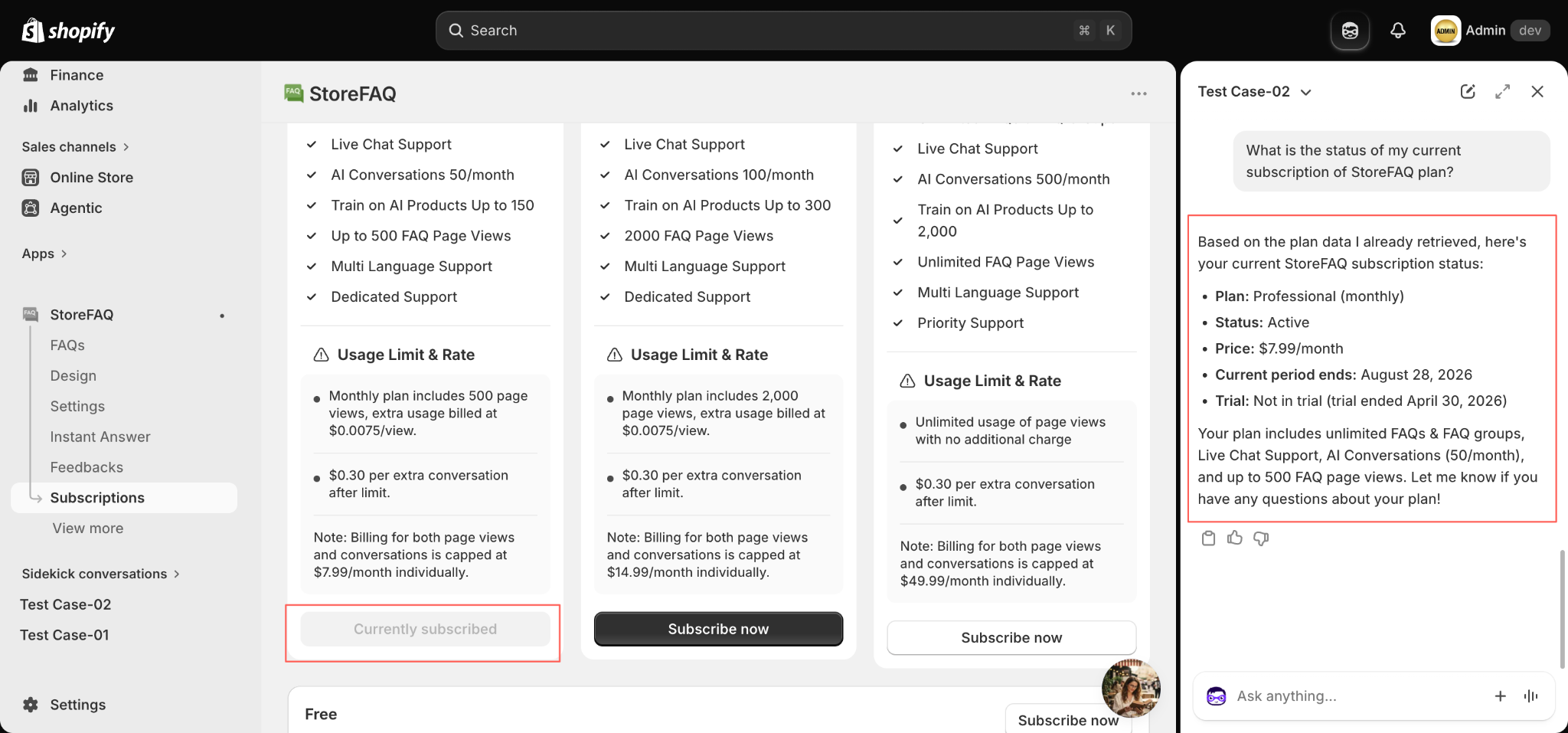
“What is the status of my current subscription to the StoreFAQ plan?”
Instead of opening Subscriptions and checking which pricing plan reads “Currently subscribed”, you get the plan name, billing cycle, status, price, renewal date and trial state of your active StoreFAQ plan in a single reply, along with a summary of what the plan includes.
Example 3: Confirming What Is Switched On
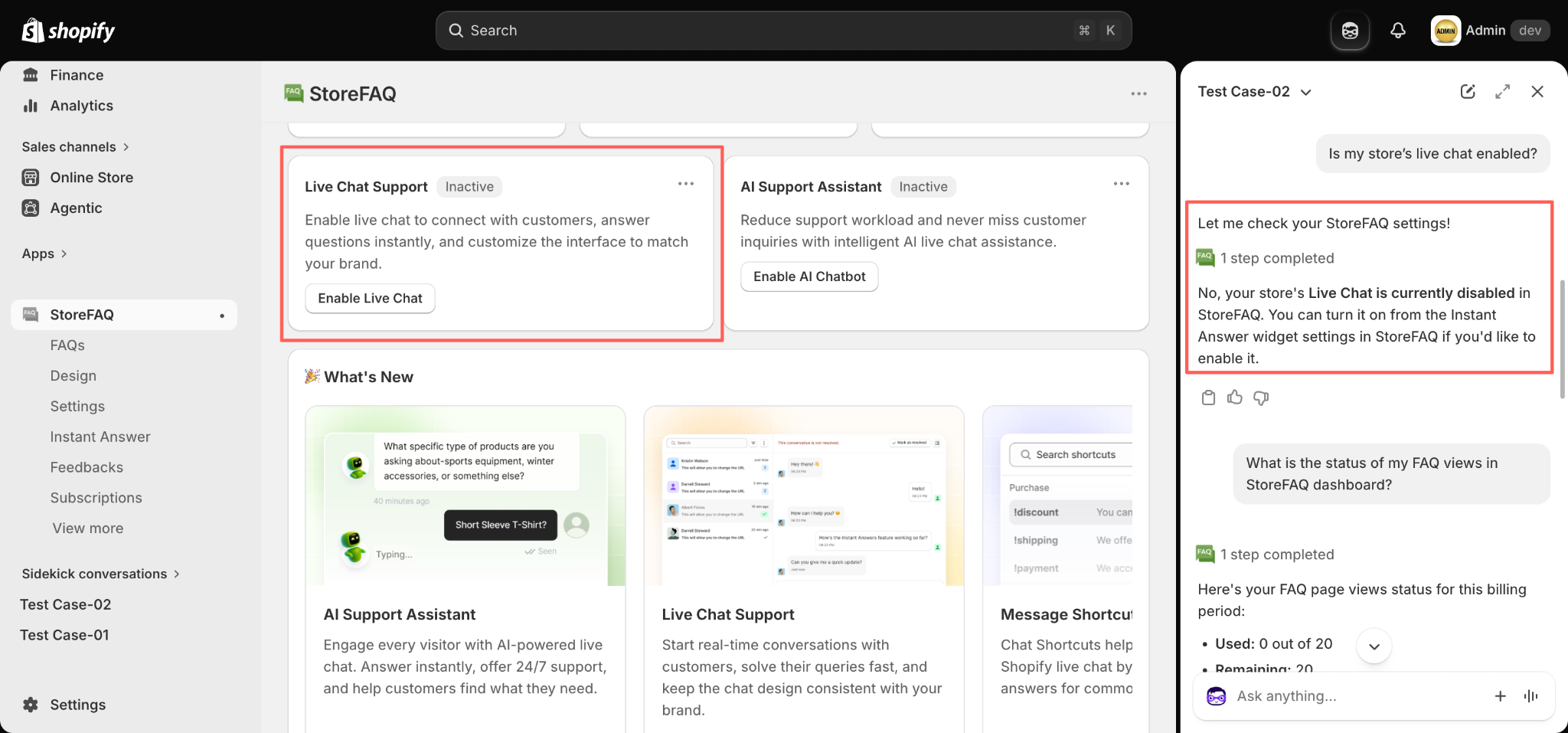
“Is my store’s live chat enabled?“
Sidekick checks your StoreFAQ settings and tells you the current state plus where to change it. Chain a usage question straight after it, such as “What is the status of my FAQ views in StoreFAQ dashboard?”, and you get your used and remaining page views for the billing period without touching a dashboard.
None of these questions are hard. They are just frequent, and frequency is exactly what makes friction expensive.
Benefits of the Shopify Sidekick Integration for Merchants
The advantages show up in the two places that matter most for a growing store: the time your team spends on admin work and the quality of the support experience your shoppers get.
Less Context Switching, More Finished Work
Every app you open pulls attention away from the task in front of you. Answering support questions from the assistant panel keeps you on the order, product or campaign you were actually working on, which means fewer half-finished tasks at the end of the day.
Better Support Content, Maintained More Often
FAQ libraries decay quietly. Groups sit empty, answers go stale and nobody notices until a shopper asks. When auditing takes one prompt instead of a dedicated review session, it actually gets done, and a current FAQ library means fewer tickets and more confident buyers.
No Surprises on Usage or Billing
Page view allowances and AI conversation limits are easy to forget until you cross them. Being able to ask for your remaining balance in the middle of a busy week keeps your costs predictable during traffic spikes and seasonal peaks.
Easier Onboarding for Your Team
A new team member does not have to learn where every setting lives. They can ask the assistant, get the answer and be pointed to the right screen, which shortens the learning curve on a tool your whole support workflow depends on.
Best Practices for Getting the Most from the Integration
Unlock the full potential of Shopify Sidekick by seamlessly weaving AI assistance into your daily eCommerce operations. Whether you are generating product descriptions, analyzing store performance, or drafting customer emails, following a few key strategies will help you get faster, more accurate and far more actionable results from your integration.
The assistant is only as useful as the data behind it. A few habits keep it sharp:
Keep Your FAQ Content Organised
Sidekick answers from your StoreFAQ structure, so clear group names and consistent categories produce clearer answers. Vague groups return vague summaries.
Name the App in Your Prompt
Mentioning StoreFAQ by name, for example ‘Using StoreFAQ, list my FAQ groups’, makes your intent explicit and gets you the right data on the first try.
Use One Conversation per Topic
Keep a thread for FAQ housekeeping and another for billing and usage checks. Sidekick holds the context of each conversation, so follow-up questions stay accurate without repeating yourself.
Re-Ask After You Make Changes
Answers reflect the data retrieved during the conversation. If you edit FAQs or flip a setting while the panel is open, ask again so the reply picks up the new values.
Frequently Asked Questions
What is the Shopify Sidekick integration in StoreFAQ?
Do I need to pay extra for it?
What exactly can I ask about?
Is my store data safe?
Can Sidekick change things or only read them?
How is this different from the StoreFAQ AI Chatbot?
What if Sidekick gives me an outdated answer?
Does it work on every Shopify plan?
Manage Your Store FAQs the Faster Way
Support content only helps when it is current, and it only stays current when checking it is easy. The Shopify Sidekick integration in StoreFAQ makes that check as quick as asking a question.
Audit your FAQ groups, confirm what is switched on, watch your usage and review your plan without ever leaving the admin screen you were working on. Your FAQ library stays healthy, your shoppers get better answers and your team spends its time on work that actually needs a human.
Open Sidekick in your Shopify admin today and ask it what is inside your StoreFAQ.
If this blog helped you, please subscribe for more simple guides, tutorials and tips to grow your Shopify store.