


Keeping your Shopify FAQs accurate never really ends. New products launch, shipping policies change, and customers keep asking questions you never thought to answer. With MCP in StoreFAQ, you do not have to open a dashboard every time something needs an update. You can connect your StoreFAQ data to Claude or ChatGPT and manage your FAQs by having a conversation.
In this blog, we will cover what MCP in StoreFAQ is and why it matters for Shopify merchants right now. We will also go through the features it brings and how it takes repetitive FAQ work off your plate. At the end, there’s a quick way to set it up, so you can try it on your own store today.
What Is MCP in StoreFAQ?
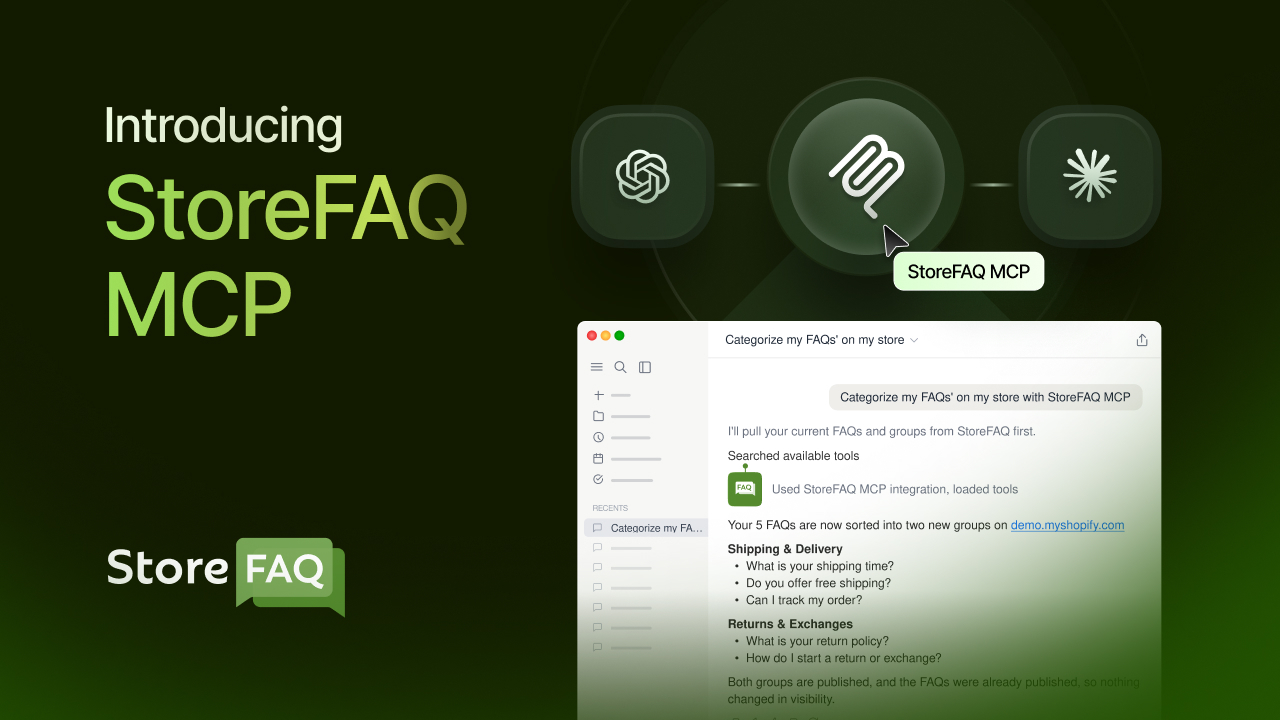
MCP stands for Model Context Protocol. It is an open standard that lets AI assistants connect securely to the apps and data you already use. Think of it as a bridge. On one side is an assistant like Claude or ChatGPT that understands plain language. On the other side is your StoreFAQ data: your FAQs, FAQ groups and settings. MCP connects the two, so the assistant can read and act on your store’s FAQ content instead of giving you generic advice.
MCP in StoreFAQ works through StoreFAQ’s own MCP server. Once it’s connected, you can read, create and update FAQs and FAQ groups, find content gaps and adjust settings without opening the StoreFAQ dashboard. You approve access through your Shopify account, and you can revoke it whenever you want.
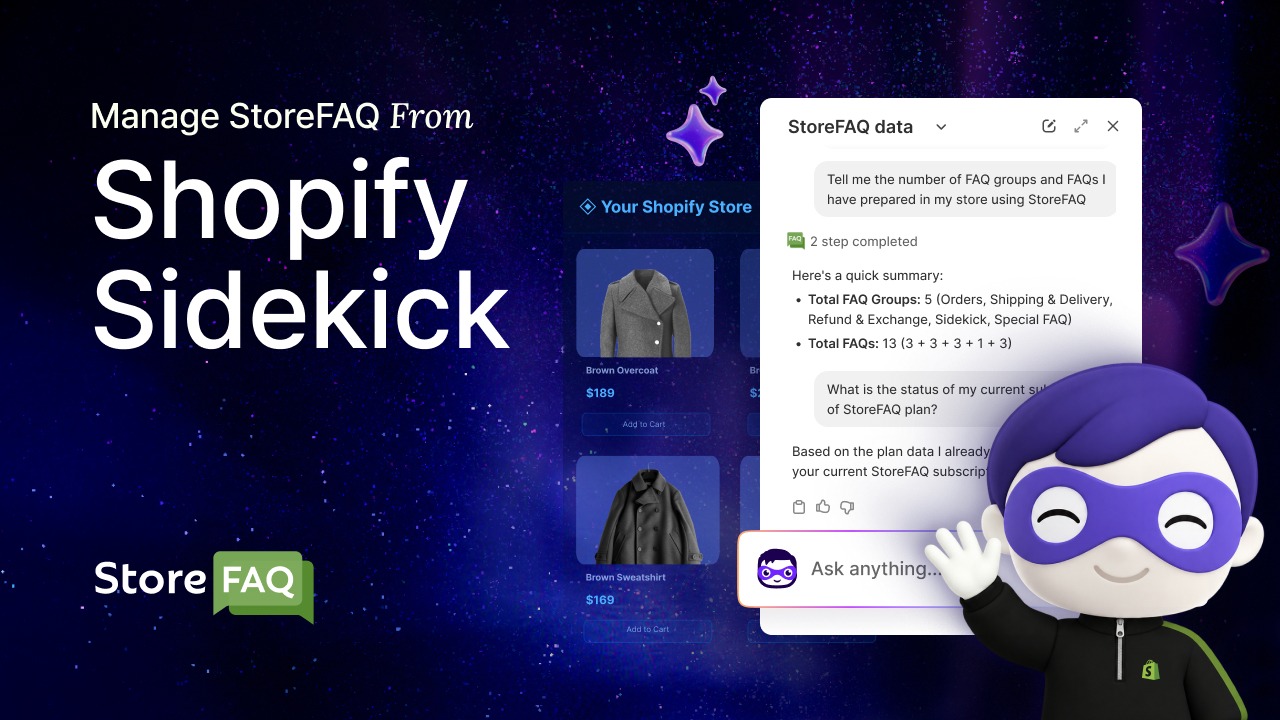
If you have tried the Shopify Sidekick integration with StoreFAQ, the idea will feel familiar. Sidekick lets you manage your helpdesk from inside Shopify admin. MCP in StoreFAQ brings that same convenience to the AI assistants many merchants already use every day for writing, research and planning.
Why MCP in StoreFAQ Matters for Shopify Merchants
FAQs aren’t a set-and-forget asset anymore. Shoppers increasingly search with full questions instead of short keywords. AI-powered search tools also pull direct answers from well-structured content, which is why FAQ schema still matters for Shopify AI search in 2026. Your FAQ library is now part of how customers discover you, how they get support and whether they buy.
The problem is maintenance. Updating FAQs usually means logging into Shopify admin, opening the app, finding the right group and editing entries one by one. For a store with dozens or hundreds of products, that adds up, and outdated answers stay live longer than they should. A customer who reads “30-day returns” when your policy is now 45 days either loses trust or sends a support ticket you didn’t need.
MCP in StoreFAQ removes that friction. Instead of clicking through screens, you tell the assistant what you need. For example: “Our return window changed from 30 to 45 days. Find every FAQ that mentions returns and update it.” What used to take several screens and a lot of copy-pasting becomes one message, and you can review the changes before they go live.
Key Features of MCP in StoreFAQ
MCP in StoreFAQ isn’t just a chat layer on top of your FAQs. It gives Claude and ChatGPT a set of tools that cover the full FAQ workflow. That includes creating content, finding gaps and fine-tuning how your FAQs appear on your store. Here’s a closer look at what you can do.
Create, Edit And Organize FAQs in Plain Language
You can create new FAQs, rewrite existing ones, group them and reorder them simply by describing what you want. Say you’ve just added a new skincare line. You could ask, “Create a new FAQ group called ‘Vitamin C Serum’ with five questions about usage, skin types, storage and shelf life.” The assistant drafts the questions and answers and adds them to your store once you approve.
Editing works the same way. You can ask the assistant to shorten long answers, make the tone friendlier or duplicate an existing group as a starting point for a similar product. If you have used AI Autowrite to generate FAQs with StoreFAQ, this takes it a step further. You’re not just generating content, you’re managing your whole library from one conversation.
Find Content Gaps And Check FAQ Coverage
One of the hardest parts of FAQ management is knowing what’s missing. StoreFAQ MCP can look across your FAQ library to find content gaps and show which products or topics don’t have proper answers yet. Instead of guessing, you can ask, “Which of my products don’t have any FAQs?” and get a clear list to work from.
This is especially useful for growing stores. Every new product is a new set of questions customers will ask, and it’s easy for some to slip through. Pairing this with our list of questions every Shopify store should answer before checkout gives you a solid checklist and a fast way to act on it.
Spot Outdated FAQs Before Customers Do
Stale FAQs are quietly expensive. An answer about a discontinued shipping option or an old price can confuse shoppers right when they’re ready to buy. StoreFAQ MCP can help you find FAQs that may be outdated, so you can review and refresh them in one sitting instead of finding them after a customer complains.
A practical habit is a quick monthly check: “Show me FAQs that haven’t been updated in a while and might need a review.” From there, you can update them in bulk or ask the assistant to rewrite them based on your current policies.
Turn Real Customer Questions into New Answers
The best FAQs come from real customer questions. StoreFAQ MCP lets the assistant pull up questions customers have been asking, so you can see patterns and turn them into proper FAQ entries. If several shoppers asked whether a jacket is waterproof, that’s a clear sign it deserves a place on the product page.
This closes the loop between support and content. Instead of answering the same question over and over in chat, you answer it once in your FAQs and let your Instant Answers and chatbot handle it from then on.
Manage Schema, Chatbot And Widget Settings from a Chat
StoreFAQ MCP isn’t limited to FAQ content. You can also adjust settings through the conversation, such as turning FAQ schema on or off, updating your FAQ page title, changing the look of your FAQ widget and managing your AI chatbot and live chat options. If you’ve already set up the StoreFAQ AI chatbot, you can ask the assistant to resync it after a round of FAQ updates so it answers with the latest information.
This means a single conversation can take you from “add these FAQs” to “make sure schema is on and the chatbot is synced” without touching a settings page.
Stay in Control with Tool Permissions
Giving an AI assistant access to your store data should never mean losing control. When you connect StoreFAQ MCP with Claude, you choose how each tool can be used. Allow lets Claude use the tool without asking, Needs approval makes Claude ask you first (this is the default), and Block stops the tool entirely.
A sensible setup is to allow read-only actions like searching FAQs or checking coverage, keep “Needs approval” for anything that creates or edits content, and block deletion if you’d rather handle that yourself. You get the speed of AI without changes going live unchecked.
How Merchants Benefit from MCP in StoreFAQ
Features are only useful when they make running your store easier. Here’s how MCP in StoreFAQ helps day to day, whether you’re a solo founder handling everything yourself or a team managing a large catalog.
Less Dashboard Time, More Time for Your Business
Most merchants do not want to spend their afternoons inside app settings. StoreFAQ MCP lets you handle FAQ updates in the same place you might already be drafting product descriptions or planning a campaign. You stay in one conversation instead of switching tabs and losing focus.
For example, while planning a holiday sale in Claude, you could ask it to add FAQs about sale shipping cutoffs and gift returns, then go straight back to your campaign plan.
Fewer Repetitive Support Tickets
Every unanswered question becomes a support ticket, a chat message or an abandoned cart. When adding and updating FAQs takes a sentence instead of a session, your FAQs stay complete and current. That means customers find answers on their own, and your support inbox gets lighter.
Since StoreFAQ also powers your Instant Answers and AI chatbot, better FAQs improve every self-service touchpoint on your store at once.
Stronger Visibility in Search and AI Answers
Complete, well-structured FAQs help search engines and AI tools understand your products. With schema controls available right in the chat, it’s easier to keep your FAQs both accurate and properly marked up. If you want to dig deeper into the structured data side, our guide on FAQPage vs QAPage vs Product schema explains which one to use where.
Consistent Answers Across Your Store
When your policy changes, StoreFAQ MCP can help you find every FAQ affected and update them together. That keeps your product pages, FAQ page and chatbot telling customers the same thing. Consistency builds trust, and trust is what turns a browser into a buyer.
MCP in StoreFAQ in Action: Everyday Examples
To make this more concrete, here are a few ways different stores might use MCP in StoreFAQ.
A fashion store launching a new collection can ask the assistant to create sizing and fabric-care FAQs for each new product, using the existing collection’s FAQs as a template. An electronics store can run a quick coverage check every week to catch new products without warranty or compatibility FAQs. A store moving from another FAQ tool can first import FAQs into StoreFAQ, then use MCP to clean up wording, group entries properly and fill in the gaps. And before a big sale, any merchant can ask the assistant to review all shipping and return FAQs so the answers match the seasonal policy.
How to Set Up MCP in StoreFAQ (Quick Steps)
Getting connected takes about two minutes. First, make sure you have StoreFAQ installed on your Shopify store. Then, in your Shopify admin, go to Apps → StoreFAQ → AI Assistant (MCP) and copy the MCP server URL from the Claude or ChatGPT tab.
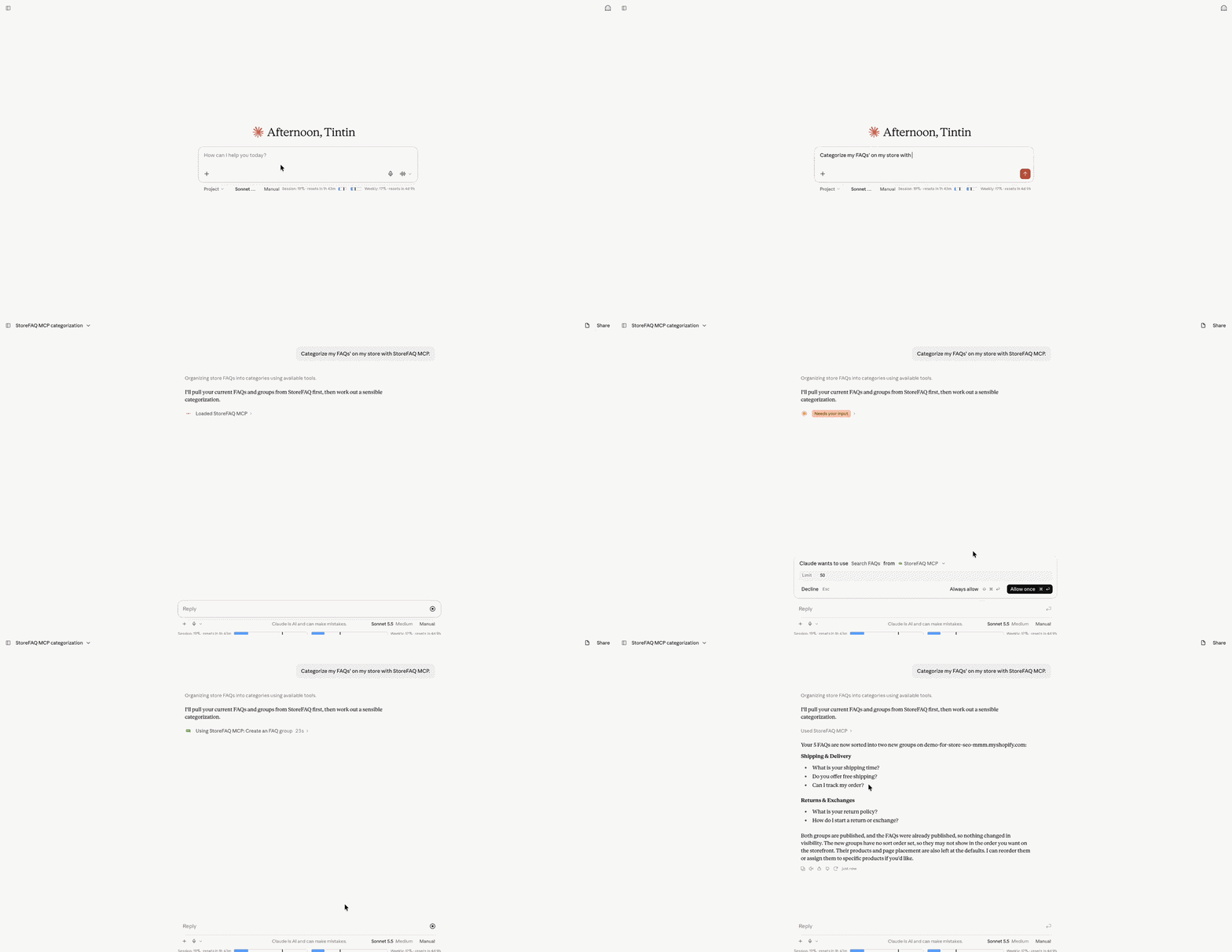
In Claude, go to Settings → Connectors and add it as a custom connector. In ChatGPT, go to Settings → Plugins and add it as a custom MCP server. Sign in to Shopify, approve access, and you’re ready to start chatting with your FAQs.
Want the full walkthrough with screenshots? Check out our guide on how to connect StoreFAQ MCP with Claude and ChatGPT.
Start Managing Your Shopify FAQs Through a Chat Today
FAQs work best when they’re complete, current and easy to find, and MCP in StoreFAQ makes keeping them that way far less work. You can create and refine content, find gaps, spot outdated answers and fine-tune your settings, all from a conversation with Claude or ChatGPT. You also stay in control of every change.
If you have not tried it yet, install StoreFAQ, connect it to your favorite AI assistant and start your first chat. Your customers get better answers, and you get your time back.
If this blog helped you, please subscribe for more simple guides, tutorials and tips to grow your Shopify store.