

StoreFAQ now supports MCP (Model Context Protocol), which lets AI assistants securely access your FAQ data. Once connected, you can manage your FAQs by chatting with Claude or ChatGPT. You can read, create, and update FAQs and FAQ groups, find content gaps, and adjust settings without opening the StoreFAQ dashboard. Setup takes about 2 minutes, and you can revoke access anytime.
Note: You need StoreFAQ installed on your Shopify store and a Claude or ChatGPT account.
Part 1: Connect StoreFAQ with Claude #
Here is the step-by-step process of connecting StoreFAQ with Claude.
Step 1: Open AI Assistant (MCP) #
From your Shopify admin, go to Apps → StoreFAQ → ‘AI Assistant (MCP)’. If you don’t see it in the menu, click ‘View more’ to expand the StoreFAQ menu.
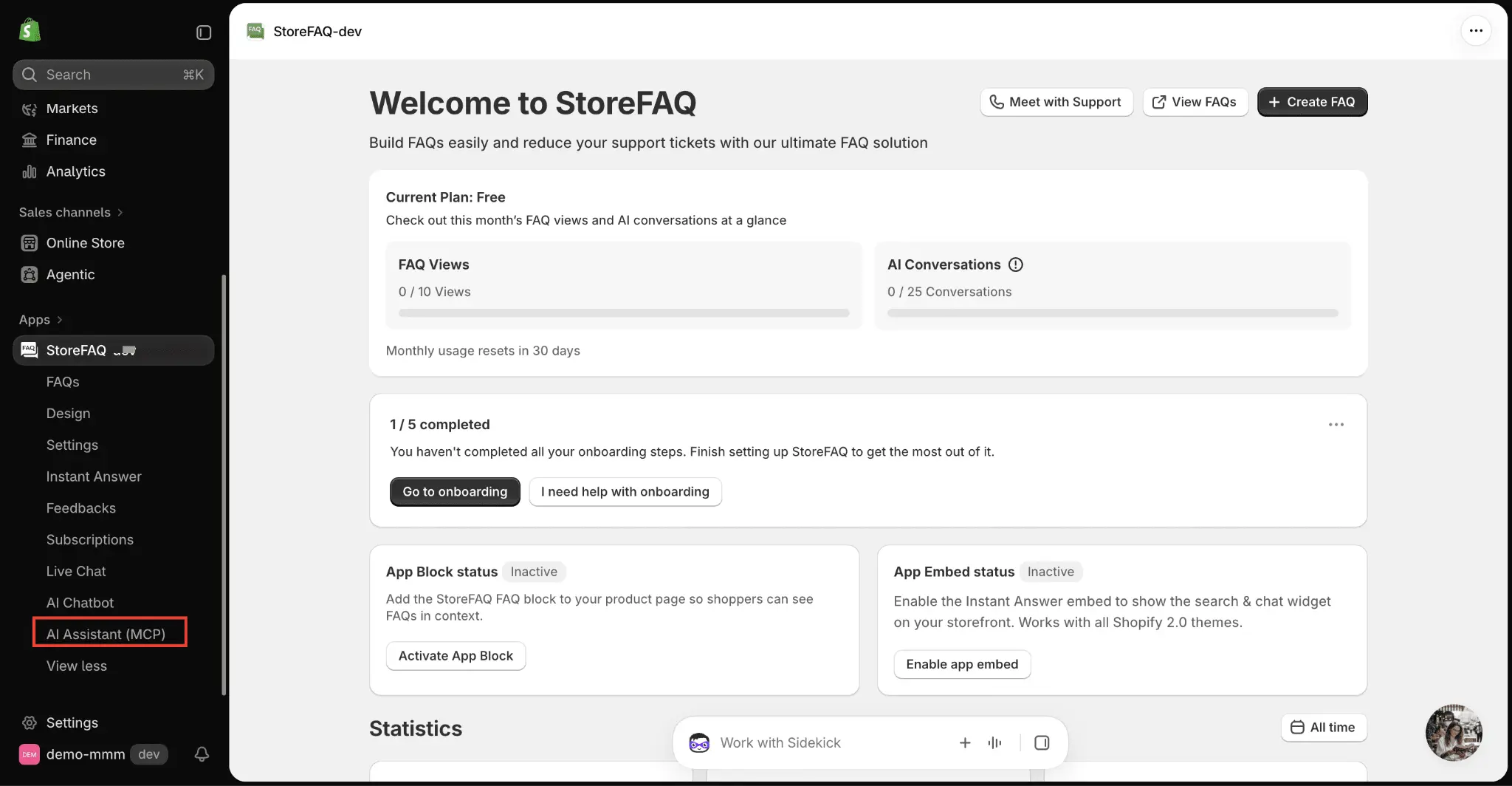
Step 2: Copy the MCP Server URL #
Under ‘Web & desktop apps’, select the ‘Claude’ tab. Click the copy icon in the ‘MCP server URL’ box to copy the URL.
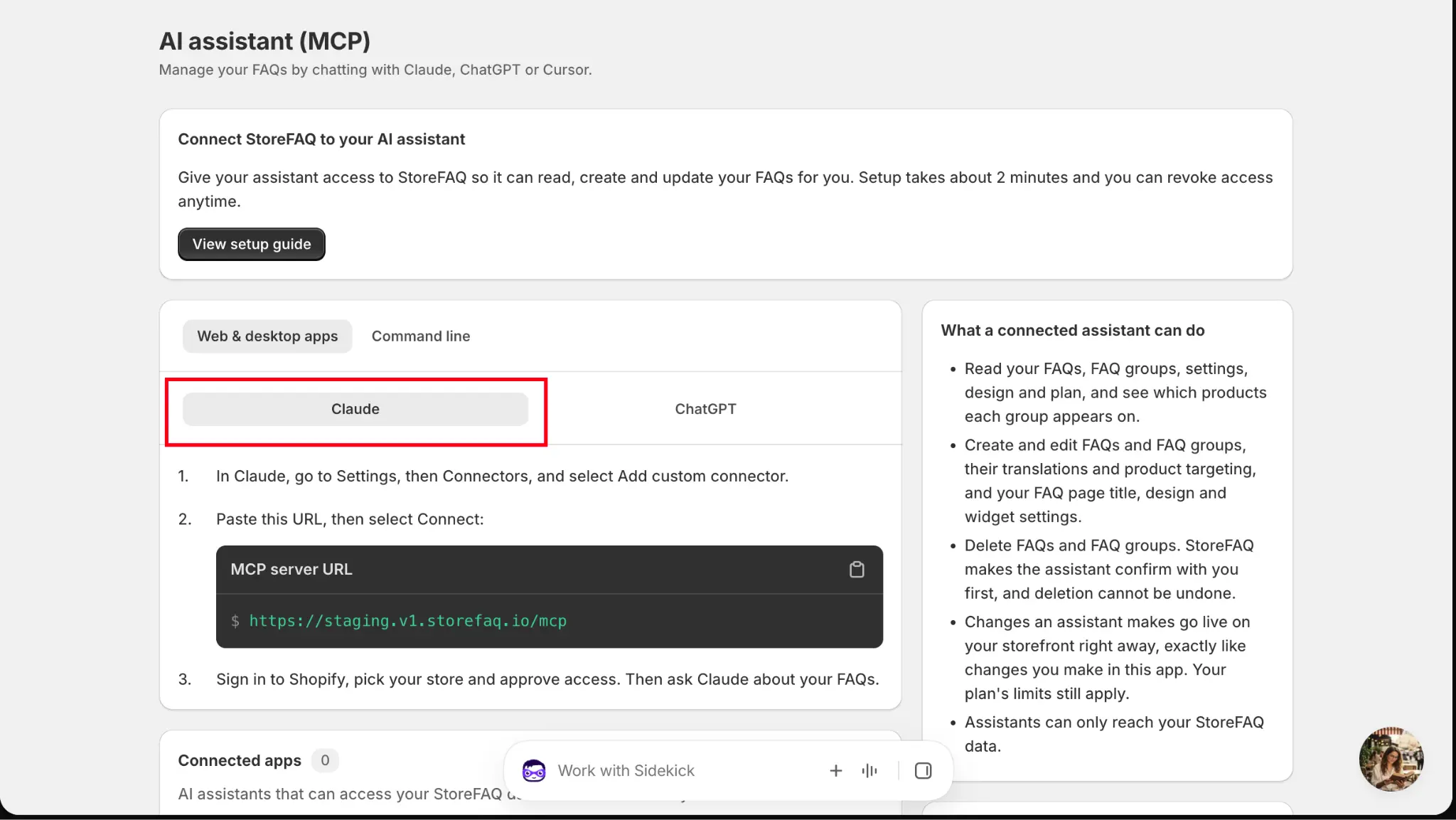
Step 3: Add a Custom Connector in Claude #
In Claude, go to Settings → Connectors. Click ‘Add’ and select ‘Add custom connector’.
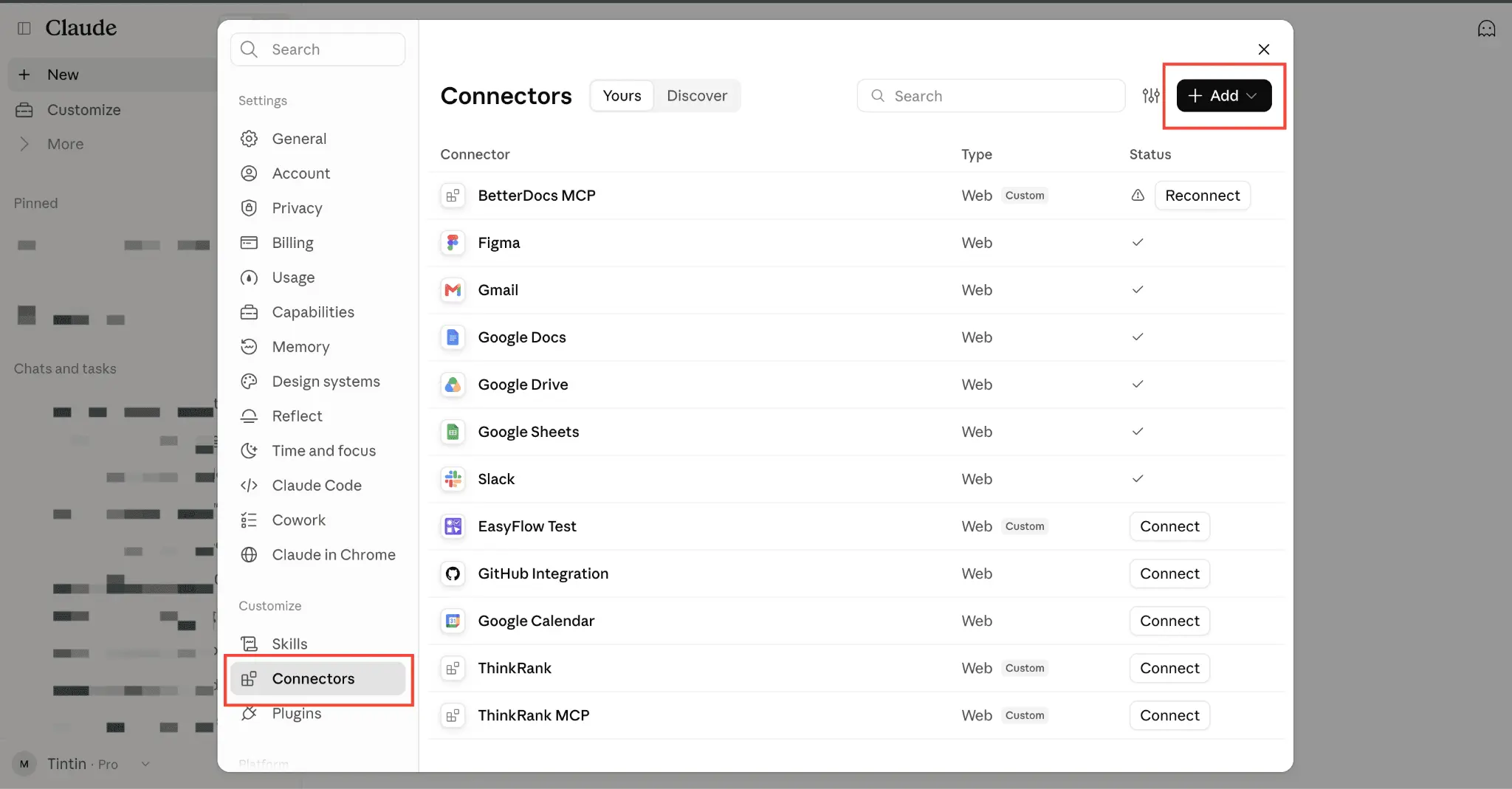
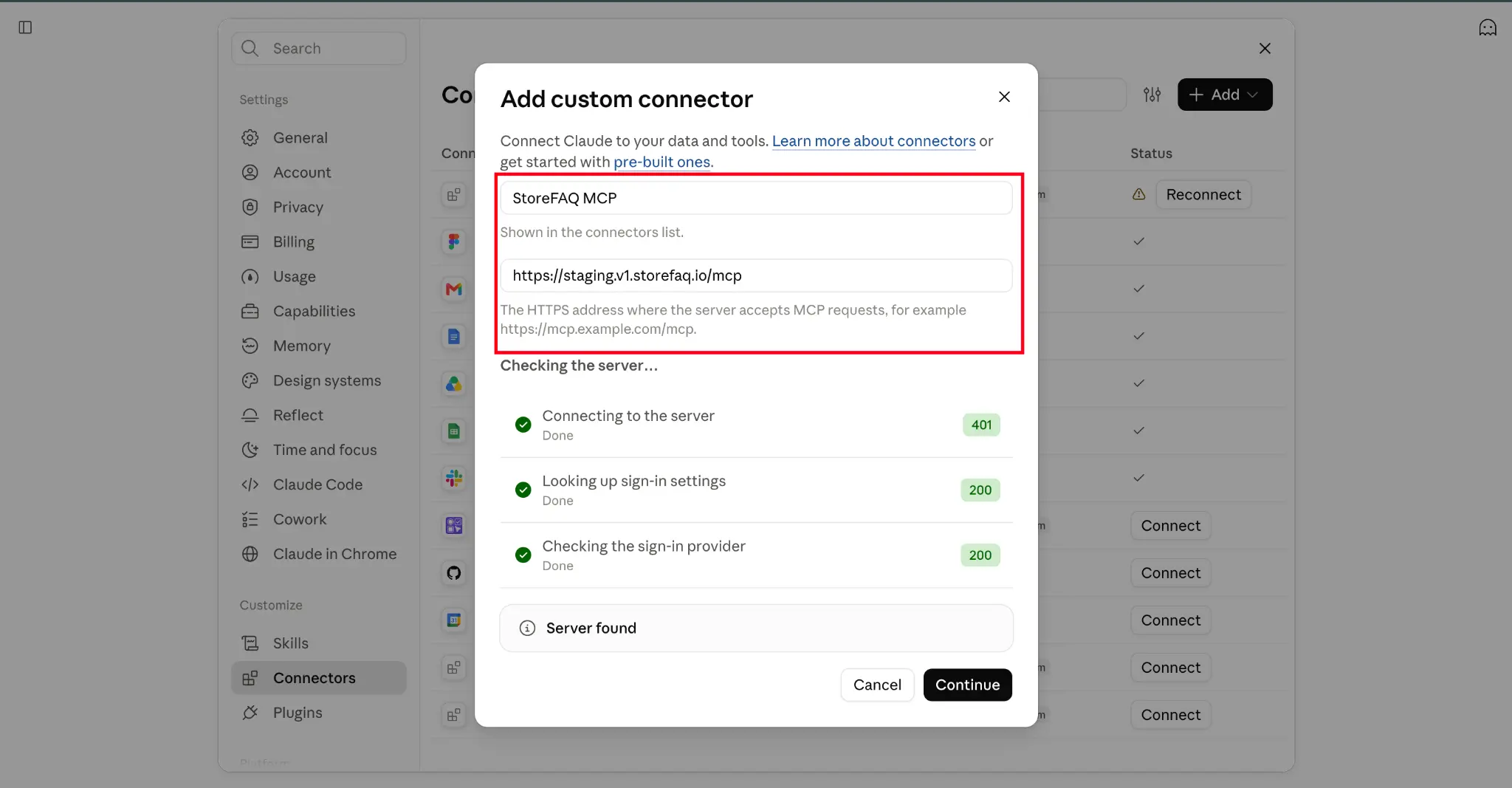
Step 4: Enter the Connector Details #
Fill in the two fields:
- Name: Enter a name, e.g. StoreFAQ MCP. This is the name shown in your connectors list.
- URL: Paste the MCP server URL you copied in Step 2.
Claude checks the server automatically. When you see ‘Server found’, click ‘Continue’.
Step 5: Confirm Authentication #
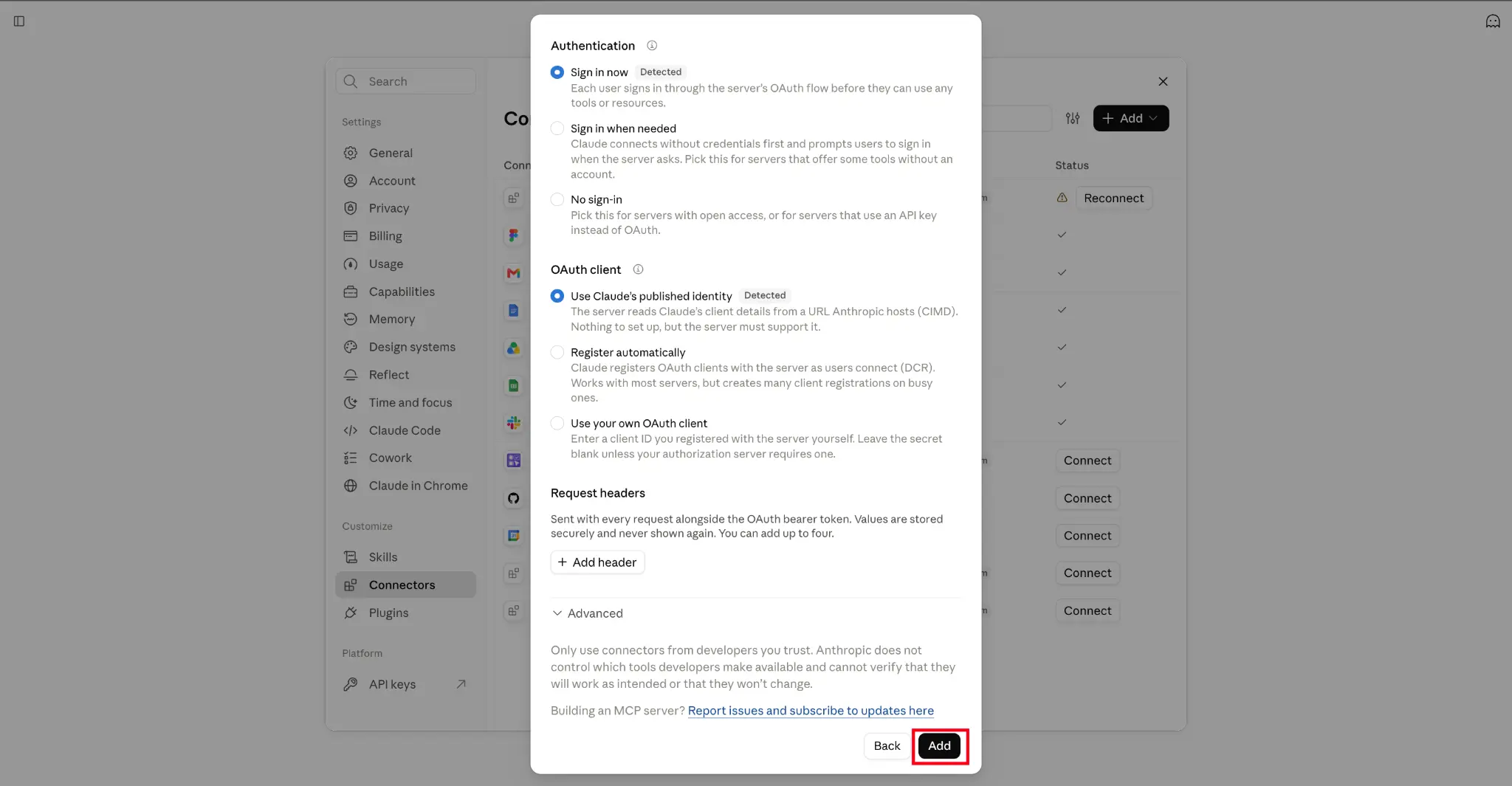
Claude detects the right sign-in settings for you. Keep these selected:
- Authentication: Sign in now
- OAuth client: Use Claude’s published identity
Click ‘Add’.
Step 6: Connect with StoreFAQ #
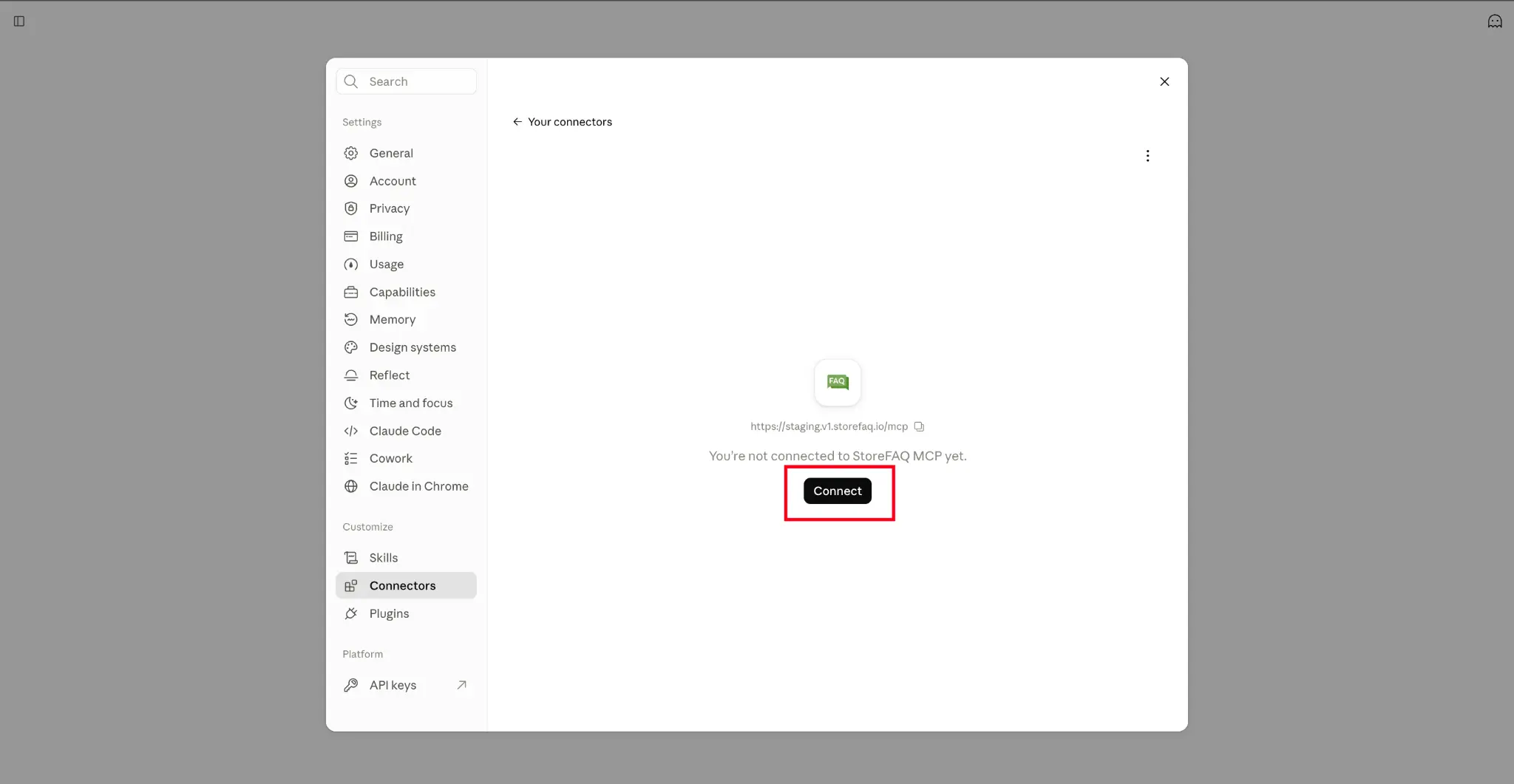
Claude opens the StoreFAQ MCP page and shows that you’re not connected yet. Click ‘Connect’.
Step 7: Sign In to Shopify And Approve Access #
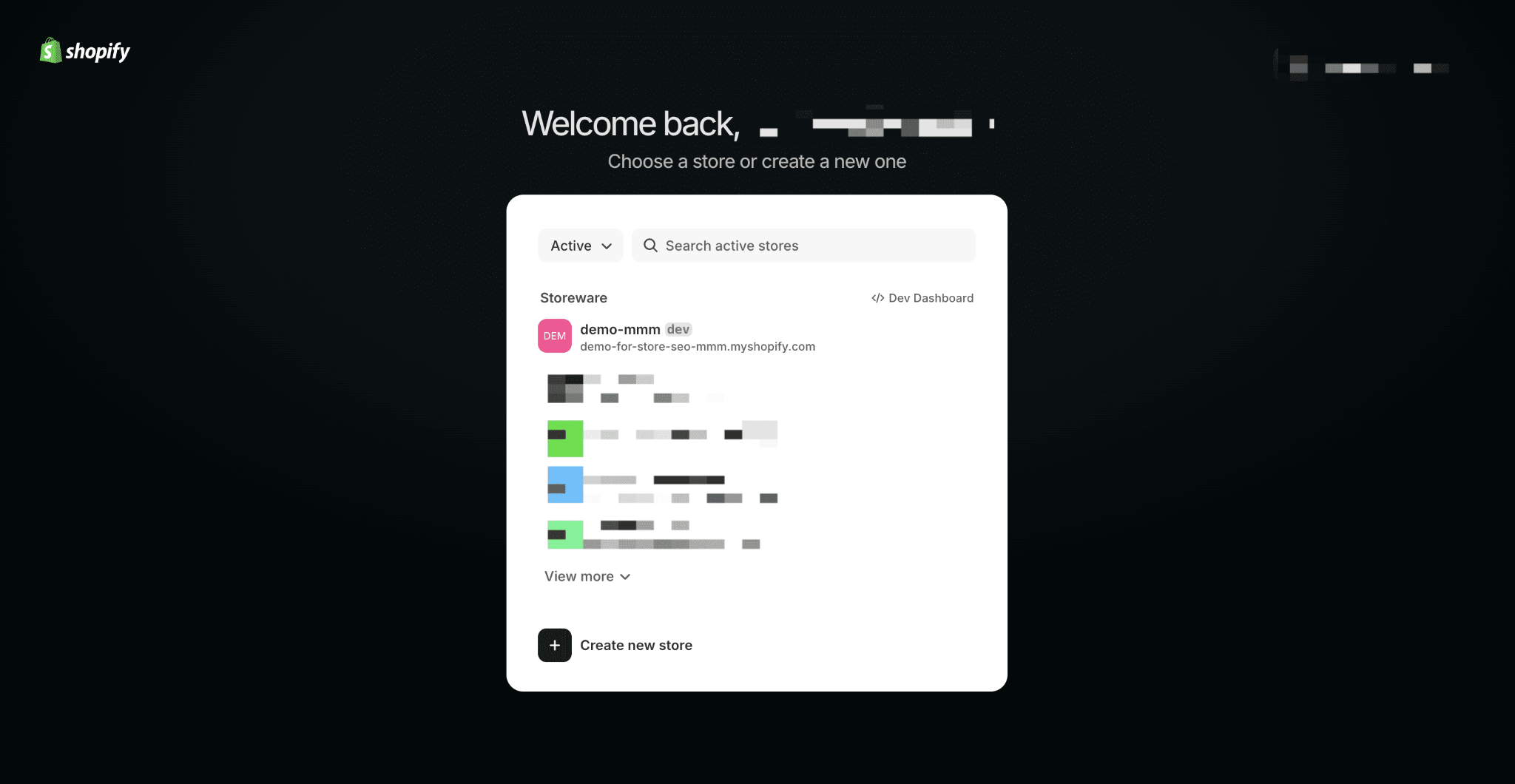
Sign in to Shopify, choose the store you want to connect to, and approve access.
Step 8: Set Tool Permissions #
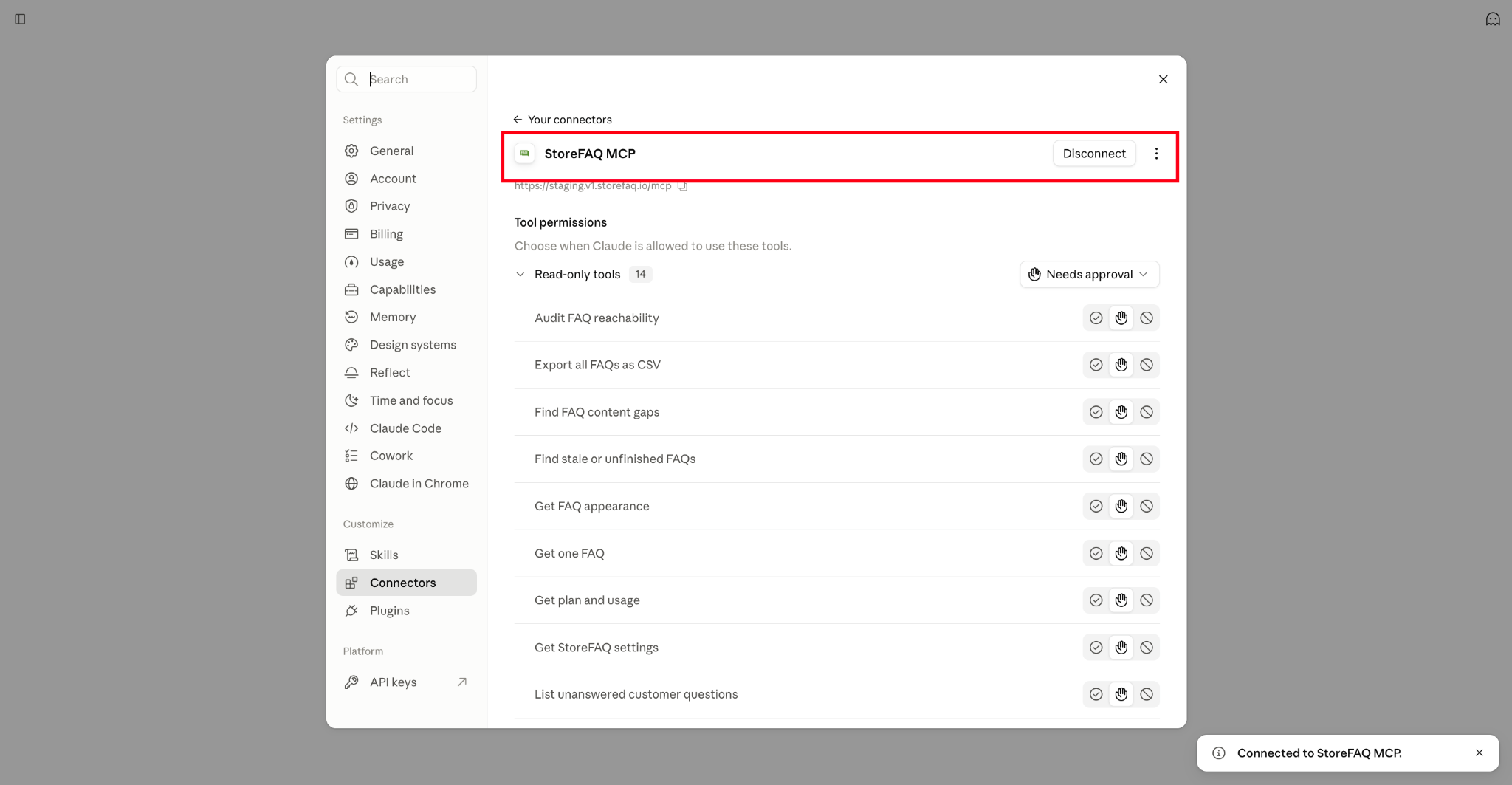
Once connected, Claude shows ‘Connected to StoreFAQ MCP’ and lists the StoreFAQ tools. For each tool, you choose when Claude can use it:
- Allow: Claude uses the tool without asking.
- Needs approval: Claude asks you first. This is the default.
- Block: Claude can’t use the tool.
Final Outcome #
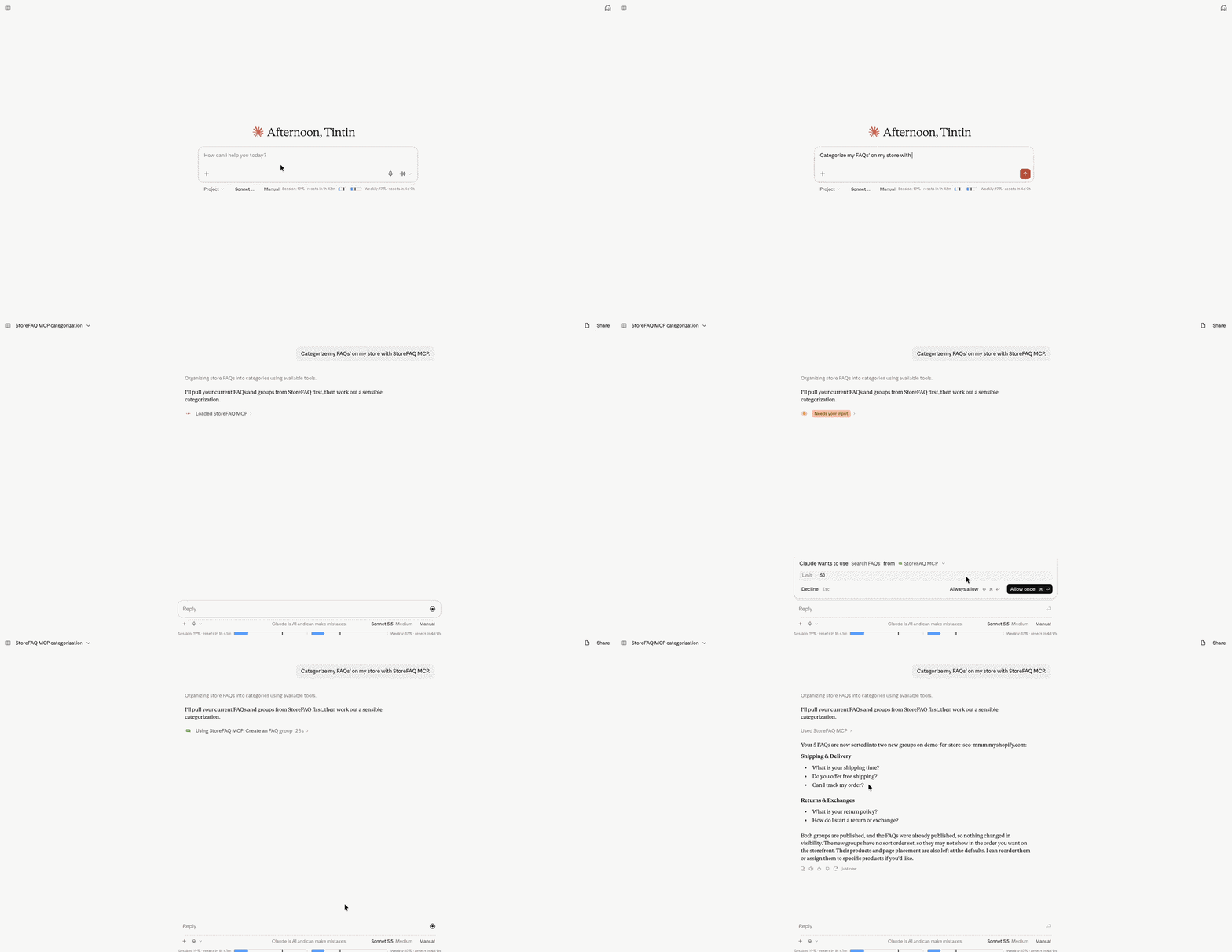
StoreFAQ is now connected to Claude, and you can start a chat and ask about your FAQs.
Part 2: Connect StoreFAQ with ChatGPT #
Here is the step-by-step process of connecting StoreFAQ with ChatGPT.
Step 1: Copy the MCP Server URL #
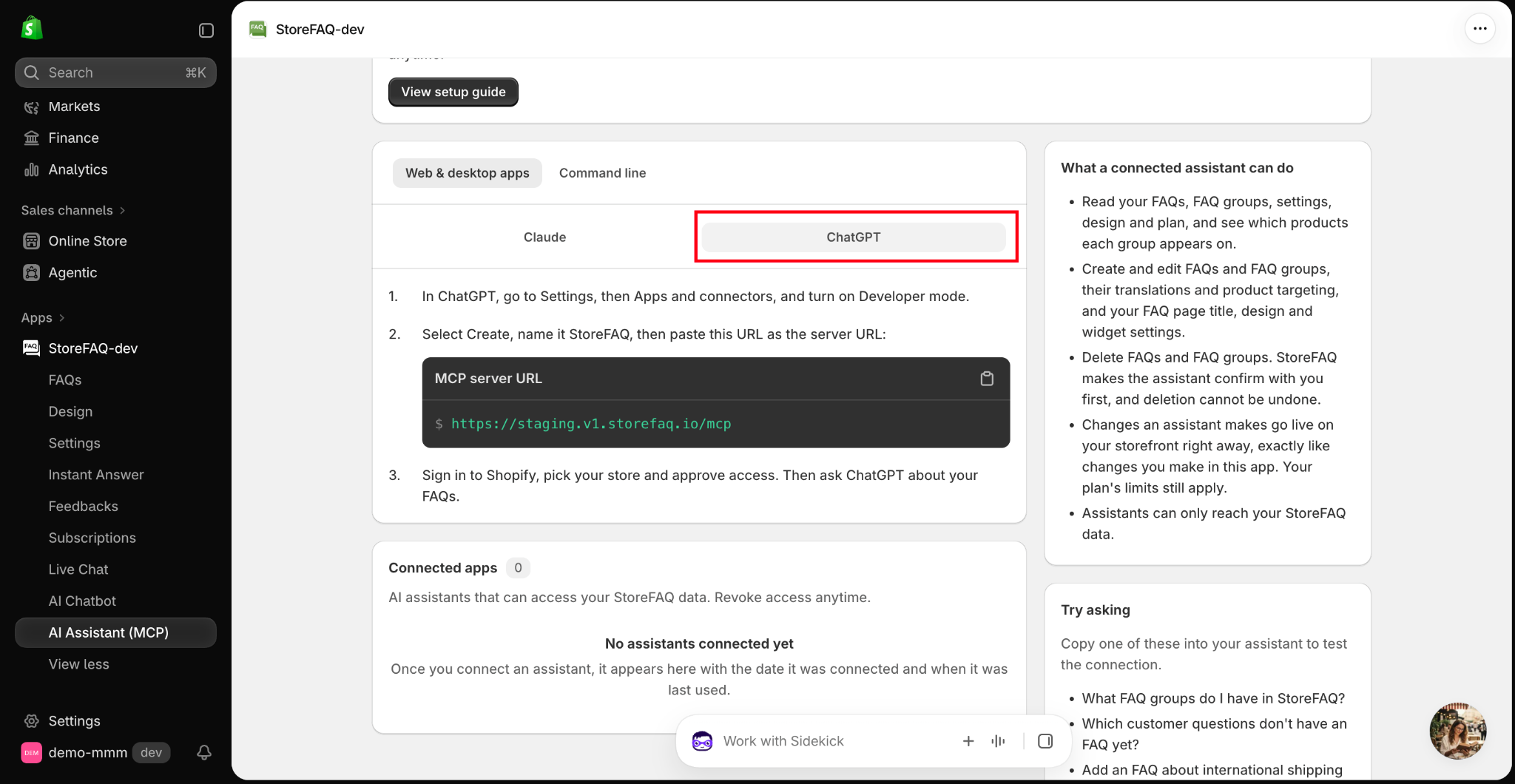
Go to Apps → StoreFAQ → ‘AI Assistant (MCP)’ in your Shopify admin. Under ‘Web & desktop apps’, select the ‘ChatGPT’ tab and copy the ‘MCP server URL’.
Step 2: Open Plugins in ChatGPT #
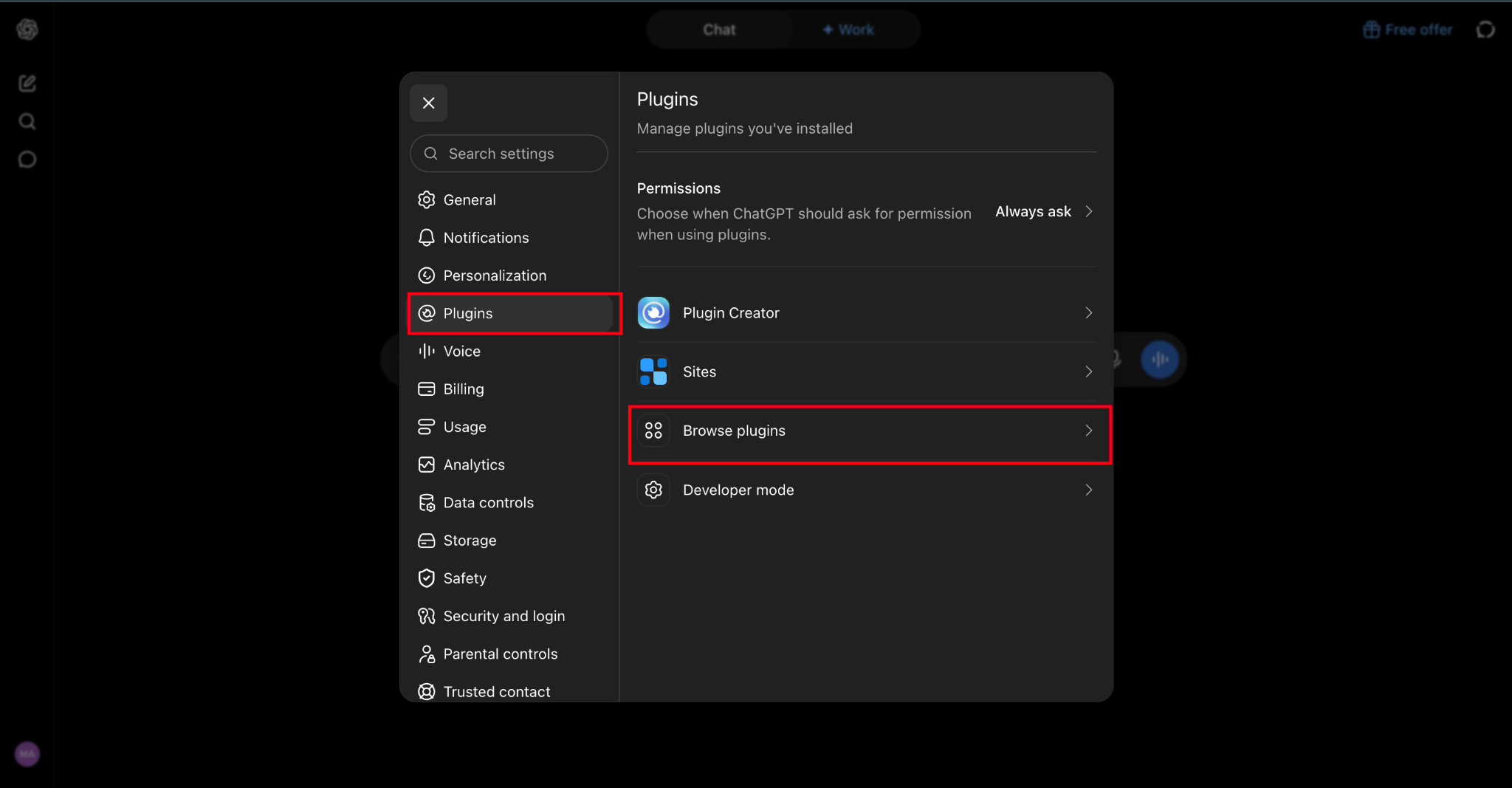
In ChatGPT, go to Settings → Plugins and click ‘Browse plugins’.
Step 3: Add a Custom MCP Server #
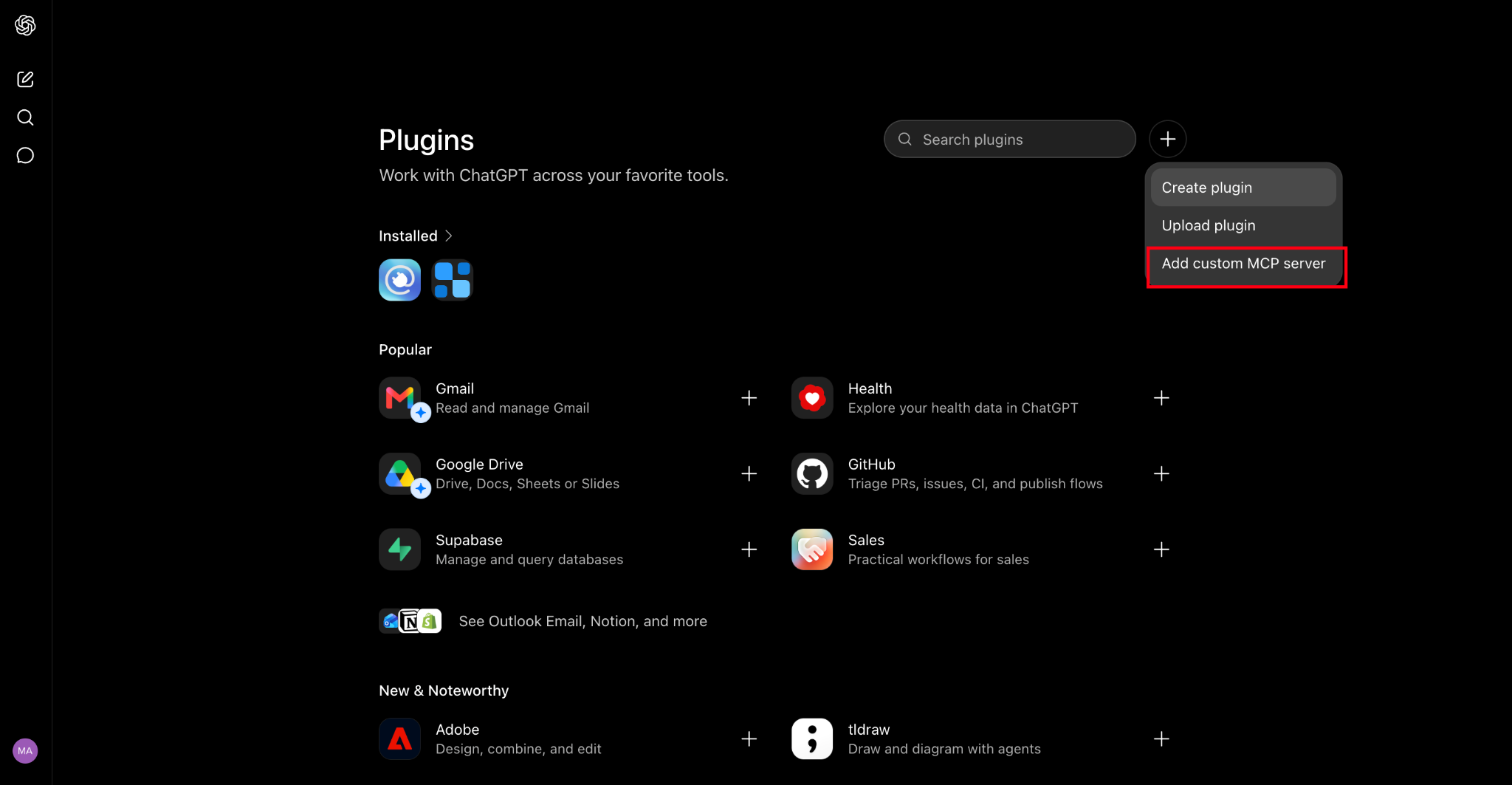
On the Plugins page, click the ‘+’ button next to the search bar and select ‘Add custom MCP server’.
Step 4: Create an MCP App #
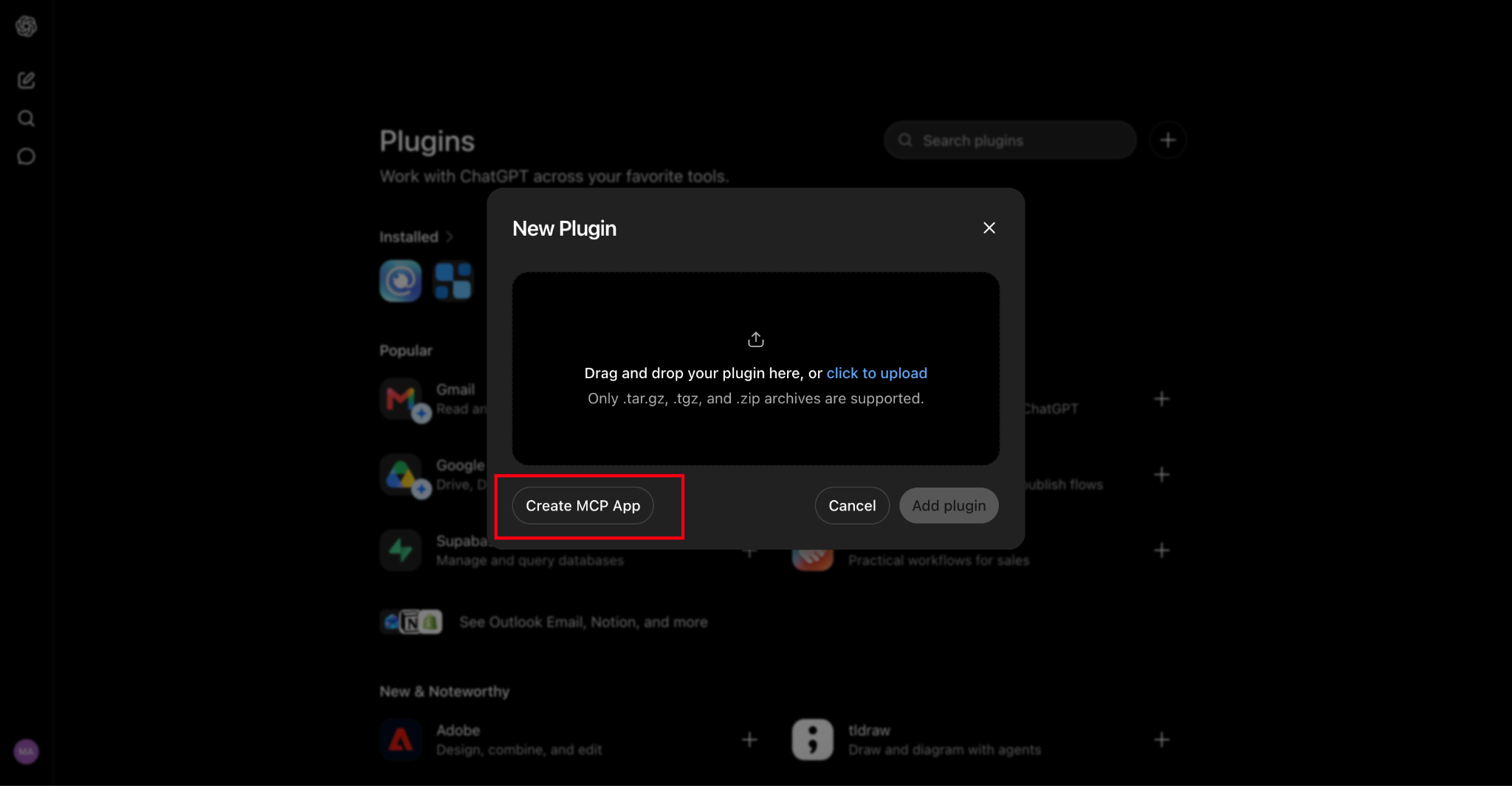
In the ‘New Plugin’ window, click ‘Create MCP App’.
Step 5: Enter the Plugin Details #
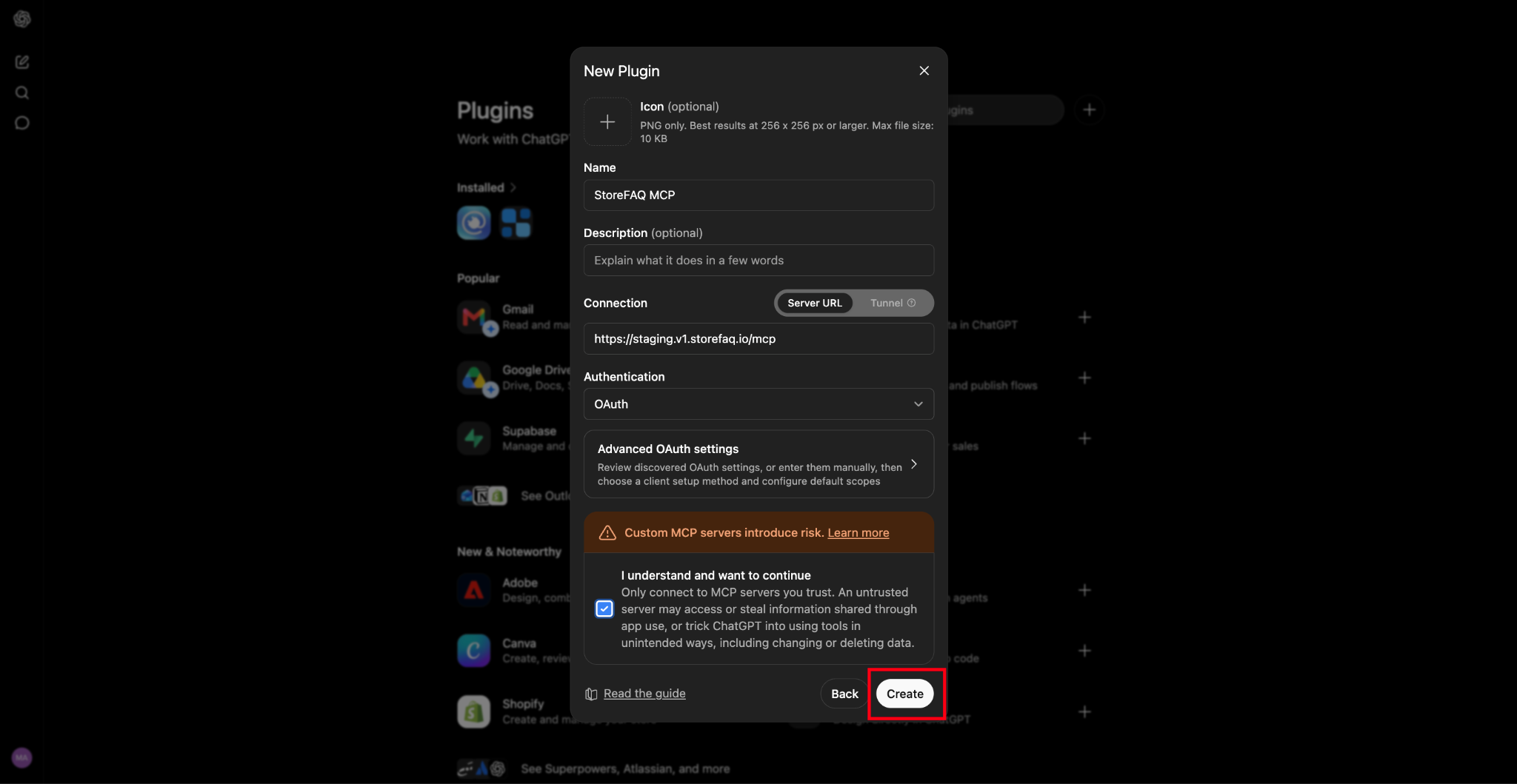
Fill in the form:
- Name: Enter a name, e.g. StoreFAQ MCP.
- Connection: Keep ‘Server URL’ selected and paste the MCP server URL from Step 1.
- Authentication: Select ‘OAuth’.
The ‘Icon’ and ‘Description’ fields are optional. Tick ‘I understand and want to continue’, then click ‘Create’.
Step 6: Sign In to Shopify And Approve Access #
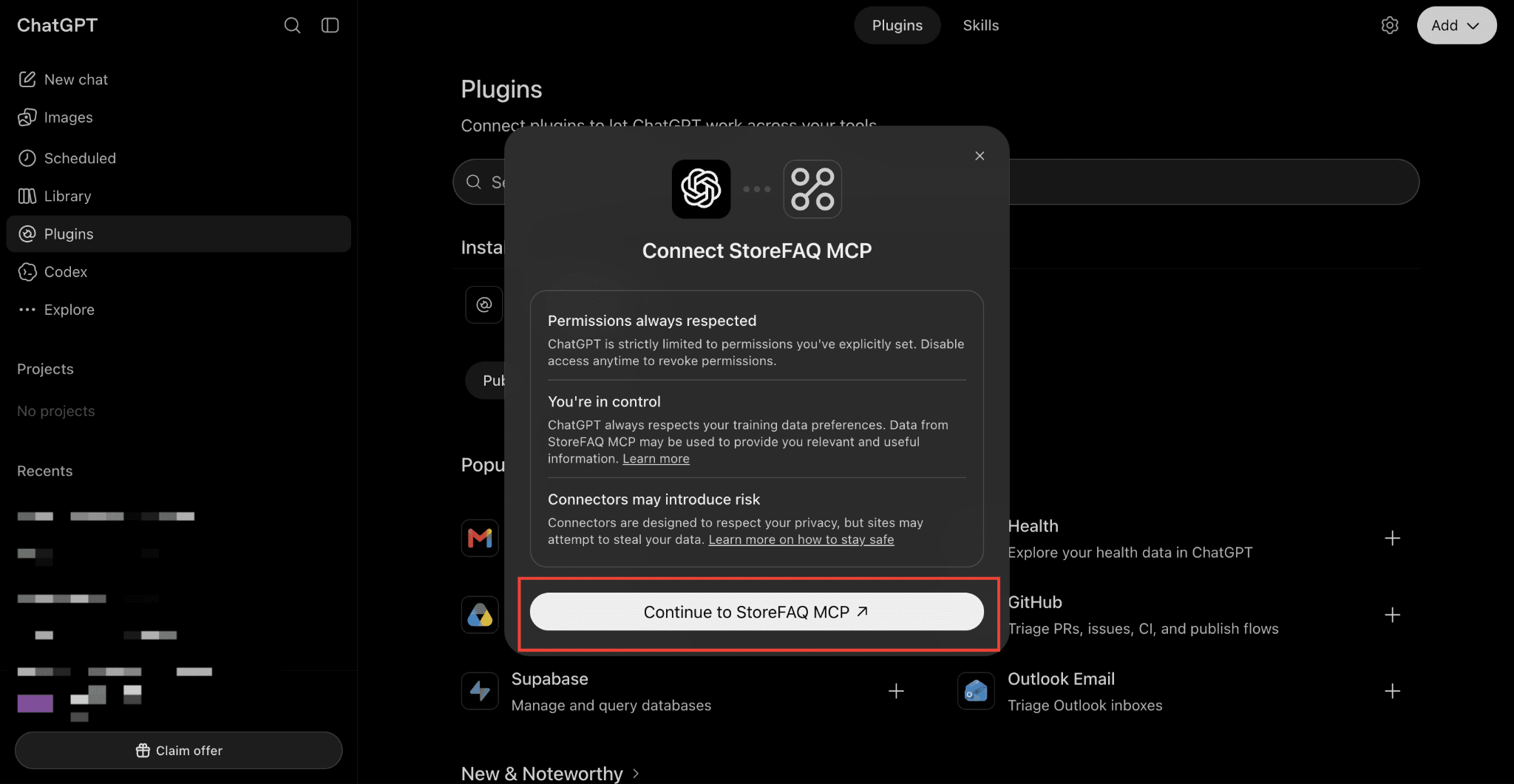
Sign in to Shopify, choose your store, and approve access.
Final Outcome (ChatGPT) #
StoreFAQ is now connected to ChatGPT, and you can ask about and manage your FAQs from a chat.
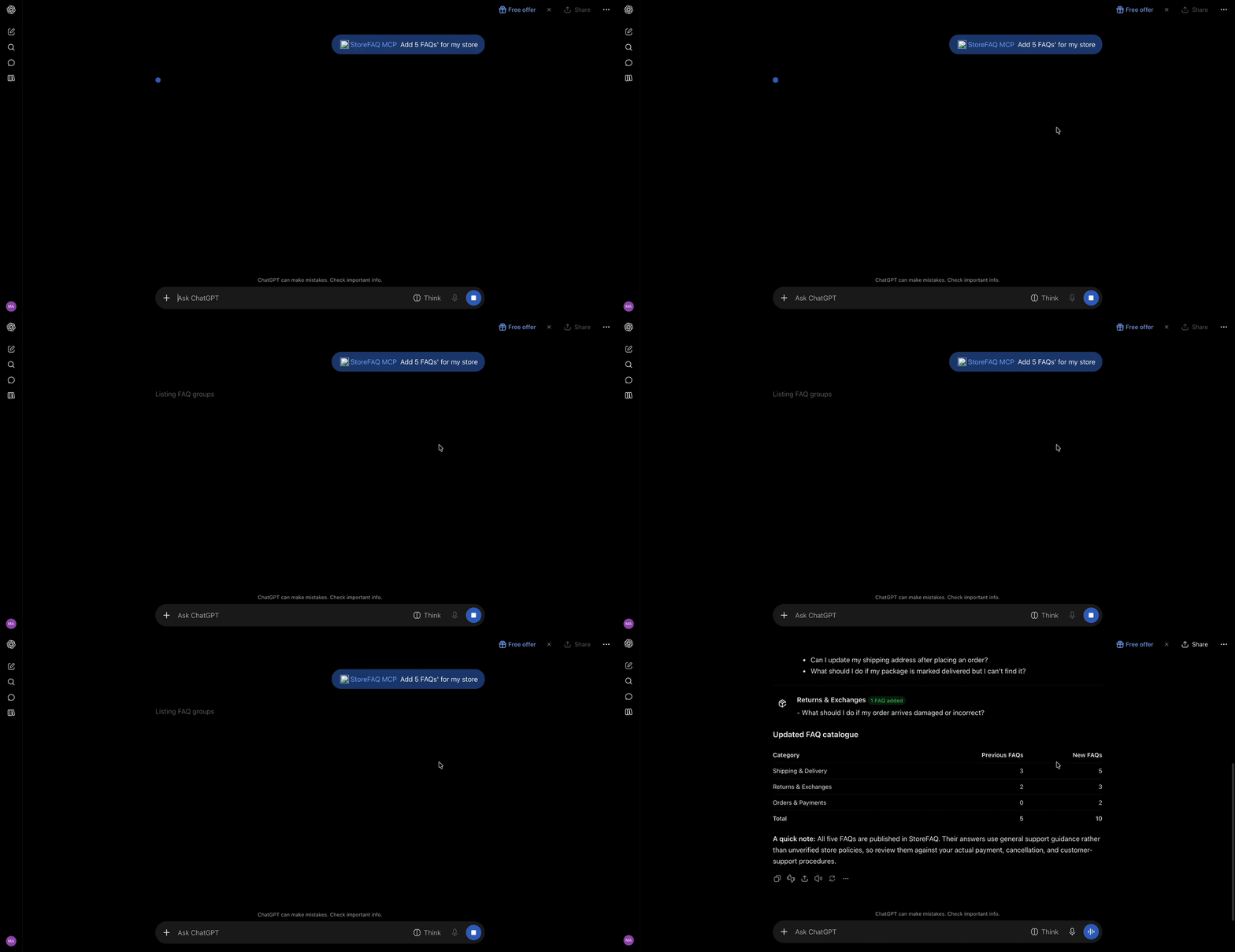
This is how, with the help of StoreFAQ’s MCP integration, you can manage your FAQs by chatting with Claude or ChatGPT.
Getting Stuck? Feel free to contact our Dedicated Support Team.


