

StoreFAQ’s Message Shortcuts help you respond to customer queries faster by using pre-saved replies in live chat. Instead of typing the same responses repeatedly, you can instantly insert ready-made messages and provide quick, consistent, and professional support to your customers. This helps save time, improve communication and enhance the overall customer experience.
Learn the steps below to complete the setup process and configure message shortcuts in StoreFAQ.
Step-by-Step Guide to Configure Message Shortcuts #
Follow the step-by-step guide to add and configure Message Shortcuts in StoreFAQ for Shopify. Before you start, make sure you have the StoreFAQ app installed on your Shopify store.
Step 1: Open & Manage the Message Shortcuts #
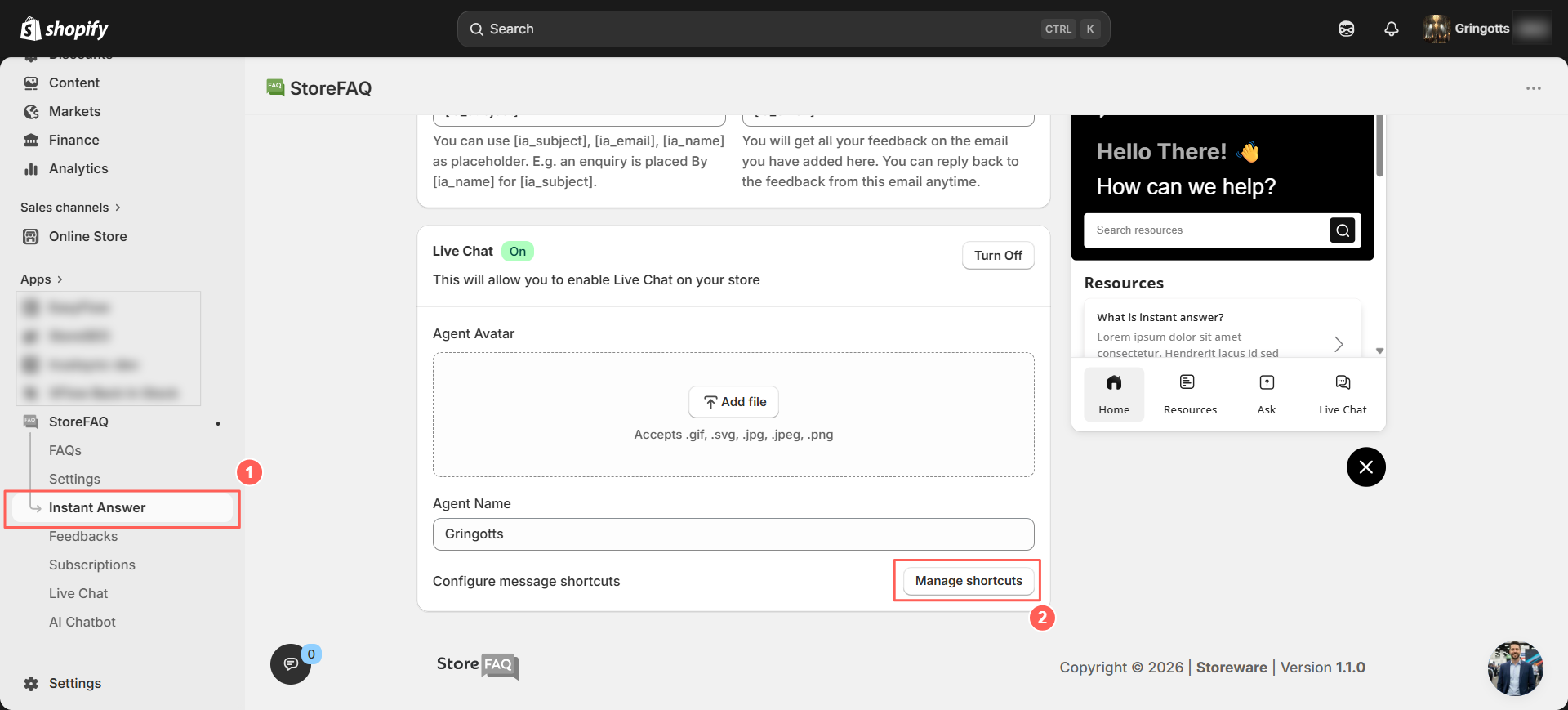
Open your Shopify dashboard and go to StoreFAQ → Instant Answer. Then scroll down to the Live Chat Settings section. Here, you will find the ‘Manage Shortcuts’ button. Click on it to continue.
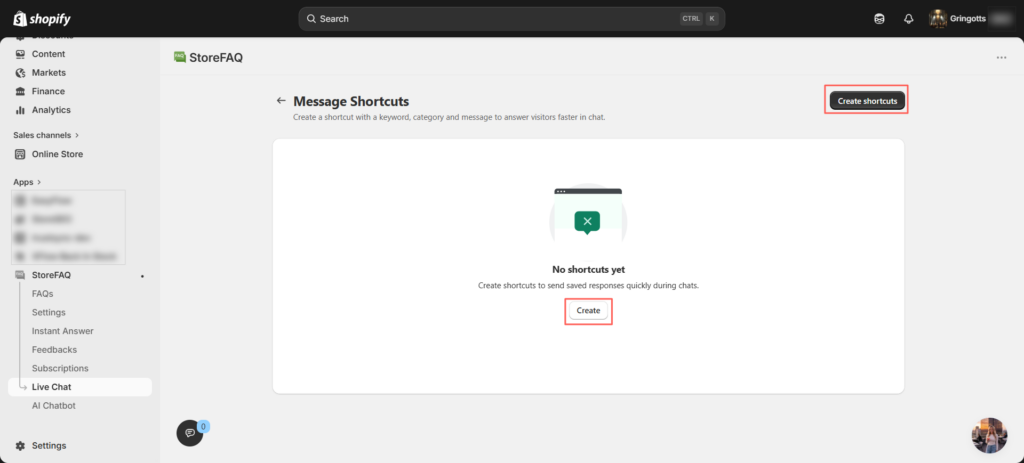
After clicking ‘Manage Shortcuts’, you will be redirected to the ‘Message Shortcuts’ dashboard. To create your first shortcut, click either the ‘Create’ or ‘Create Shortcuts’ button.
Step 3: Create, View & Edit Shortcuts #
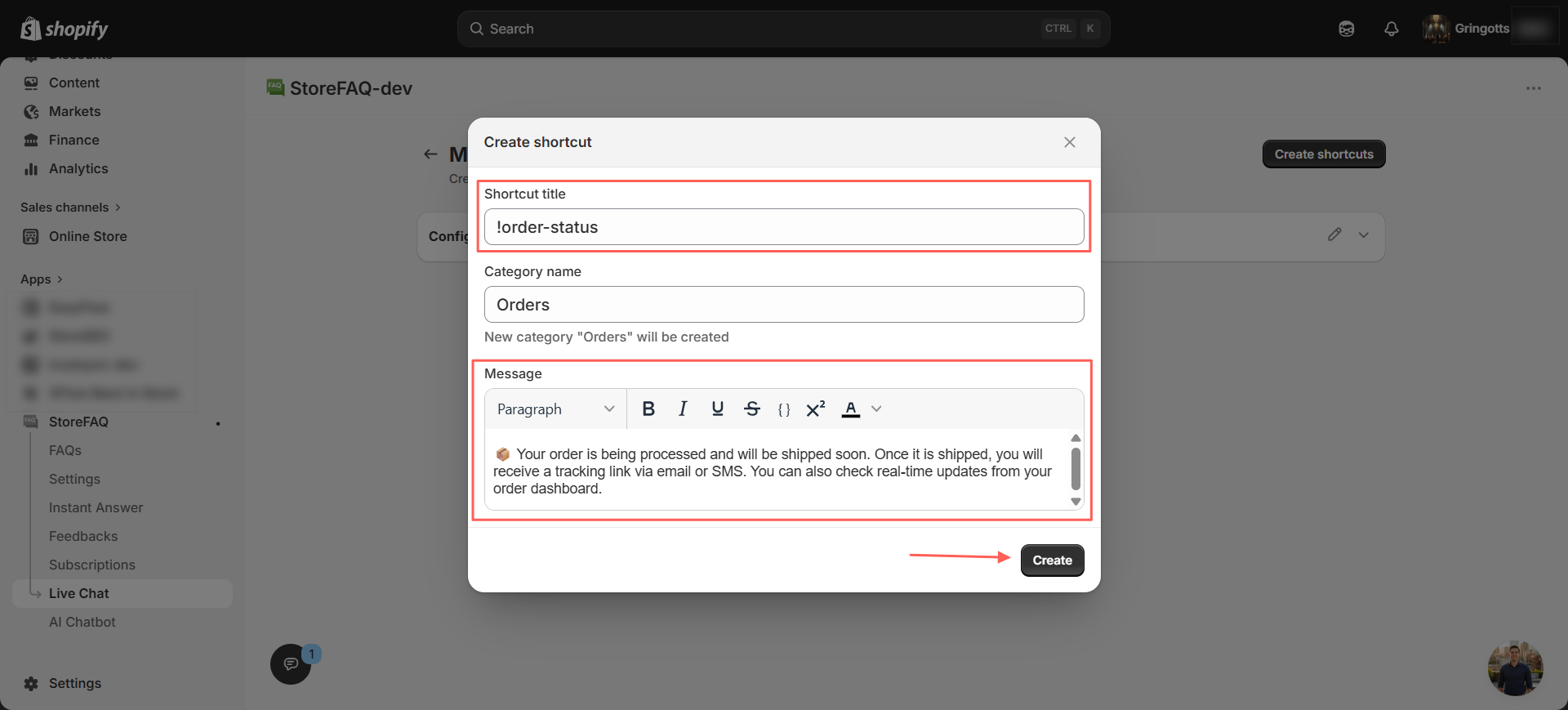
A Create Shortcut modal will appear. Fill in the following details:
- Shortcut title
- Category name
- Message
Once everything is added, click the ‘Create’ button.
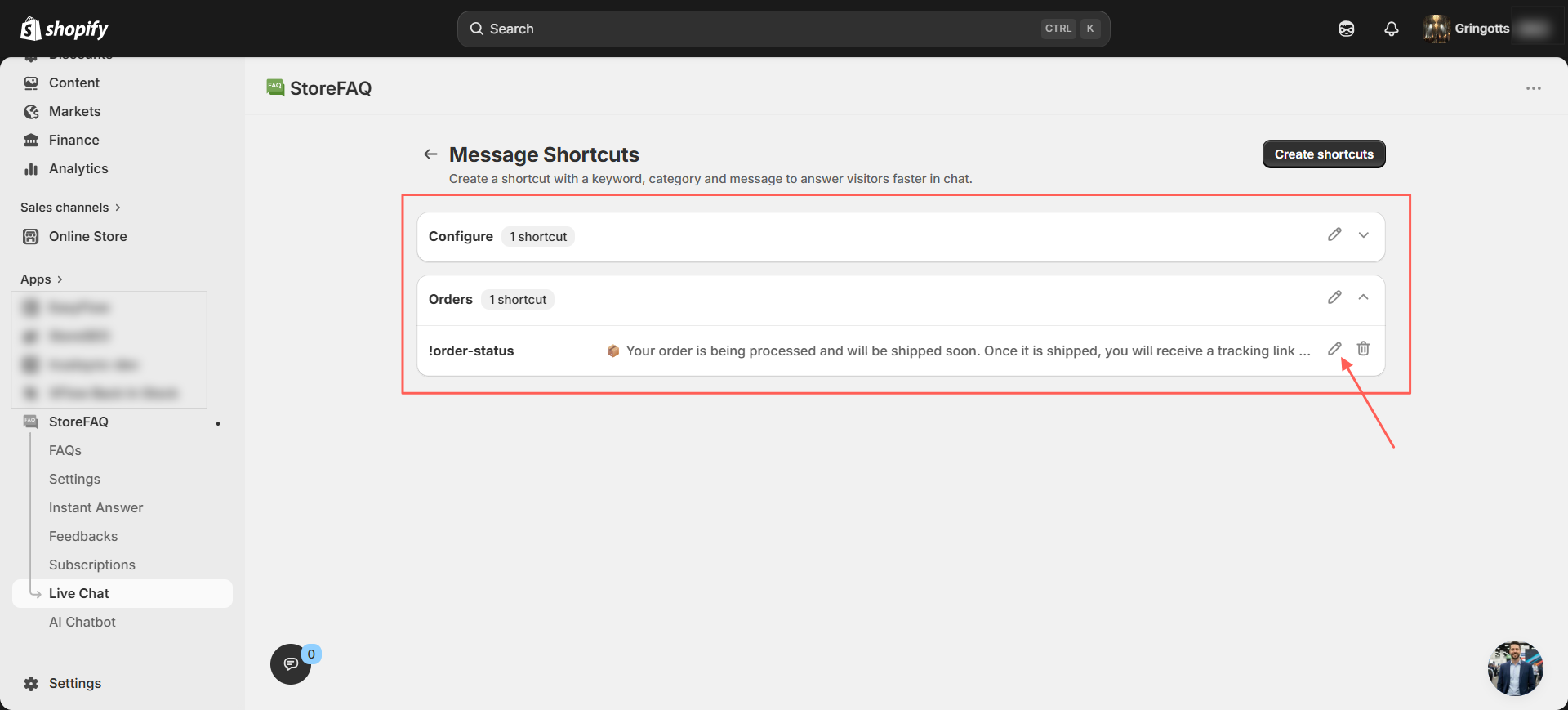
Your shortcut will now be successfully created. You can view and manage all your created shortcuts from the ‘Message Shortcuts’ dashboard anytime.
Click the ‘Edit’ button, as shown, to manage and update your shortcuts. You can also delete any shortcut anytime from this panel.
Step 5: Use Shortcuts in Live Chat #
Whenever a customer asks a question in your live chat dashboard, you can quickly use the created shortcut to respond.
Simply type ‘!’ and your created shortcuts will appear automatically. From there, you can search for and select the shortcut you want to use.
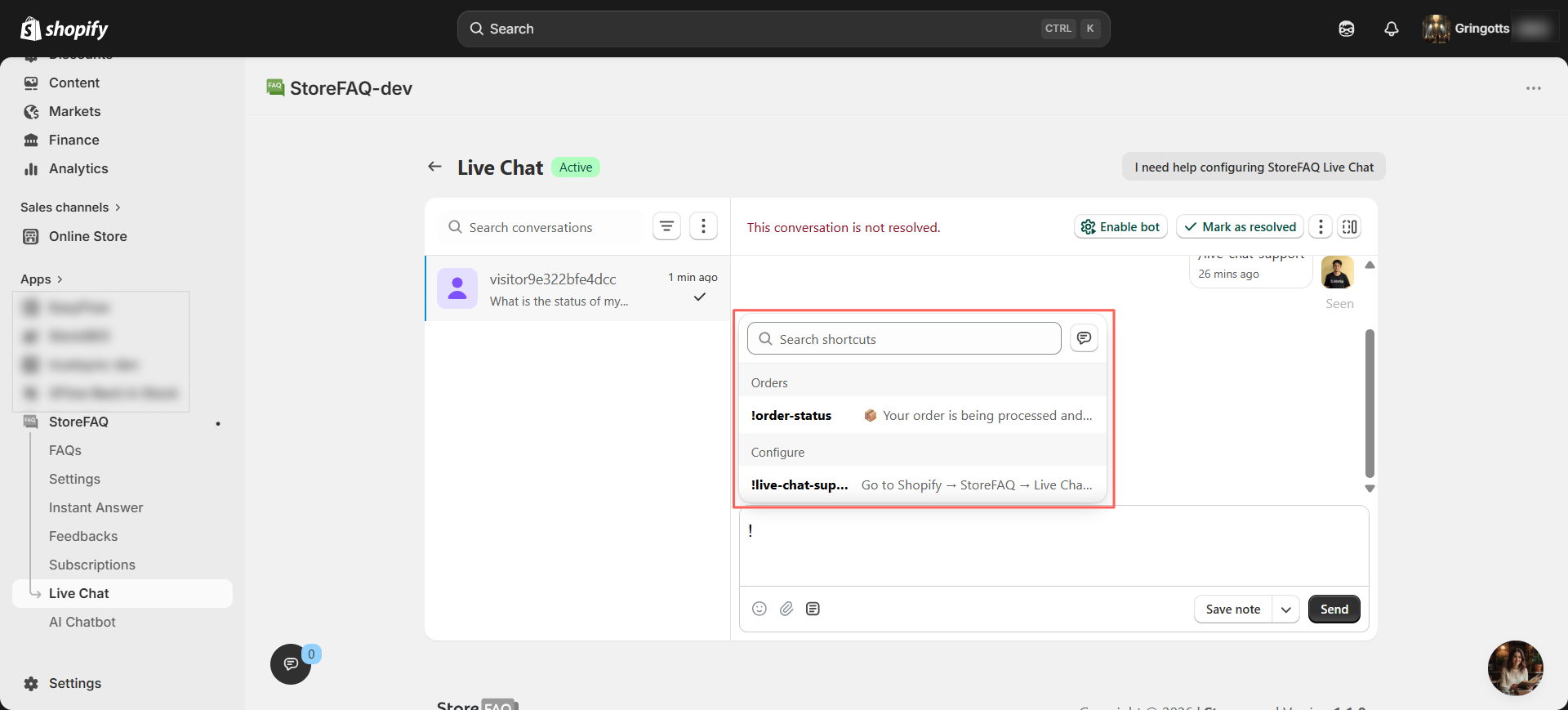
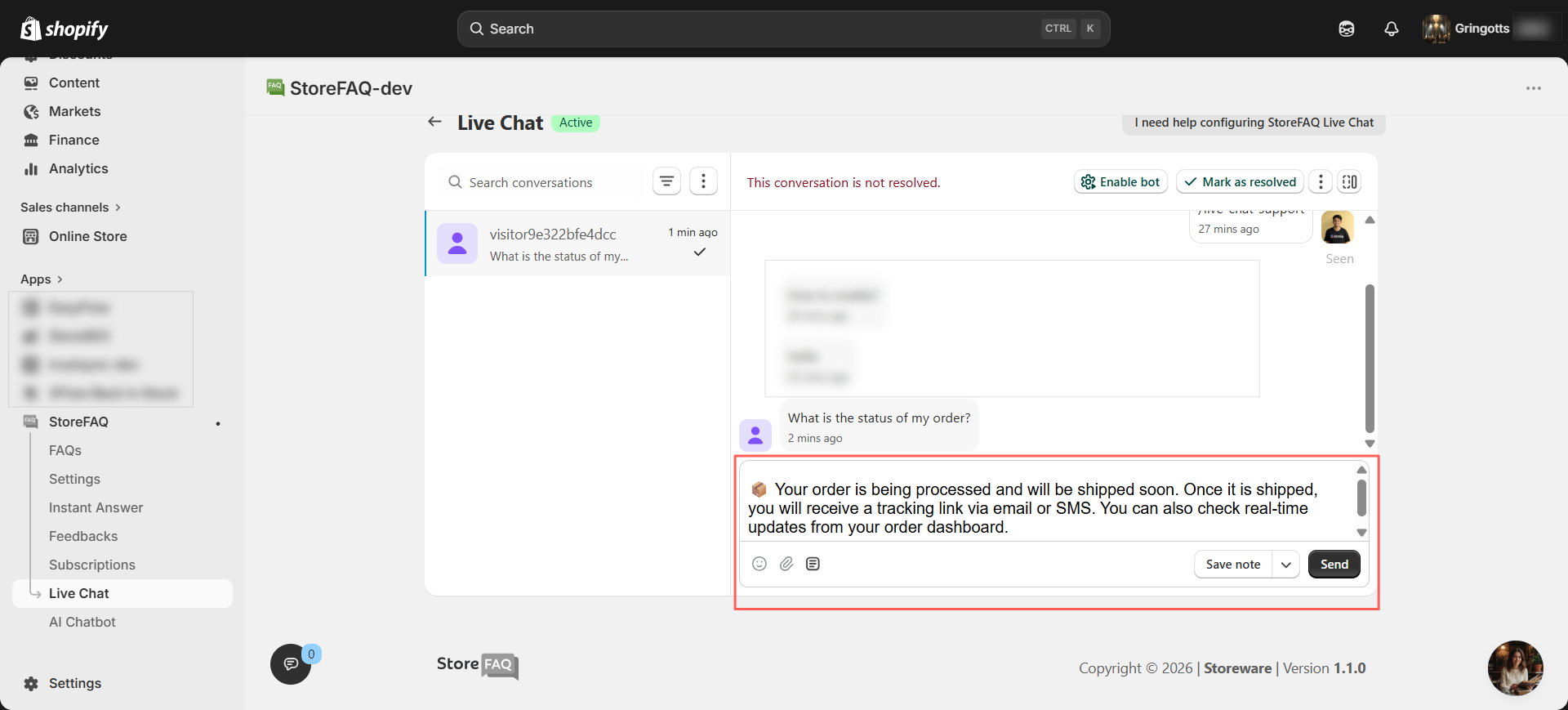
Simply select the shortcut and the saved message will be inserted automatically into the chat box.
With message shortcuts, your response will be ready within seconds. After reviewing the message, click ‘Send’ to deliver it to the user.
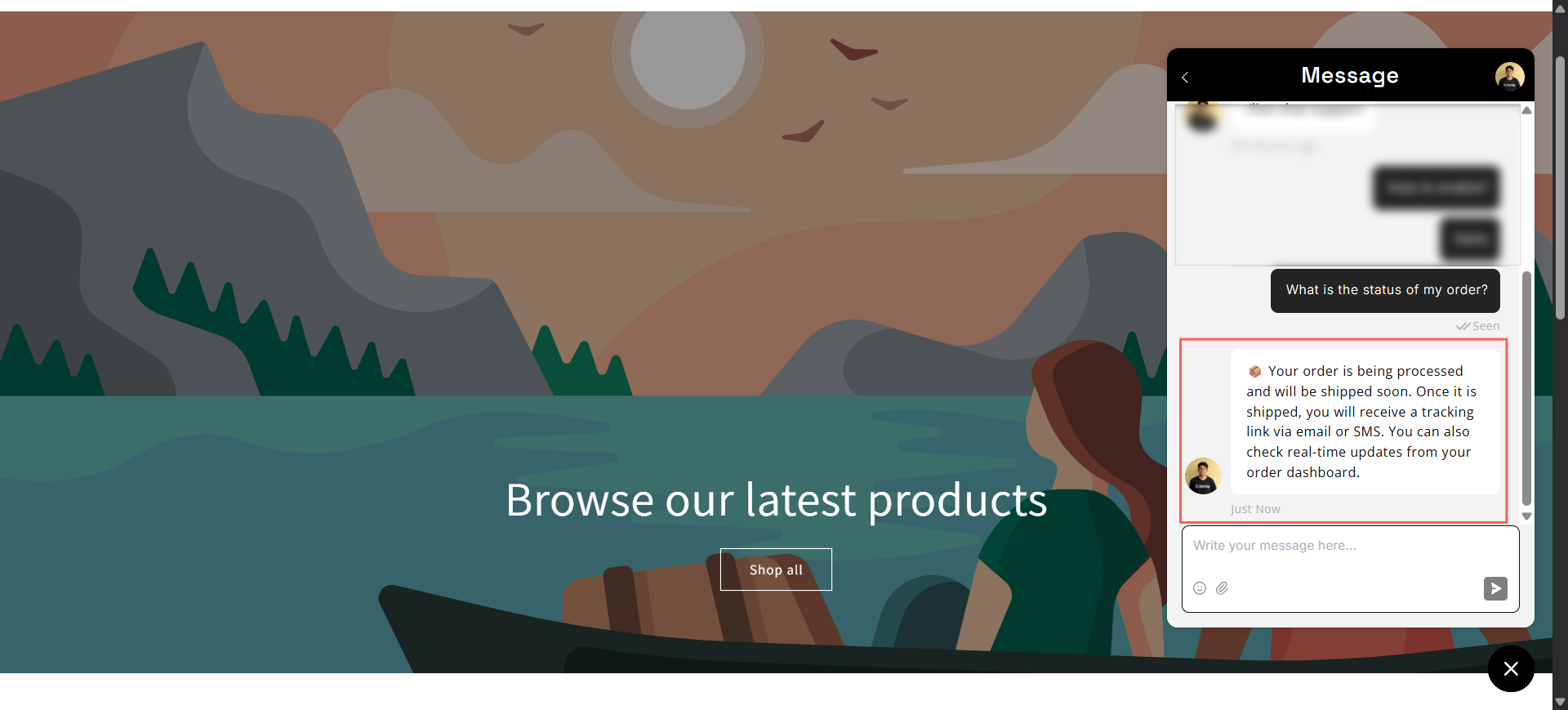
Final Outcome #
This is how you can easily create, manage and send message shortcuts using StoreFAQ. Message shortcuts help you save time, improve response speed and provide better customer support through live chat.
Need assistance? Feel free to reach out to our dedicated support team for any type of query.


