


Customer support teams often lose valuable time typing the same answers again and again. Order status updates, refund policies, shipping details and other frequent queries quickly turn into repetitive work that slows down response time and affects customer experience. To solve this, StoreFAQ introduces Message Shortcuts, a simple way to turn commonly used replies into ready-to-send responses. Instead of rewriting the same messages, you can insert them instantly and keep conversations consistent across your support team.
In this guide, you will learn how to set up Message Shortcuts in StoreFAQ, organize them for different scenarios and use them to speed up your Shopify support workflow without losing clarity or control.
What Is StoreFAQ’s Message Shortcuts?
Message Shortcuts in StoreFAQ is a feature designed to simplify and speed up customer support conversations by letting you reuse prewritten responses instantly.
Instead of typing the same answers repeatedly, you can create shortcuts for common queries such as order tracking, refund policies, shipping details or product information. When a customer asks a similar question, you just insert the saved shortcut and send it in one click.
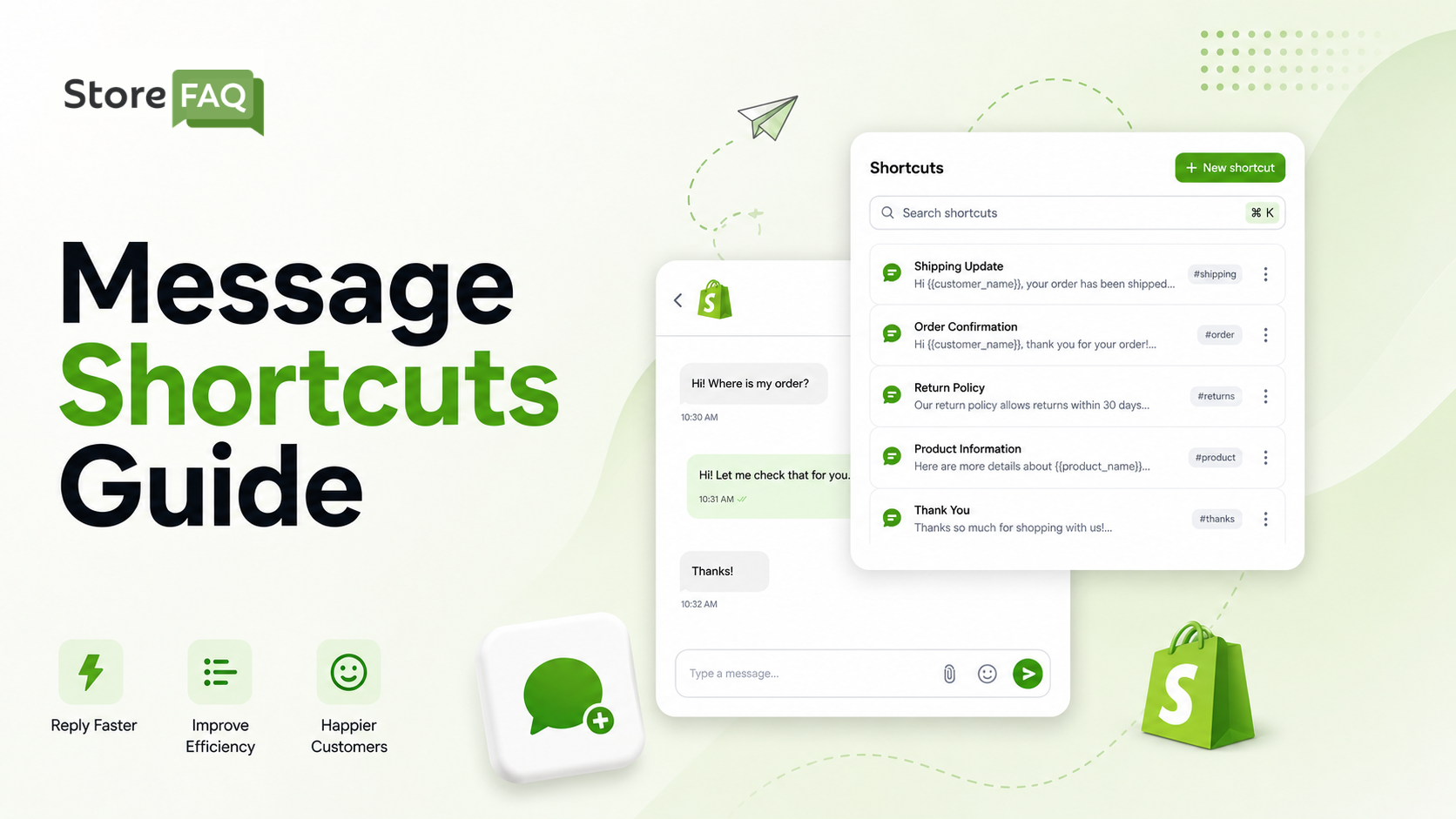
This helps support teams stay consistent with responses while reducing manual effort. It also improves response time, especially during high-traffic periods when support requests increase.
Message Shortcuts are especially useful for Shopify stores that handle repetitive questions daily. They keep conversations clear, reduce errors in replies and allow your team to focus more on complex customer issues rather than repetitive typing.
Step-by-Step Guide to Configuring Message Shortcuts in StoreFAQ
Setting up Message Shortcuts in StoreFAQ is quick and straightforward. Once configured, it helps you respond to common customer queries faster without repeating the same replies every time.
In this section, you will learn how to create, organize and manage your shortcuts so your support team can handle conversations more efficiently and maintain consistent responses across all chats.
Follow the step-by-step guide to add and configure Message Shortcuts in StoreFAQ for Shopify. Before you start, make sure you have the StoreFAQ app installed on your Shopify store.
Step 1: Open & Create the Message Shortcuts
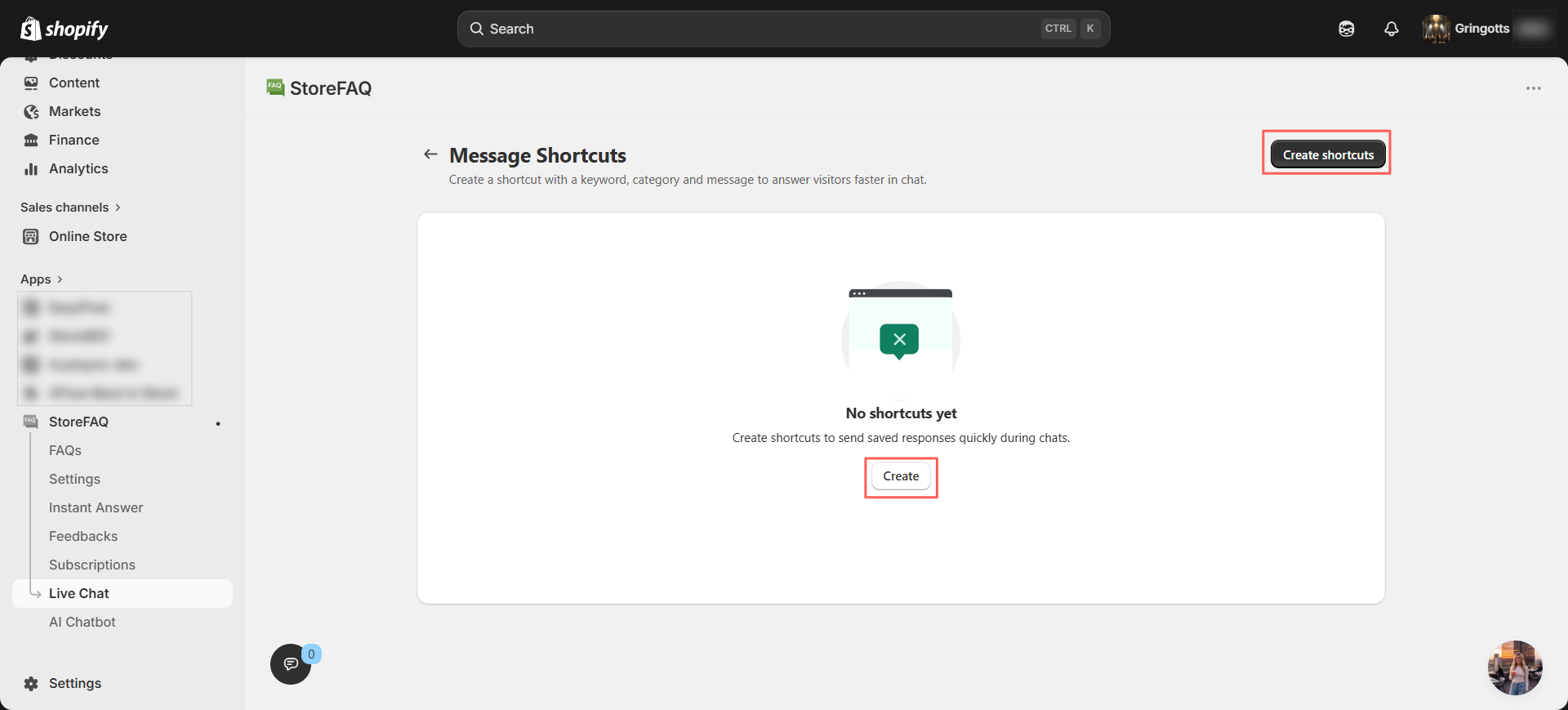
Open your Shopify dashboard and go to StoreFAQ. Then Instant Answer. Scroll down to the Live Chat Settings section. Here, you will find the Manage Shortcuts button. Click on it to continue.
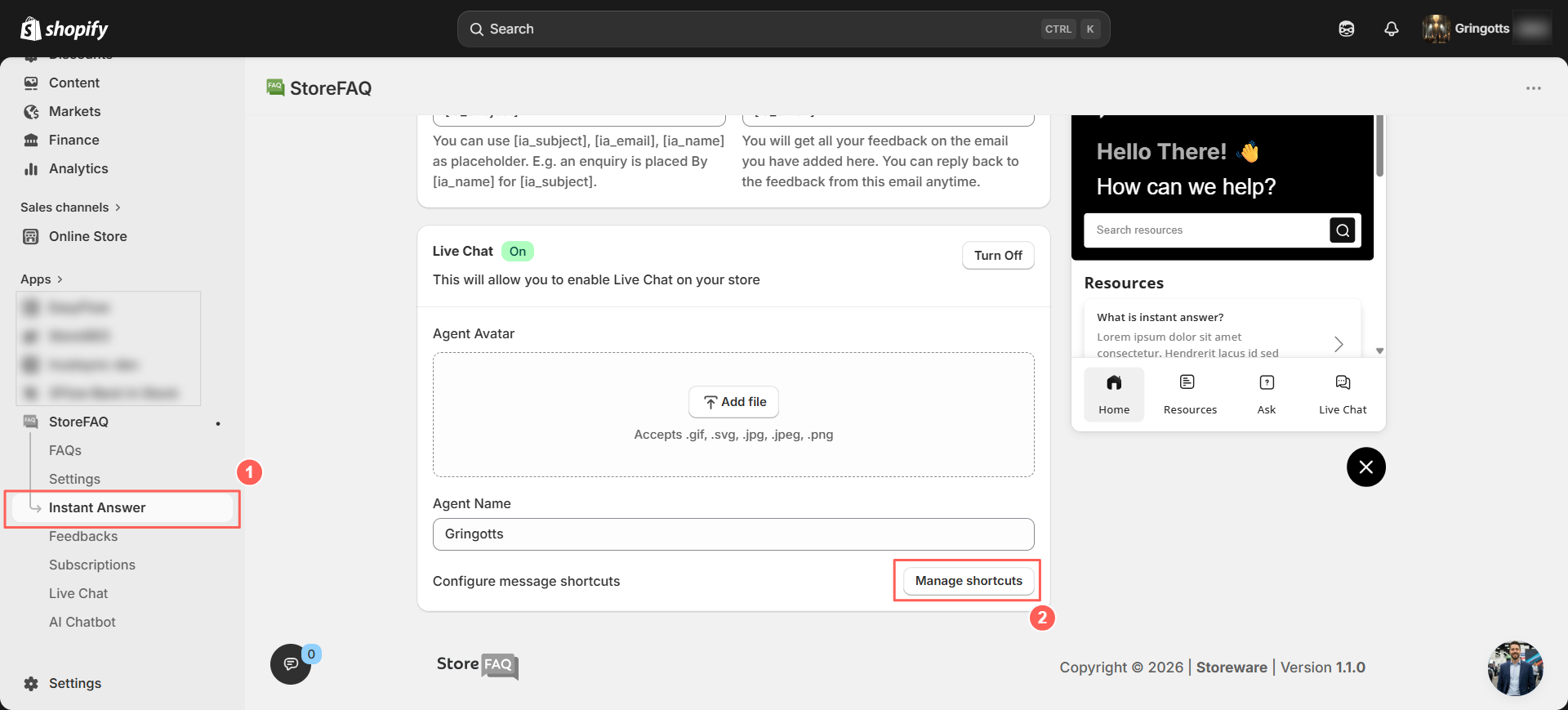
After clicking Manage Shortcuts, you will be redirected to the Message Shortcuts Panel, where you can view and organize your existing shortcuts. From there, locate the Create or Create Shortcuts button and click it to start setting up your first shortcut, then proceed to define the shortcut details and save it to make it active.
Step 3: View & Edit Shortcuts
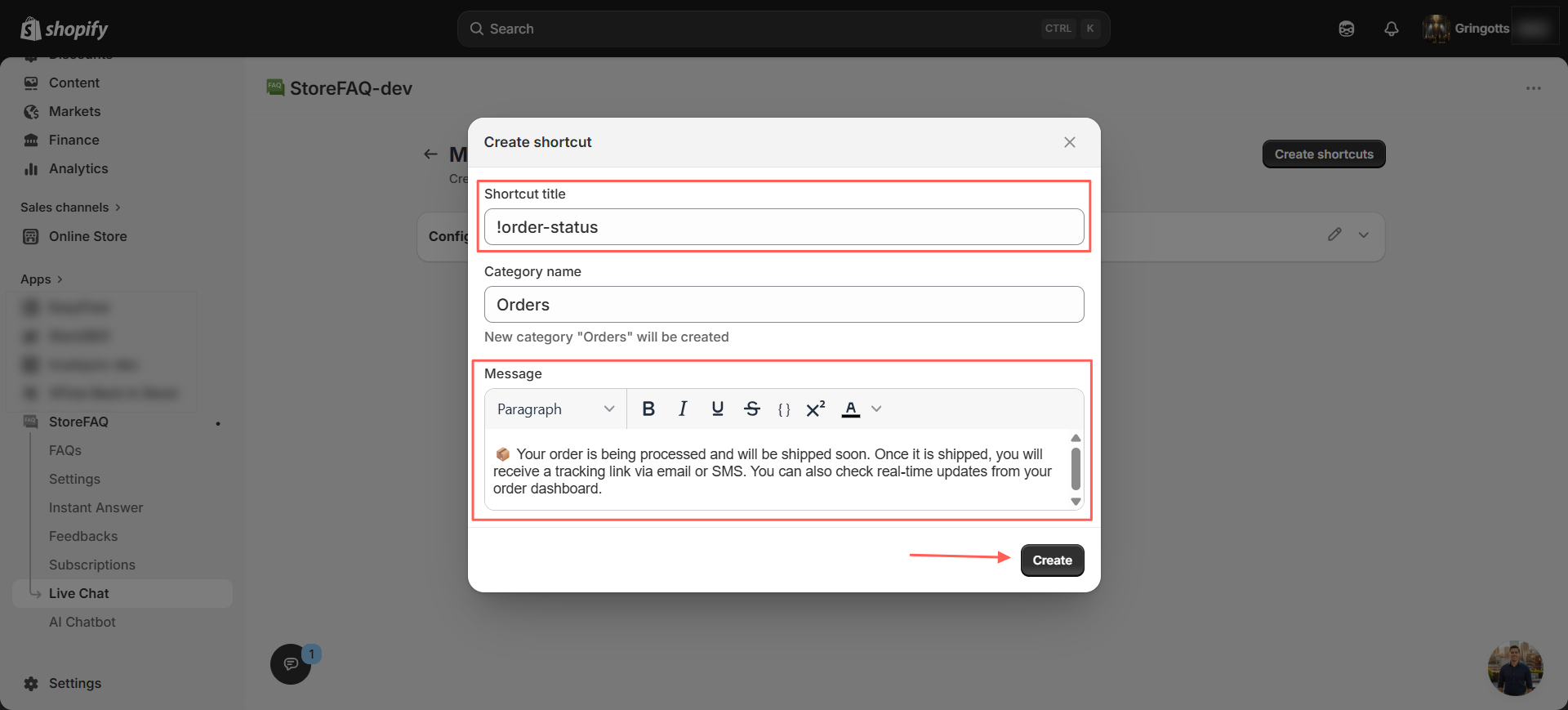
A Create Shortcut modal will appear where you need to fill in the required details. Start by entering the Shortcut Title, then add the Category Name to organize it properly. Next, write the Message that will be used as the saved response. Once all the information is added, click the Create button to save your shortcut.
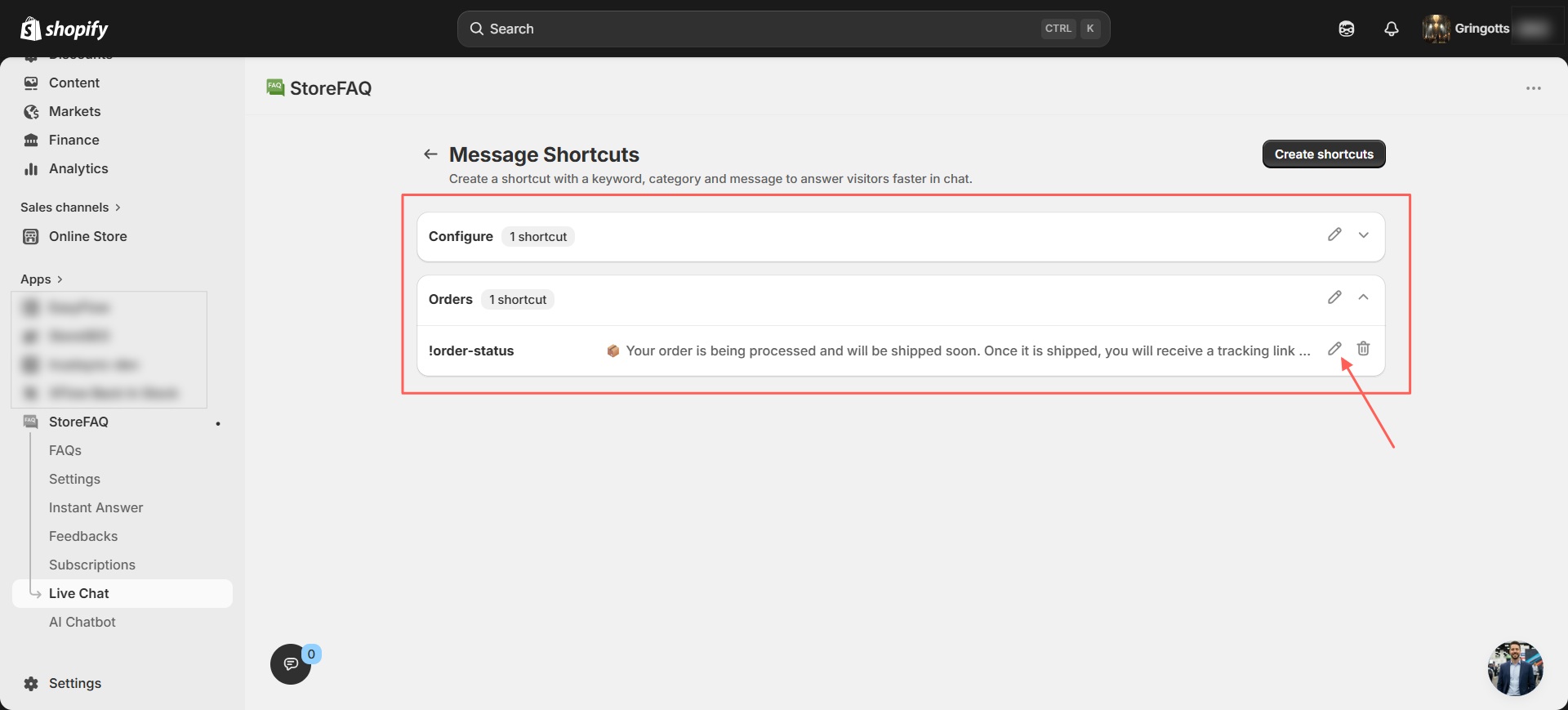
Your shortcut is now created successfully. You can access all your saved shortcuts anytime from the Message Shortcuts panel.
From here, you can click the Edit Button to update or modify any existing shortcut based on your needs. If a shortcut is no longer required, you can also delete it directly from the same panel.
Step 5: Use Shortcuts in Live Chat
When a customer sends a message in your live chat dashboard, you can respond instantly using your saved shortcuts. Just type ! and all available shortcuts will appear automatically. From there, you can search and select the relevant shortcut to send a quick reply.
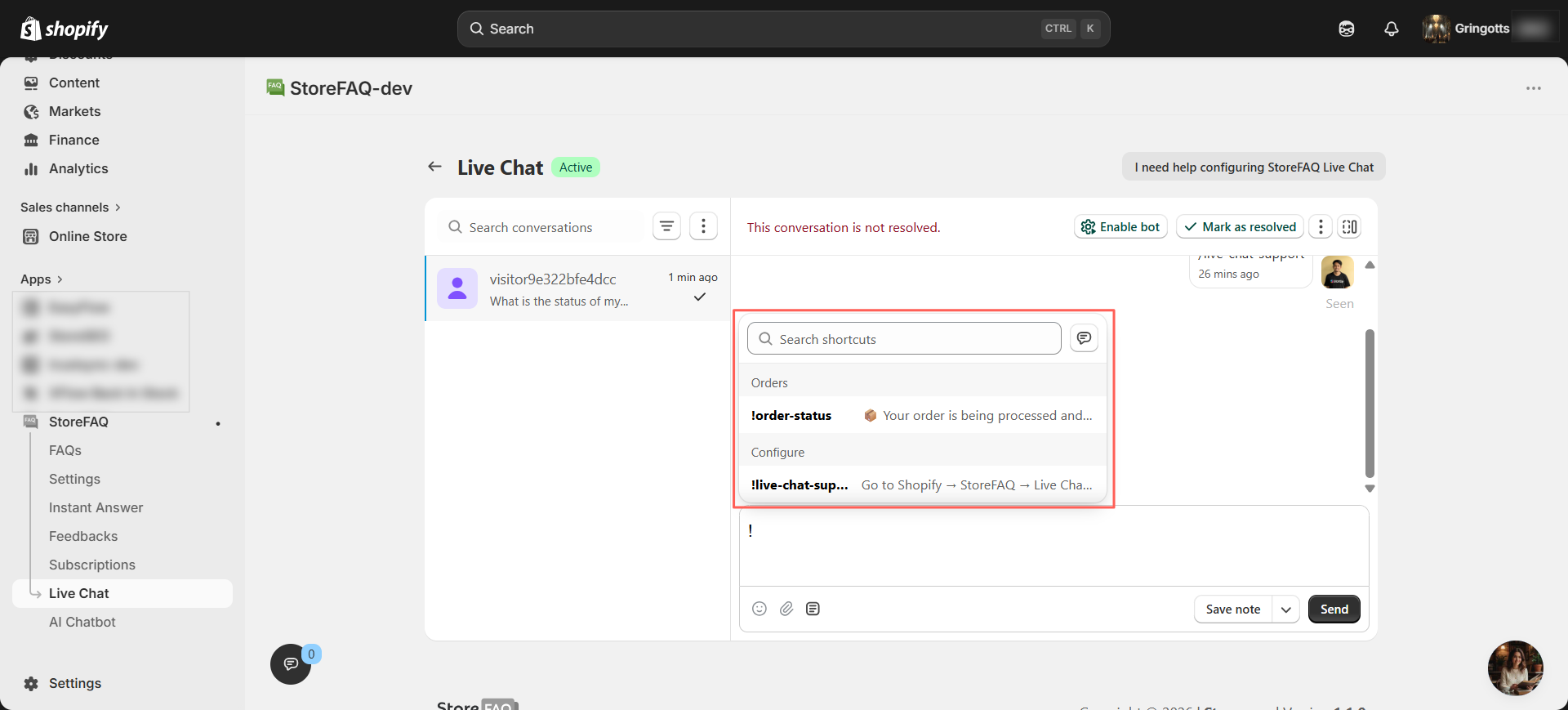
Select the required shortcut and the saved message will automatically appear in the chat box. Message Shortcuts help you prepare responses within seconds, making it easier to support customers and potential buyers more efficiently. Once you have reviewed the message, click Send to deliver it instantly.
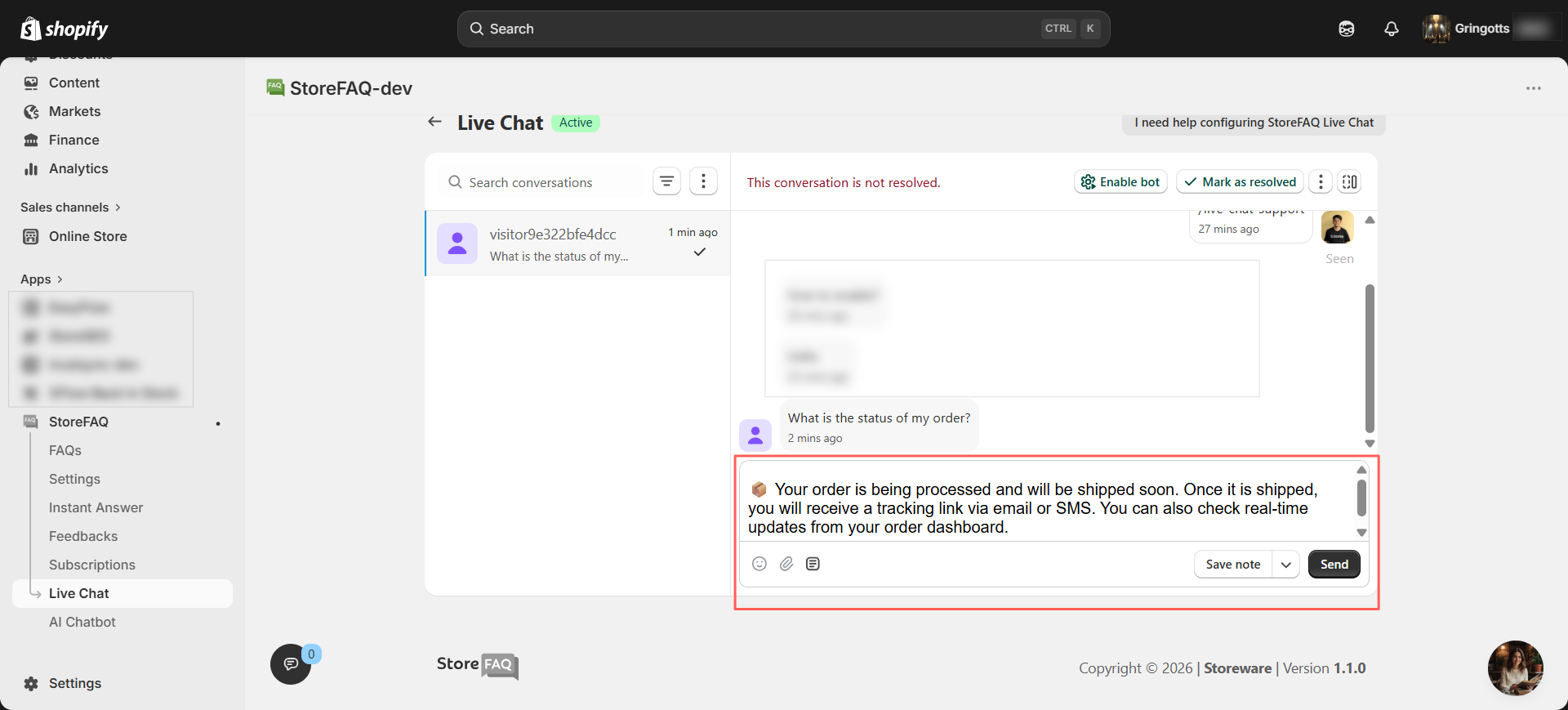
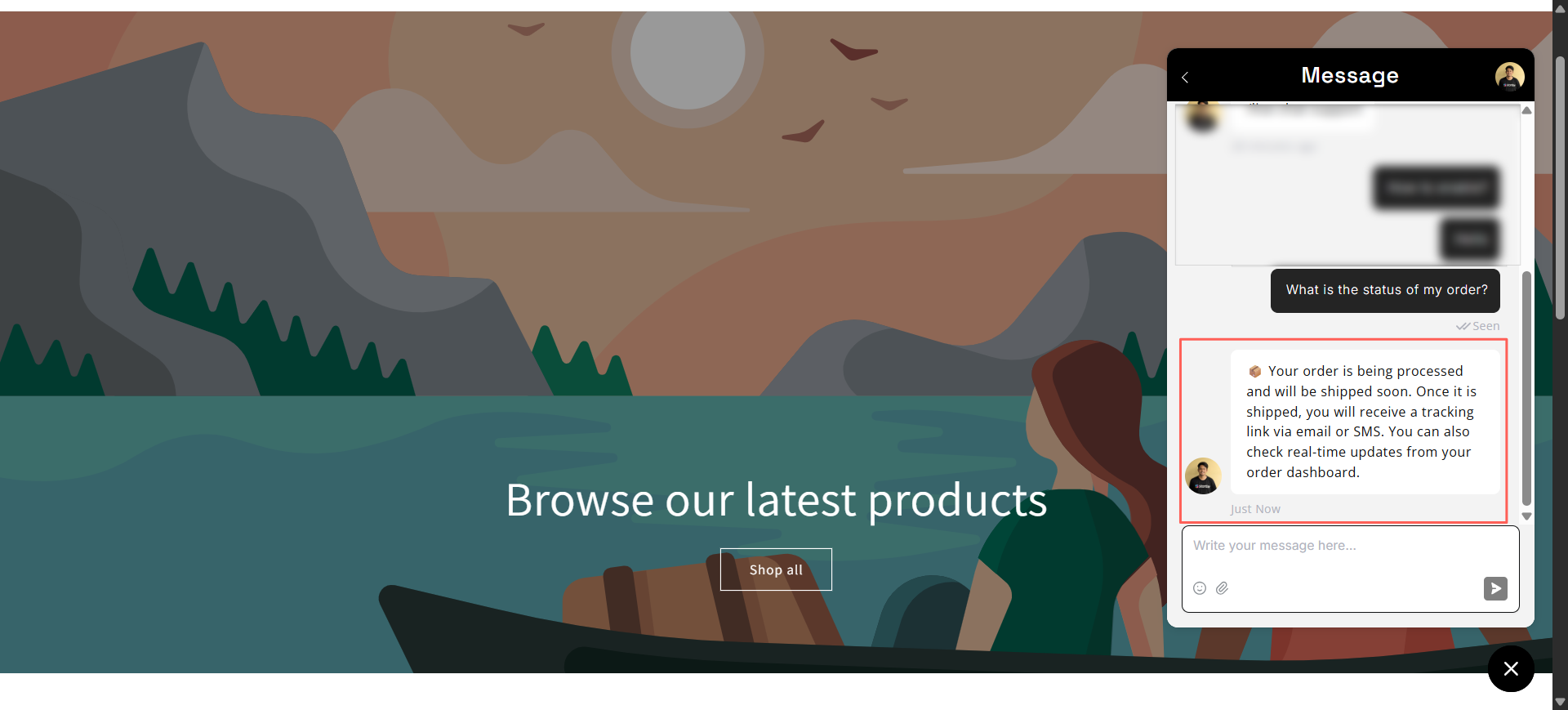
Final Outcome
This is how you can easily create, manage and use Message Shortcuts in StoreFAQ. It helps you save time by removing repetitive typing, speeds up your response process and improves overall customer support through live chat.
Need help? Our support team is always ready to assist you with any questions or issues.
Benefits of Using Message Shortcuts in StoreFAQ
Message Shortcuts in StoreFAQ are designed to make customer support faster, easier and more consistent for Shopify stores. This not only improves response speed but also helps maintain accuracy and a better overall support experience for every customer.
Here is how it improves your support workflow.
⚡ Faster Response Time
- Reply to common questions in seconds
- Reduce typing time during live chat
- Handle more customers in less time
🎯 Consistent Customer Communication
- Send the same accurate answers every time
- Avoid confusion in customer responses
- Maintain a professional support tone across your team
⏳ Reduced Repetitive Work
- No need to type the same replies again and again
- Save time on frequently asked questions
- Let your team focus on important customer issues
📈 Better Support Efficiency During Peak Hours
- Handle high chat volume smoothly
- Prevent delays in customer replies
- Keep support organized even during busy traffic
💬 Improved Customer Experience
- Faster answers lead to happier customers
- Clear and reliable communication builds trust
- Better support increases conversion potential
Best Practices for Using Message Shortcuts
Message Shortcuts work best when they are properly organized and thoughtfully used. A clear structure not only improves team efficiency but also ensures customers receive accurate and helpful responses every time.
Following a few simple practices can make your support workflow much more effective:
| Best Practices | Common Uses |
| 🗂️ Organize shortcuts by categories (Shipping, Refunds, Orders) | 📦 Order status updates |
| ✍️ Keep messages short and clear | 🚚 Shipping and delivery information |
| 🔄 Regularly update outdated responses | 💰 Refund and return policy replies |
| 🚫 Avoid creating duplicate shortcuts | 🛍️ Product availability queries |
| 👥 Maintain a consistent tone across all messages | 💳 Payment and billing support |
| ⚡ Use simple trigger keywords like “!” for quick access | ❓ General customer FAQs |
Start Handling Your Live Chat Support Smarter & Faster
Message Shortcuts help you remove delays from customer conversations and respond with clarity in seconds. Instead of repeating the same replies, you can deliver consistent answers instantly using pre-saved responses.
This keeps your live chat organized, reduces manual effort, and helps your team stay focused during busy support hours. Customers get faster responses and your store maintains a smooth, reliable support experience without extra complexity.
Set up your Message Shortcuts and keep every conversation moving without friction.
If this blog helped you, please subscribe for more simple guides, tutorials and tips to grow your Shopify store.