

Multilingual FAQ support helps you show your Frequently Asked Questions in different languages, so customers can read answers in their own language. This is a PRO feature in StoreFAQ.
Steps to Set Up Multilingual FAQ Support in StoreFAQ #
Follow the easy steps to add and configure multilingual support in StoreFAQ for Shopify. Before you start, make sure you have the StoreFAQ app installed on your Shopify store.
Step 1: Enable Multilingual in Shopify #
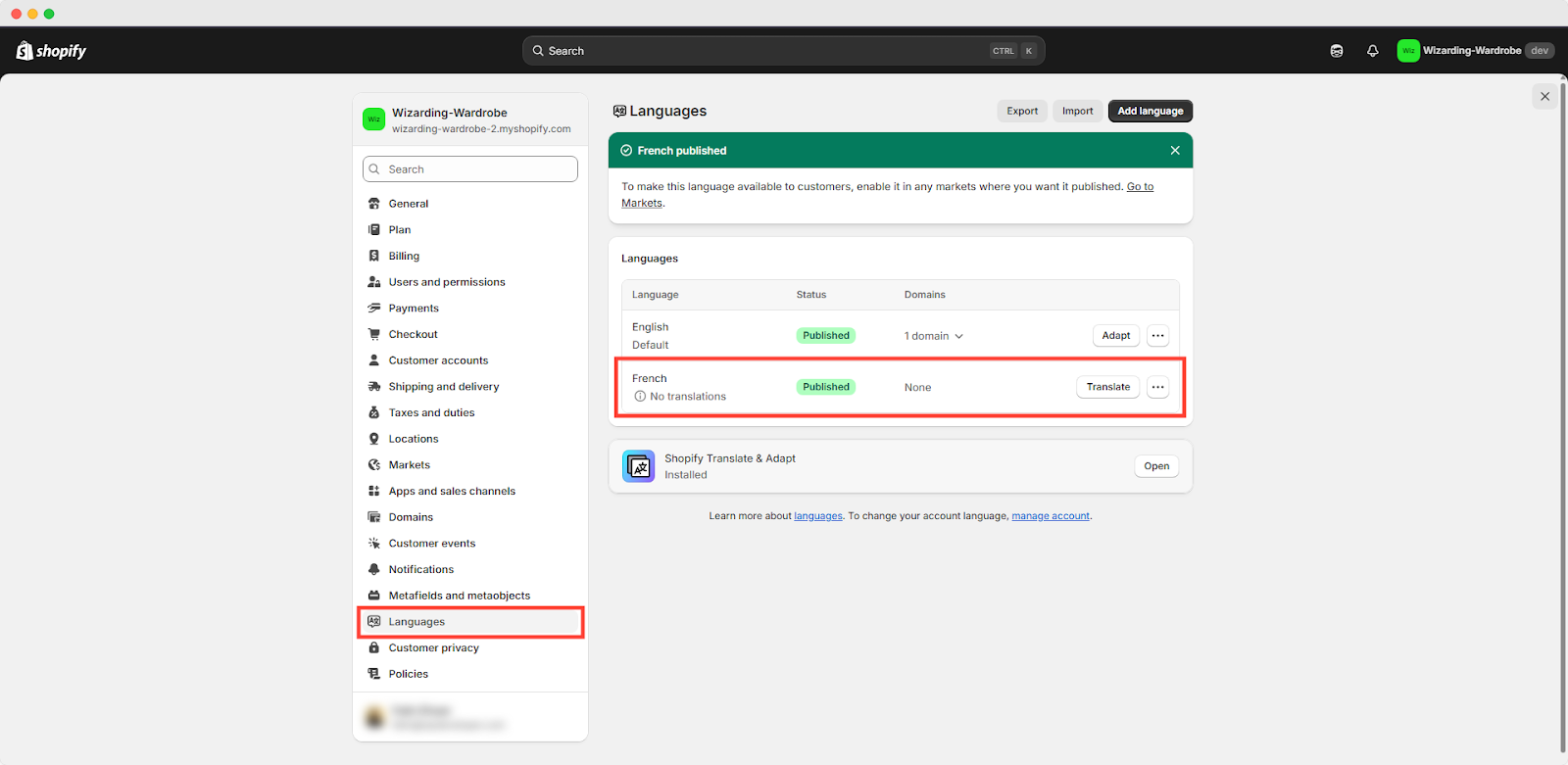
Go to Shopify Admin → Settings → Languages. Install the ‘Shopify Translate & Adapt’ app. Then choose the preferred language that you want to be translated into. Click ‘Next’ to add language. Then click on ‘Publish’.
Step 2: Configure Multilingual FAQ in StoreFAQ #
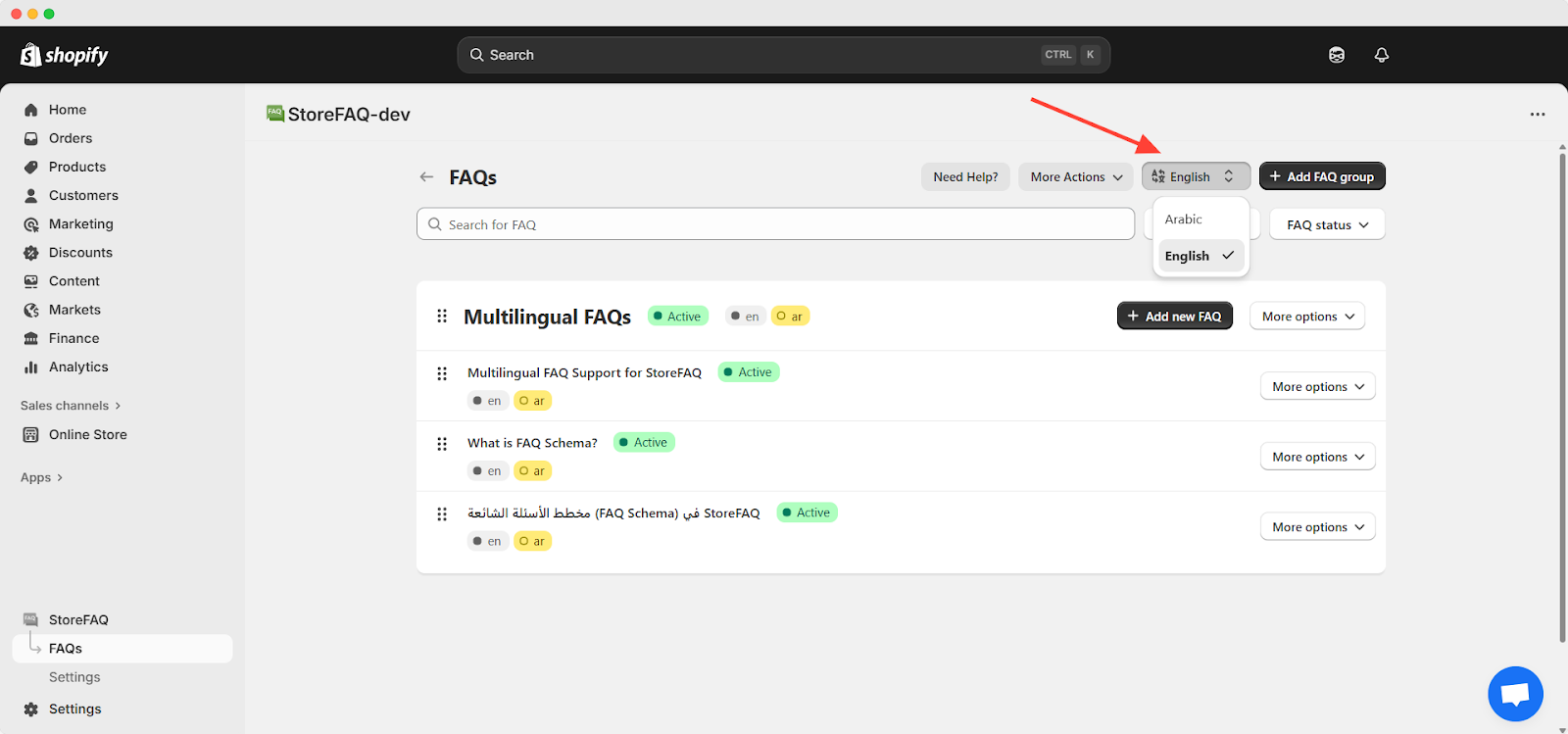
From your Admin dashboard, tap on StoreFAQ’s ‘FAQs’ in the right sidebar. You will see a multilingual toggle displaying the store’s default language. Use this toggle to change your FAQ language and display FAQs in different languages.
Add New FAQ Group #
First, you have to create an FAQ Group. If you haven’t created an FAQ Group yet, create one first. For help building an effective FAQ Group, check this document for detailed guidance.
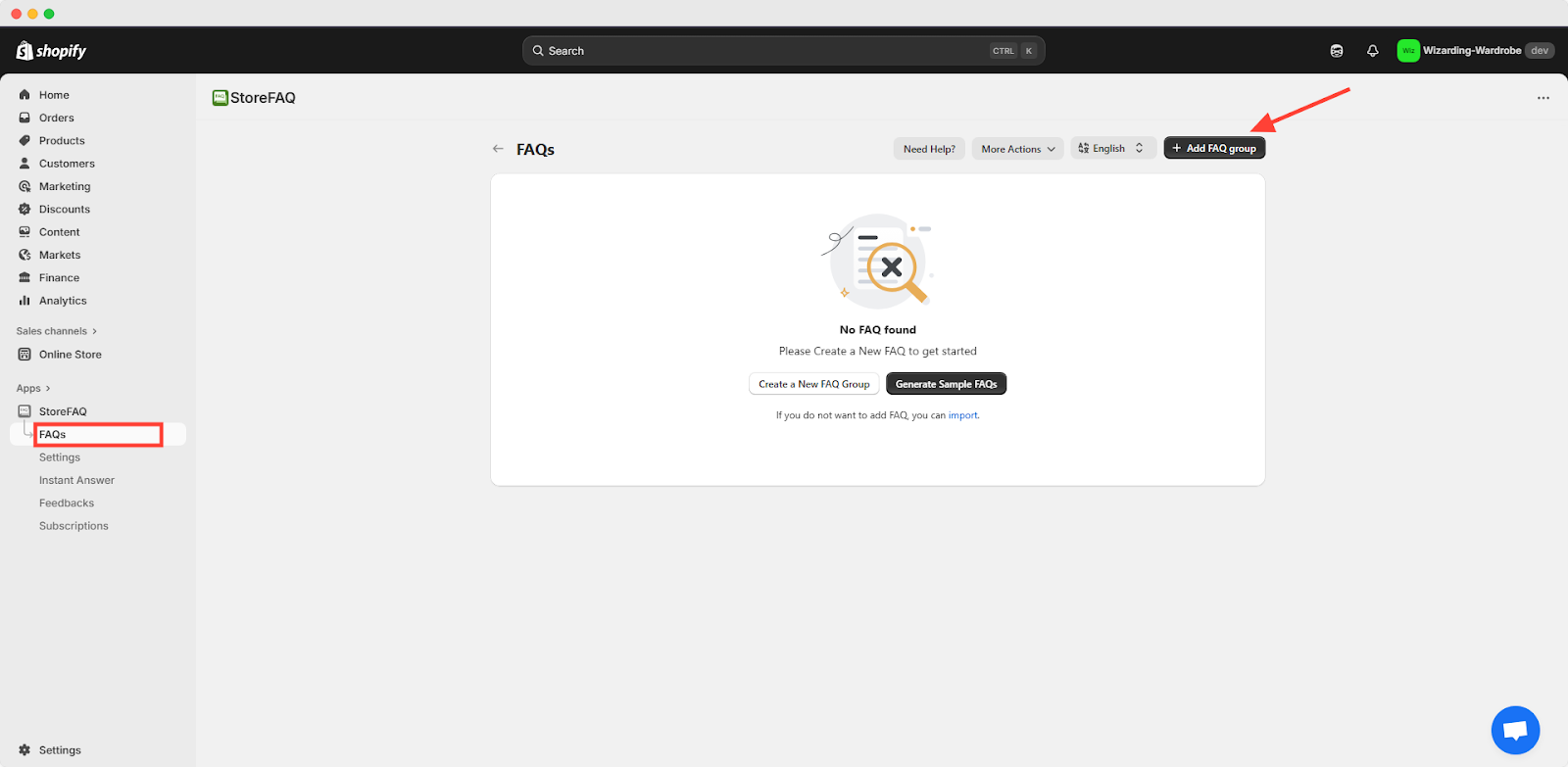
You can then create your FAQs in your store’s language. For more guidance on FAQ creation, check out this document.
Add Multi-language FAQ Group #
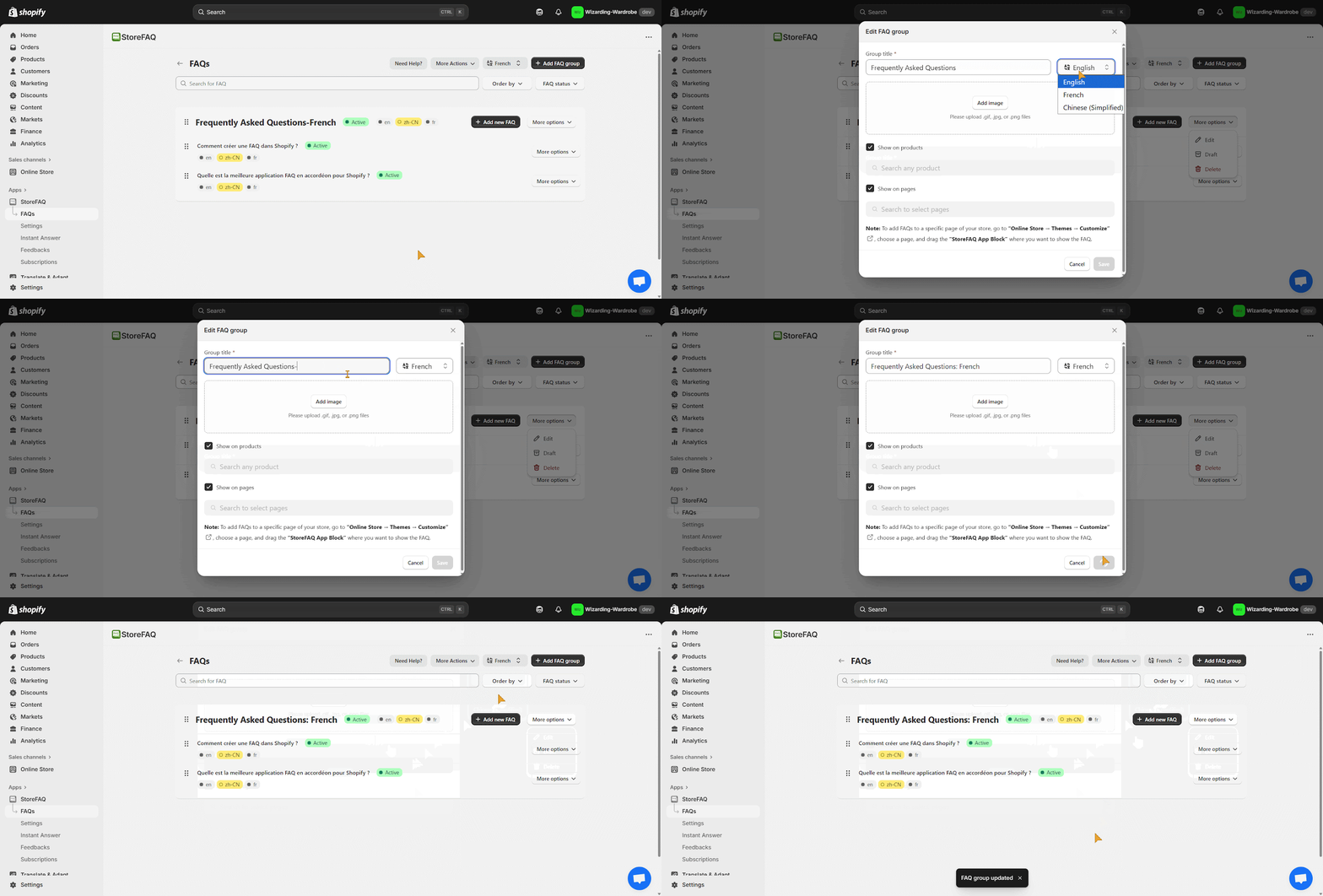
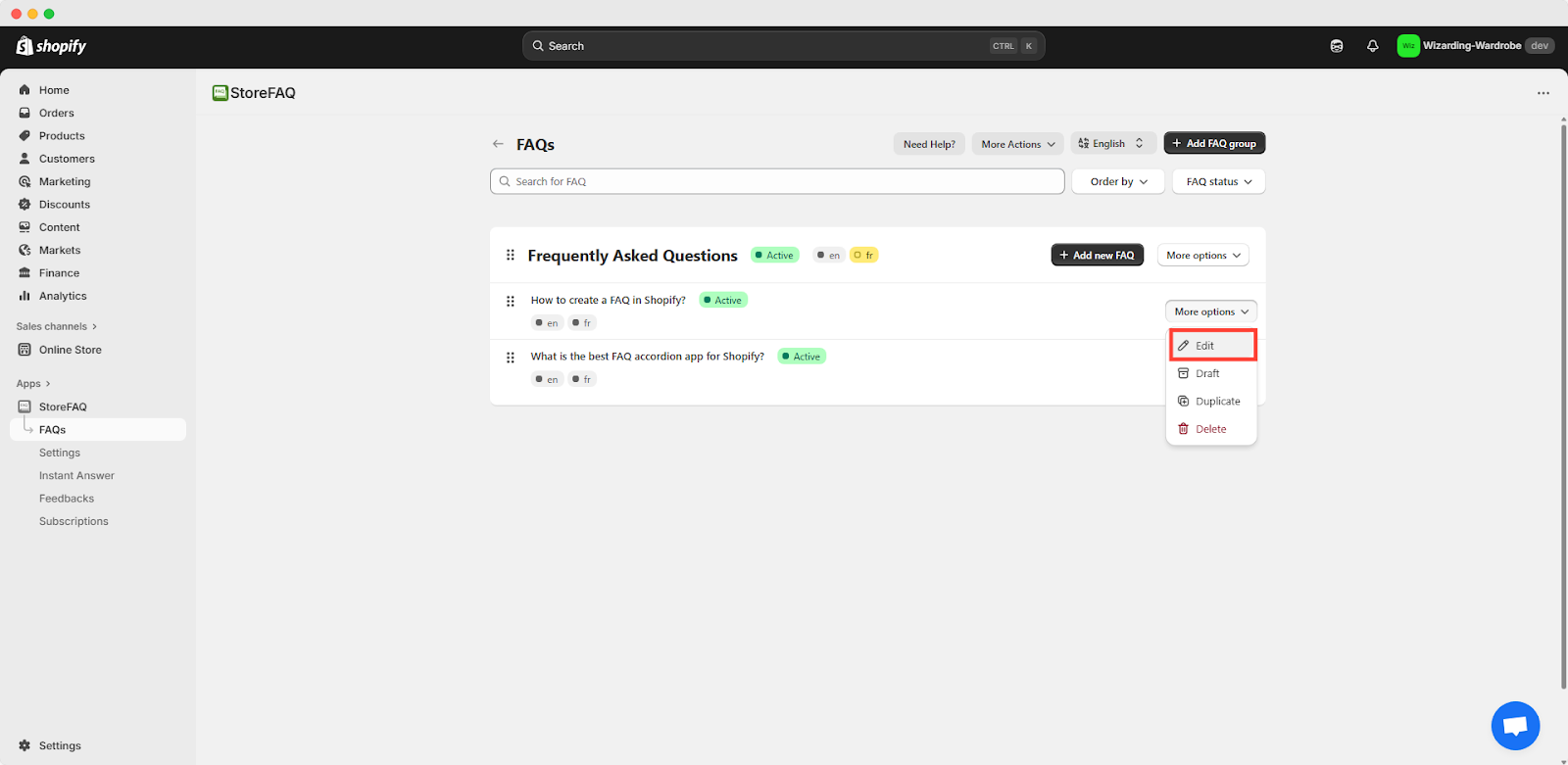
After creating your FAQ Group in your store’s default language, you can add an alternate version in another published language using StoreFAQ Multilingual Support. To do this, navigate to the FAQ you want to translate, click ‘More options’ and select ‘Edit’.
Add Multi-language FAQ #
After creating your FAQ in your store’s default language, you can add an alternate version in another published language using StoreFAQ Multilingual Support. To do this, navigate to the FAQ you want to translate, click ‘More options’ and select ‘Edit’.
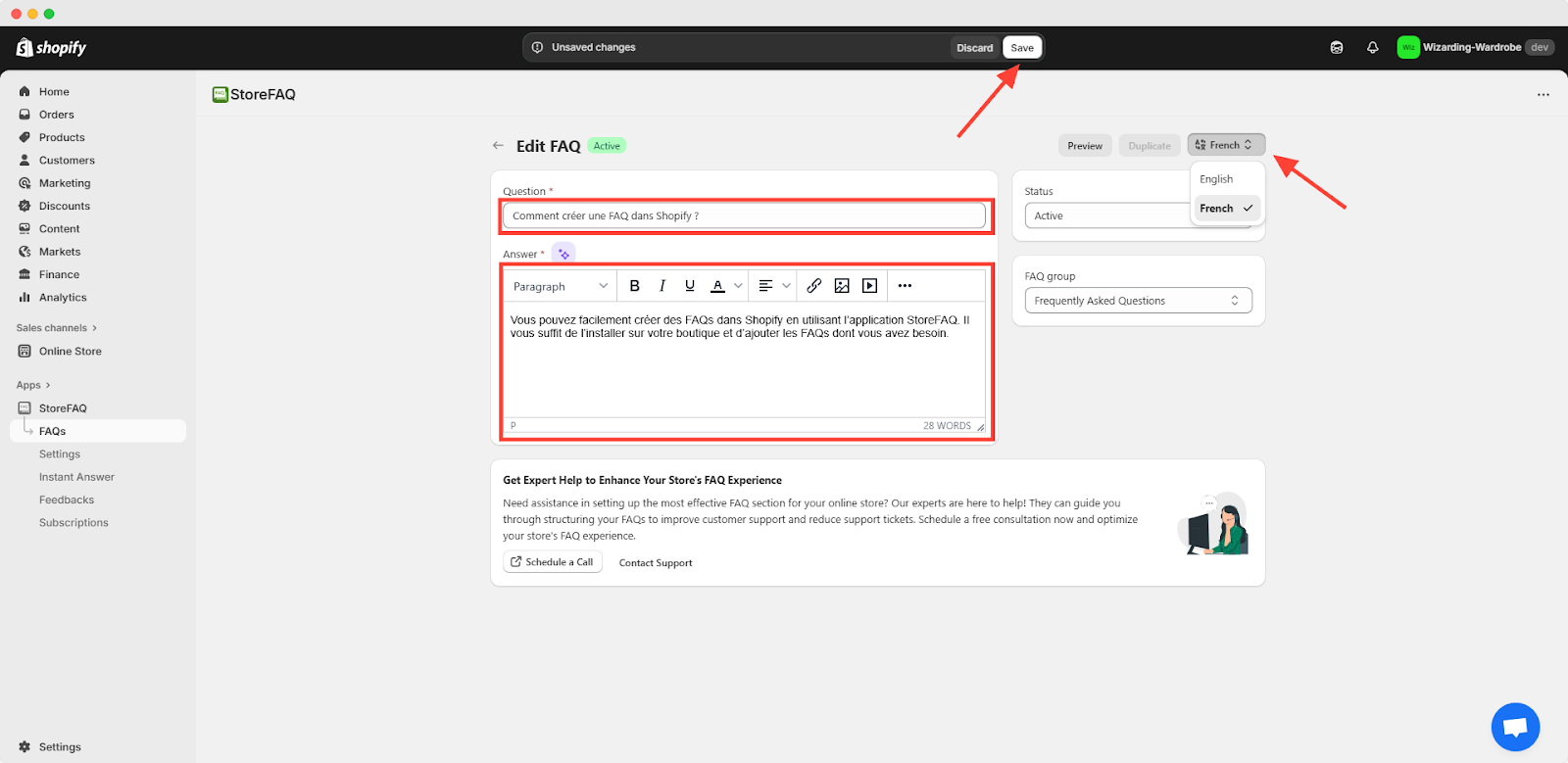
From the ‘Edit FAQ’ section, switch the language to another published option (for example, French). Then enter your question and answer in that language and click ‘Save’.
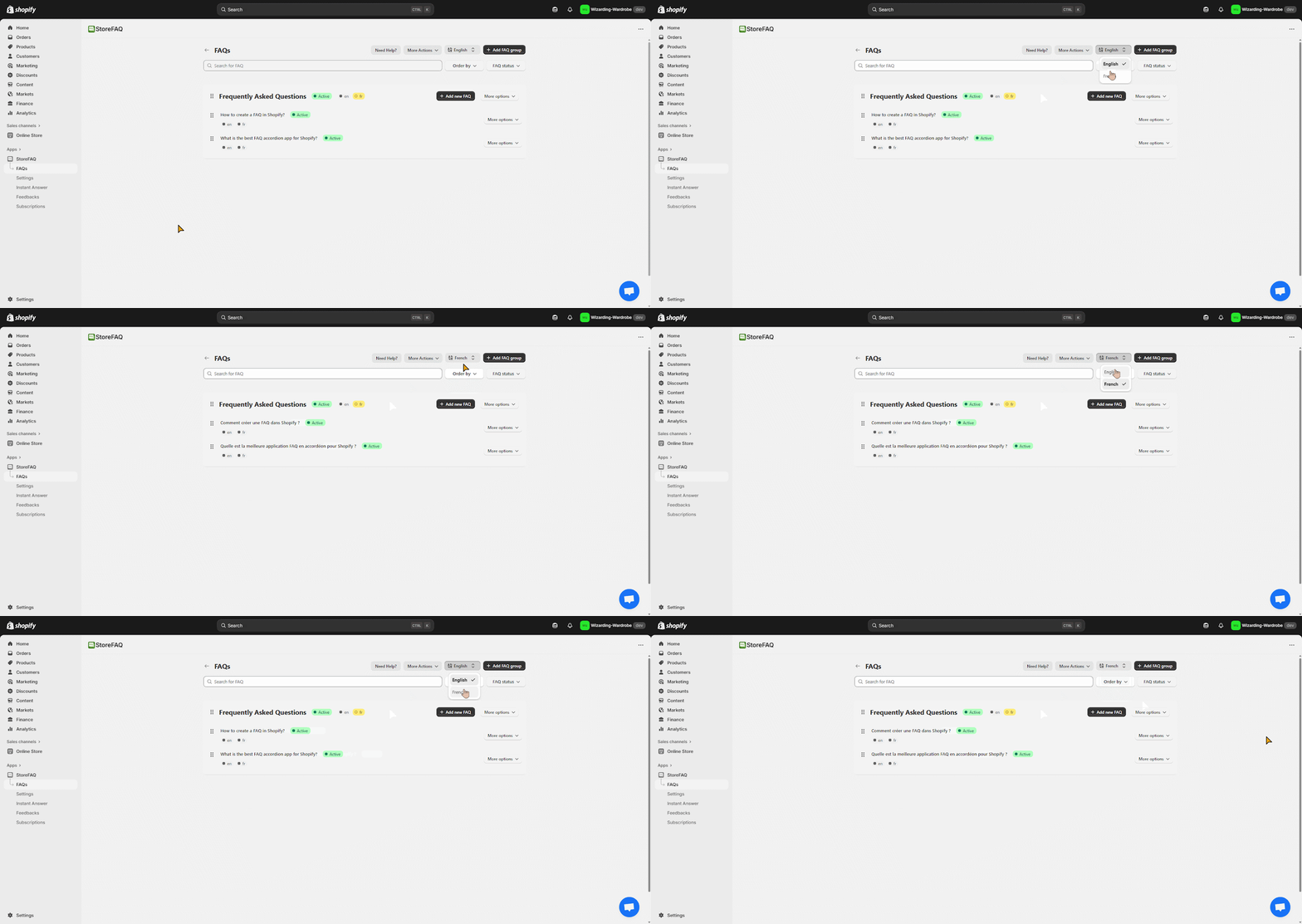
From your Admin dashboard, go to StoreFAQ → FAQs in the right sidebar. You’ll see a multilingual toggle showing the store’s default language. Use this toggle to switch your FAQ language and preview how your newly published FAQs appear in different languages.
Step 3: Set FAQ Page Title (Optional) #
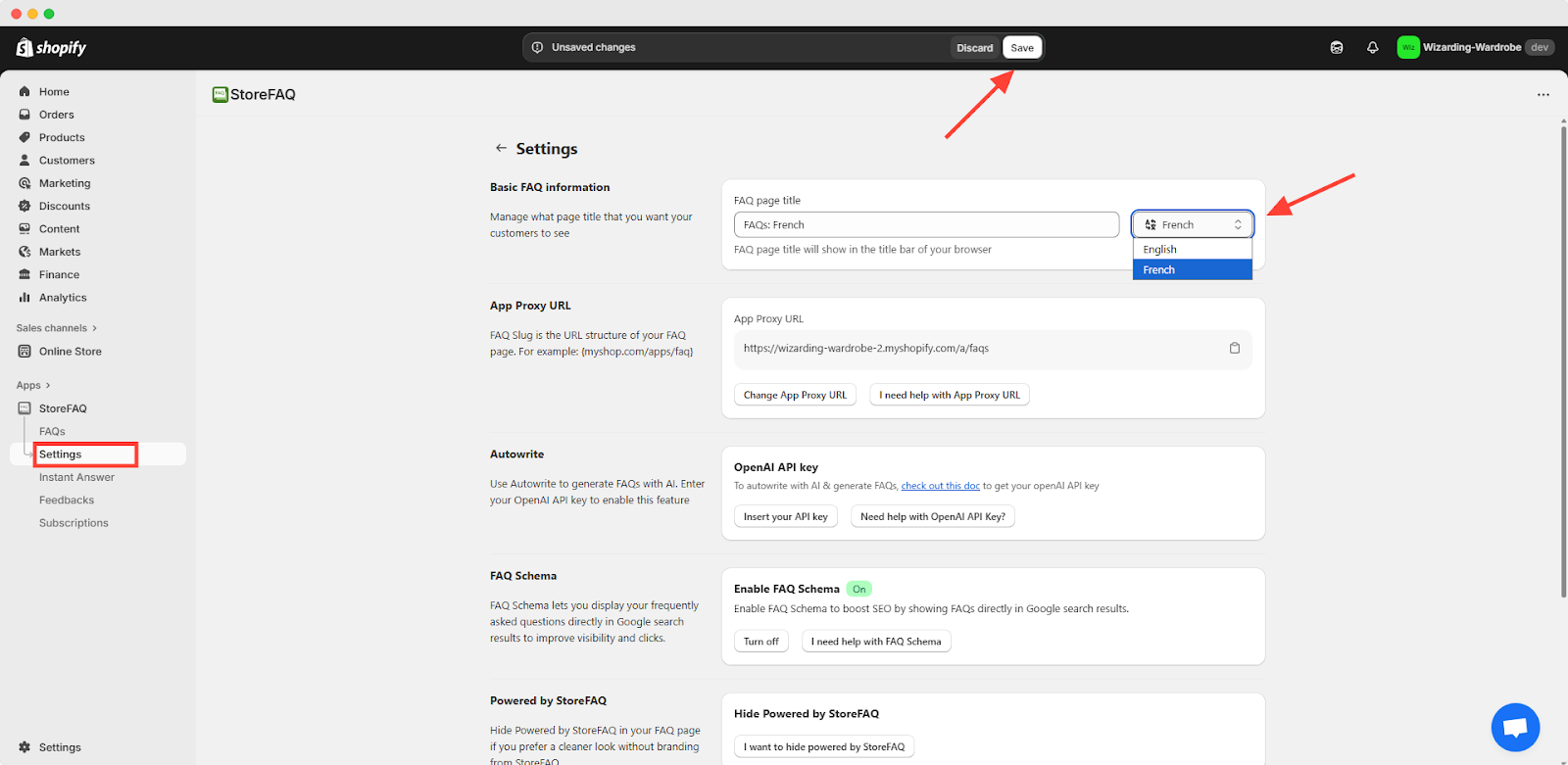
Go to StoreFAQ Settings → Basic FAQ Information. Use the multilingual toggle to select your newly published language, then enter your preferred title. Set the FAQ page title you want customers to see. This title will appear in the browser’s title bar. Finally, click ‘Save’ to apply the changes.
Final Outcome #
Multilingual FAQ support is a PRO feature. You need to upgrade to PRO to unlock this feature and reach to global audience.
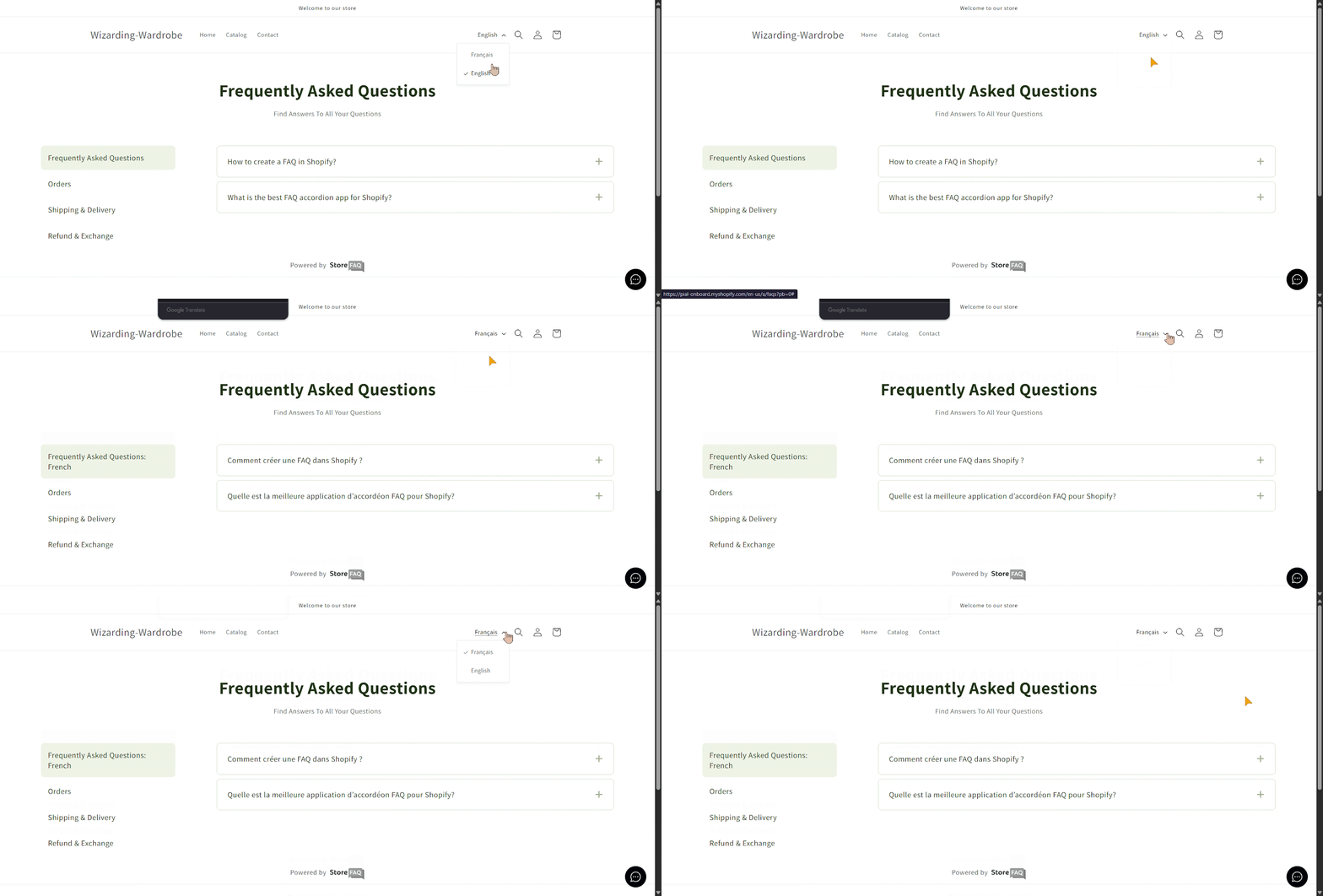
This is how easily you can change your FAQ languages by configuring multilingual FAQs on StoreFAQ for Shopify.
Need assistance? Feel free to reach out to our dedicated support team for any type of query.


